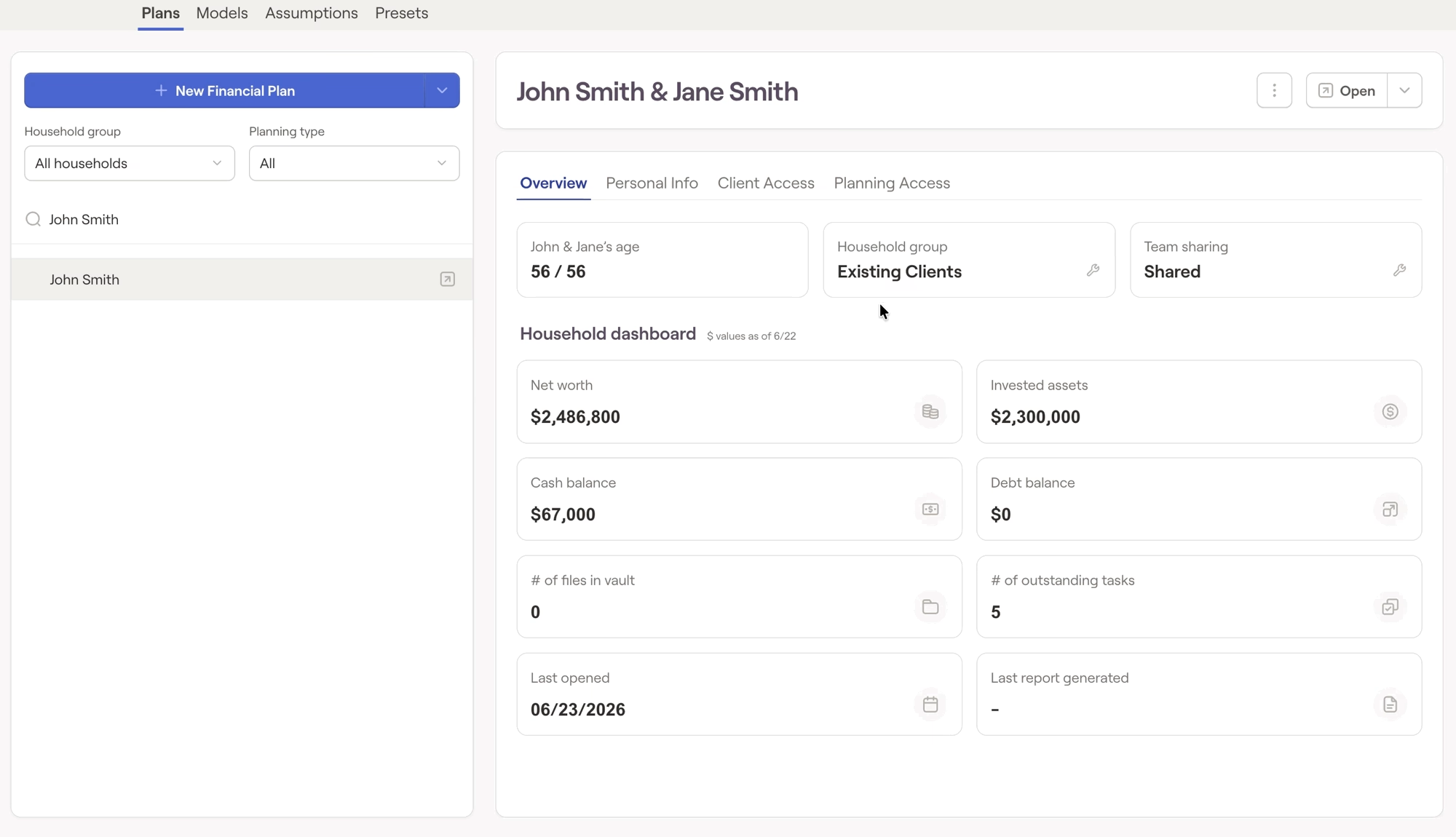
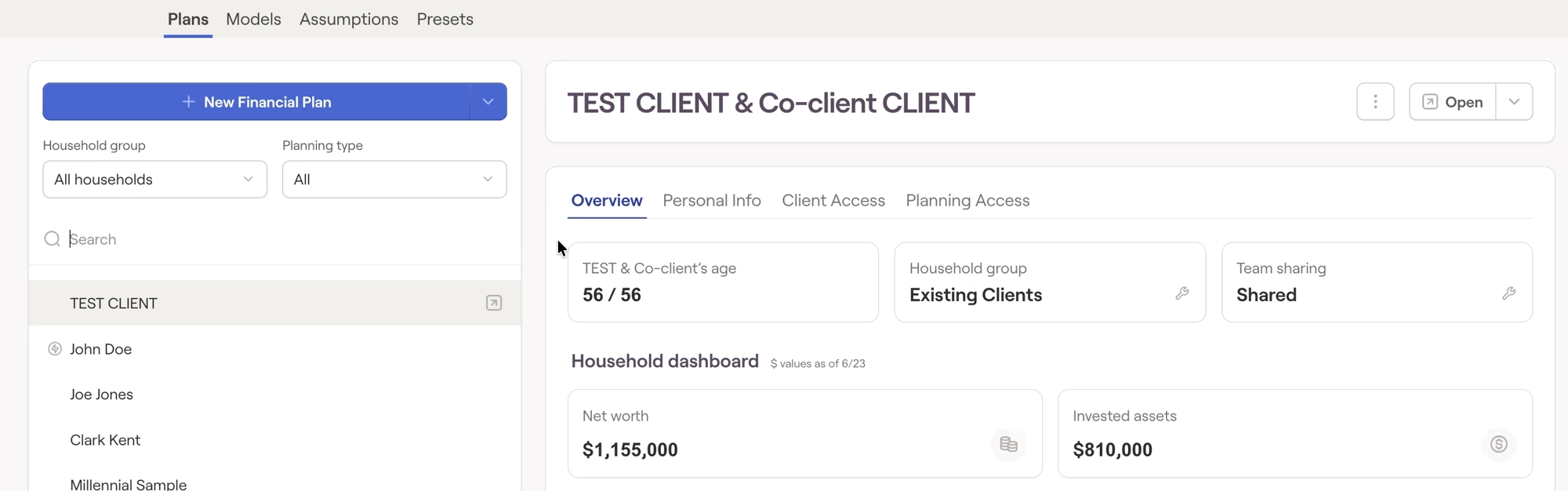
- Choose the group for each household within the Advisor Portal > Planning > Plans > Personal Info tab. Quickly and easily sort your households by group within your household list.
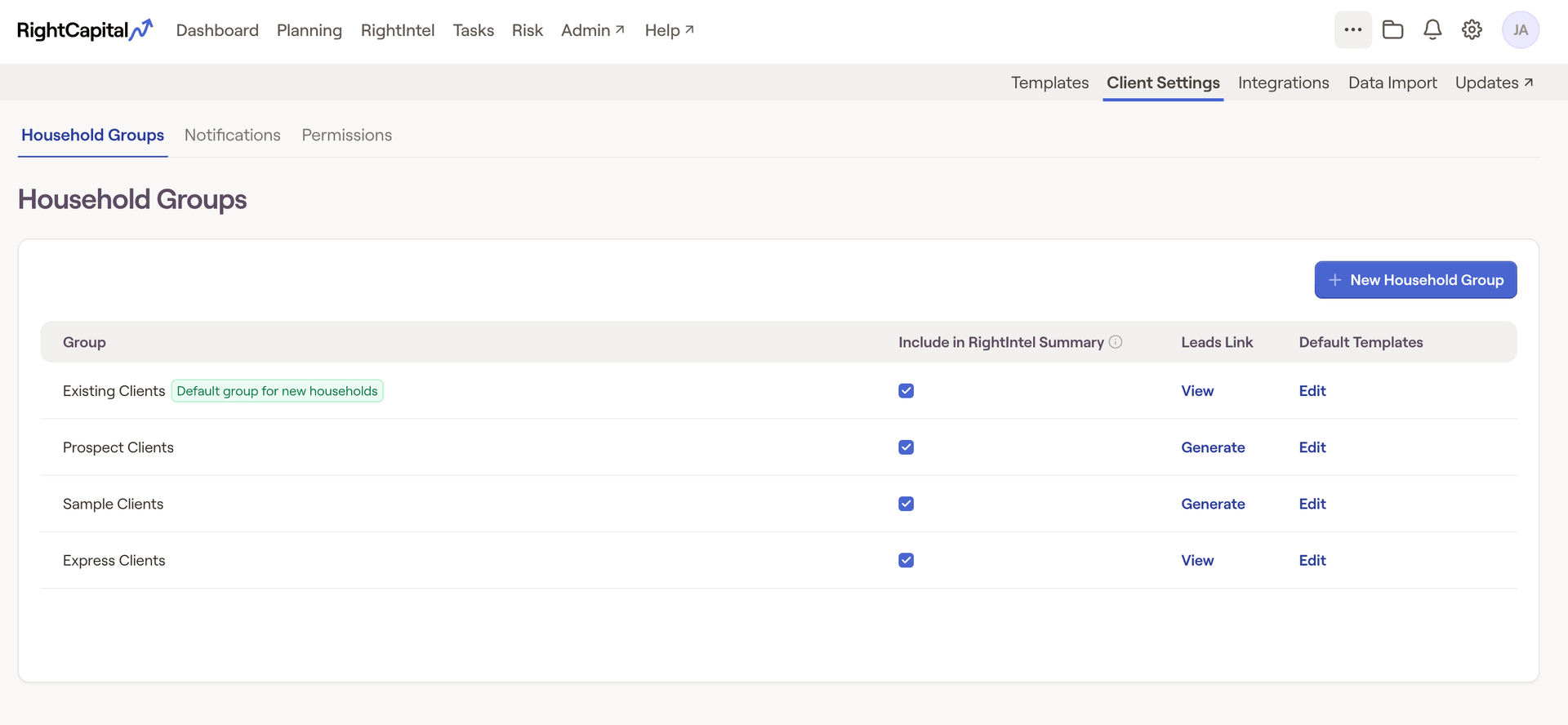
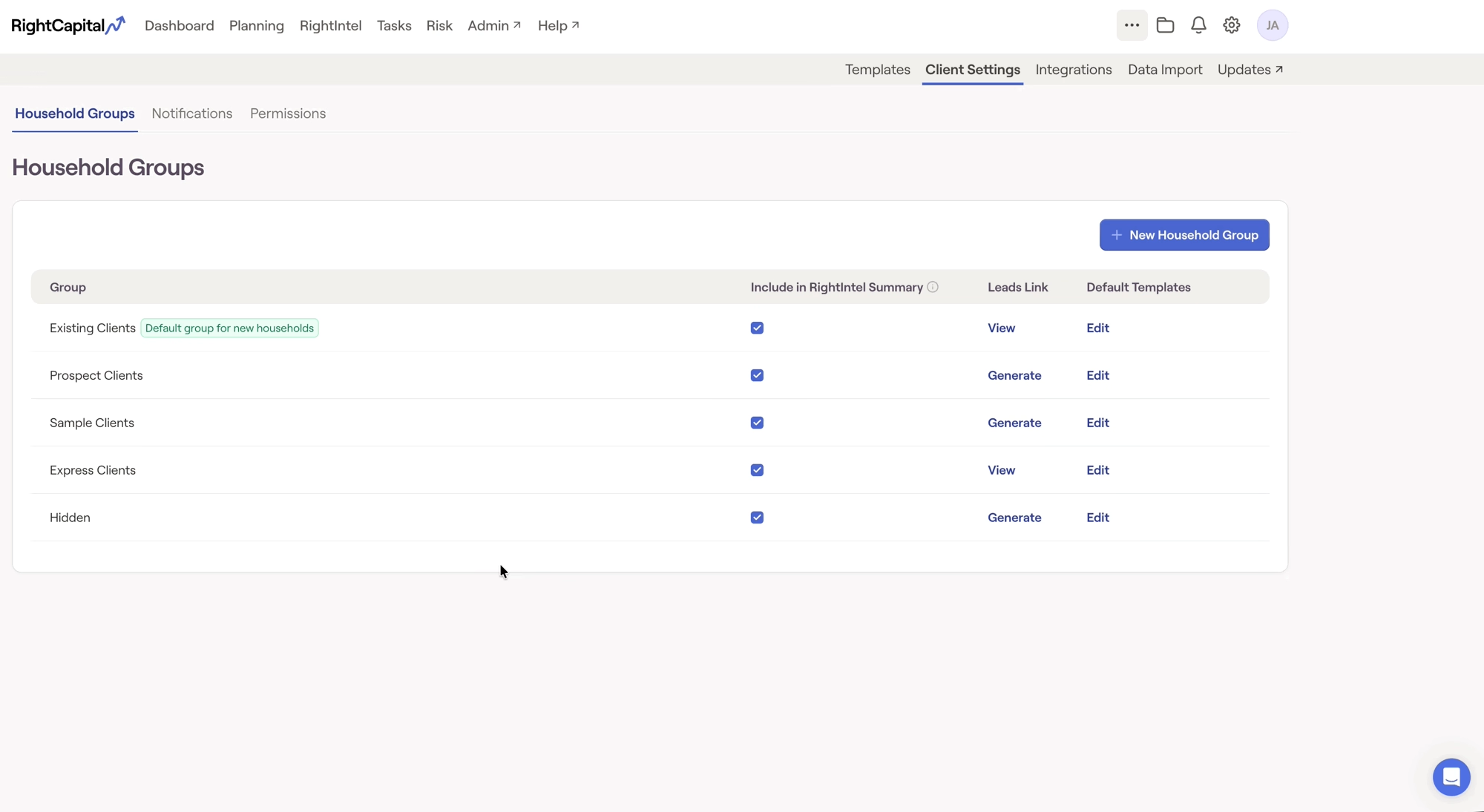
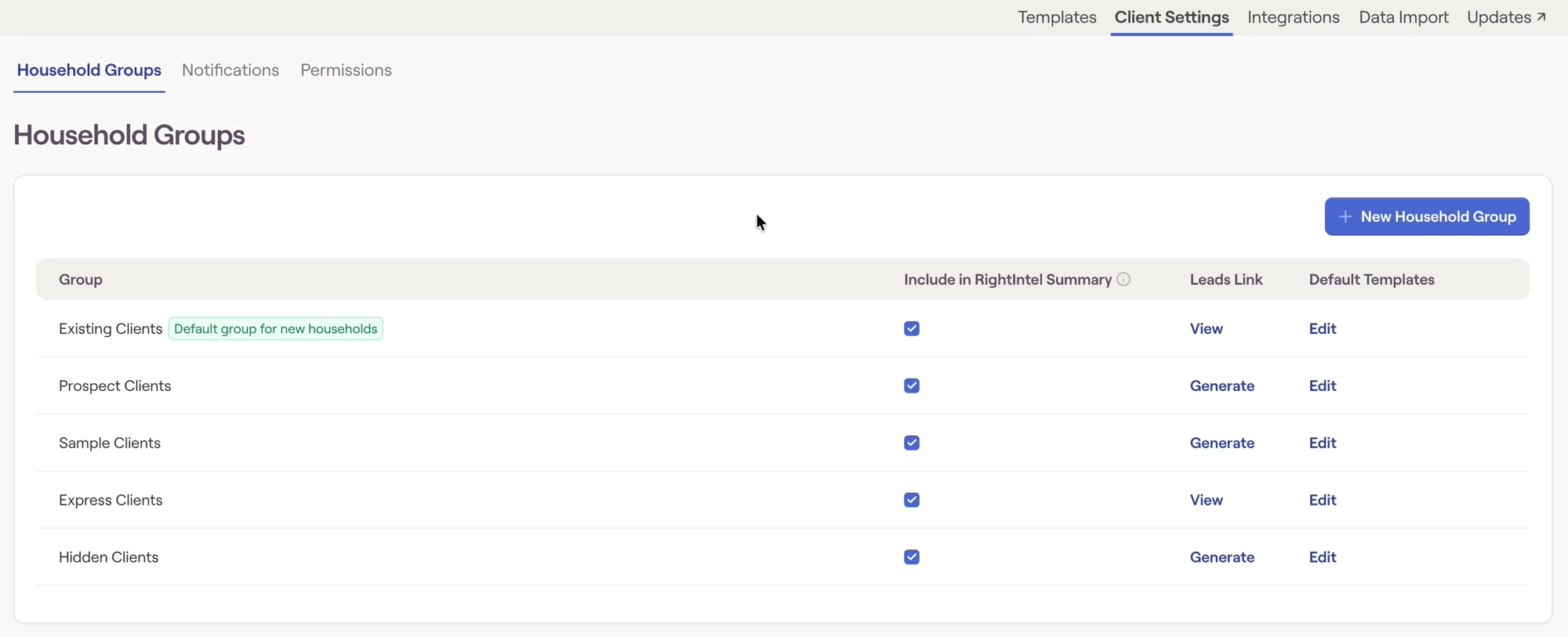
Tailor the default templates for your household groups within the Client Settings > Household Groups tab.
Assign Tasks and Templates en masse to one or more household groups at a time. Isolate specific household groups within RightIntel, Risk, and more.
Default Household Groups
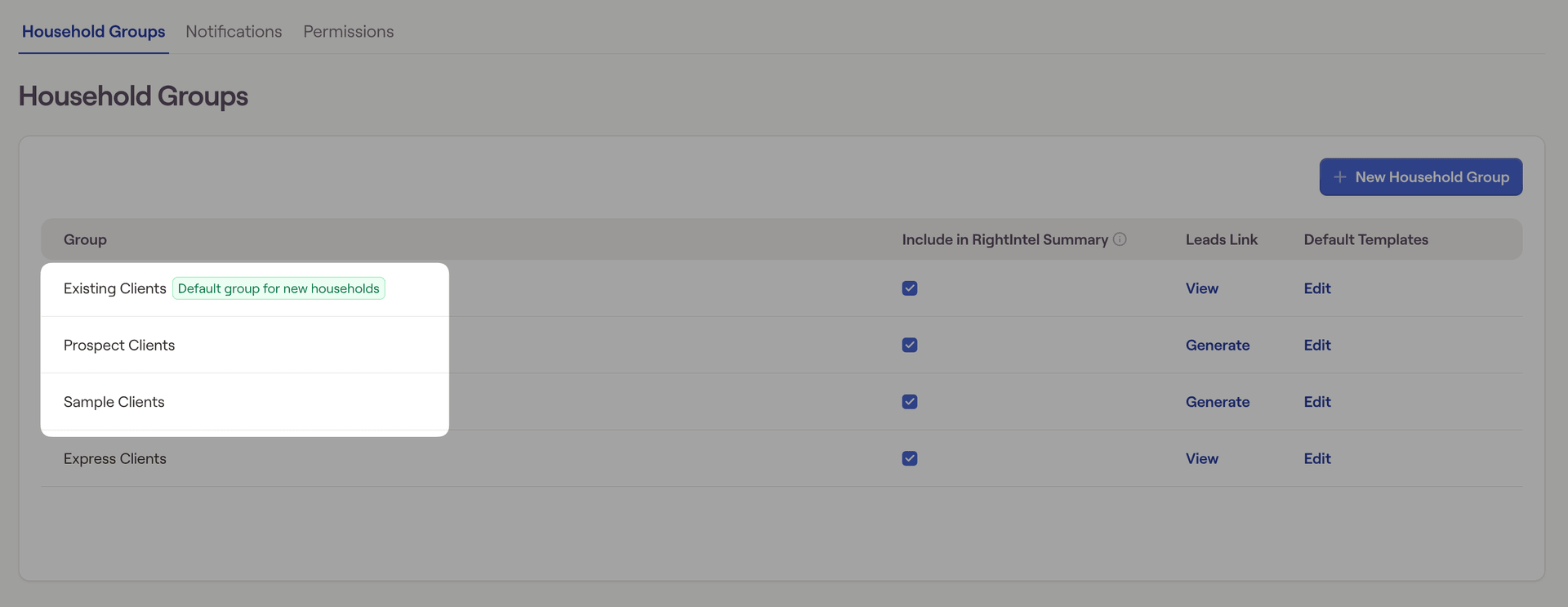
As a starting point, this client group will be set as the 'Default group for new households'. Any households that are created manually in RightCapital or imported via a CRM or other integration will automatically be sorted into this group.
Any prospects that sign up using your RightCapital Leads URL will automatically be sorted into this group. This link can be found by selecting 'View' under the Leads Link tab.
This group will include the three Sample Plans that are pre-built into every new RightCapital account (Millennial Sample, Pre-Retiree Sample, and Retiree Sample).
Adding New Household Groups
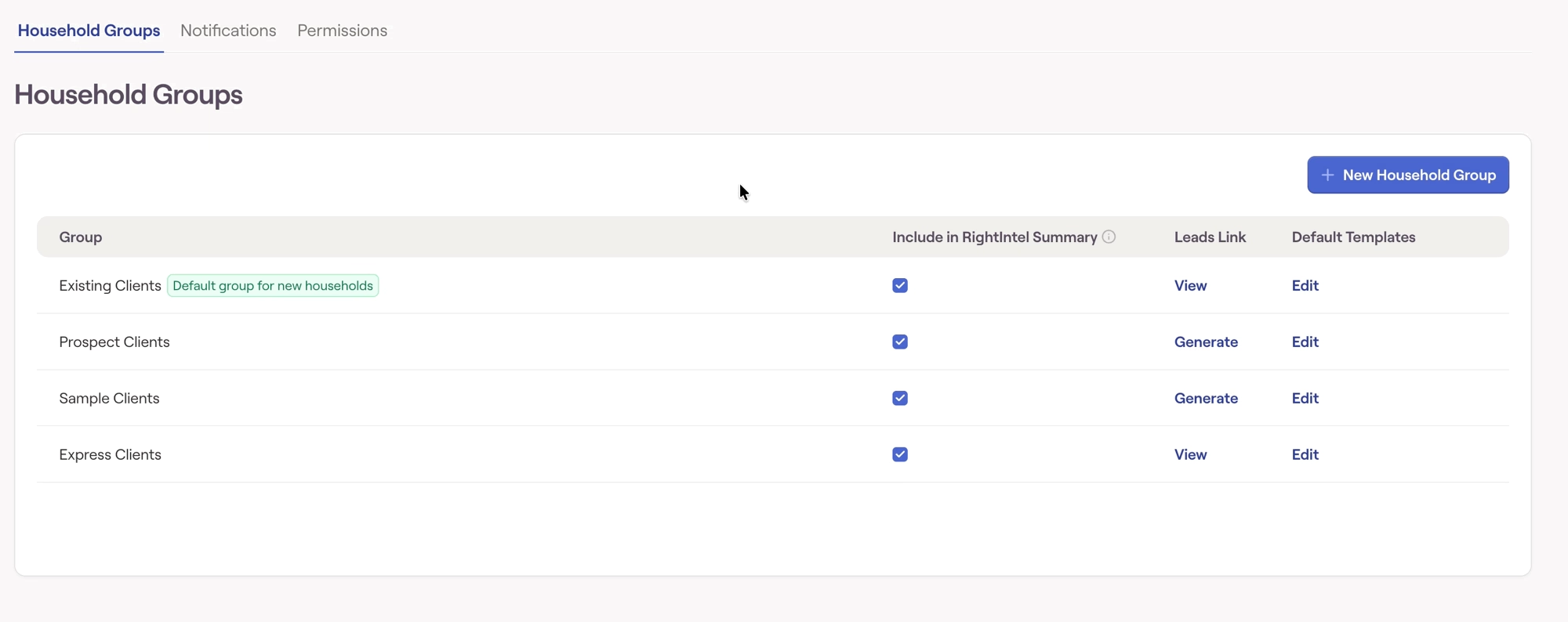
Customizing Household Groups
Include in RightIntel Summary
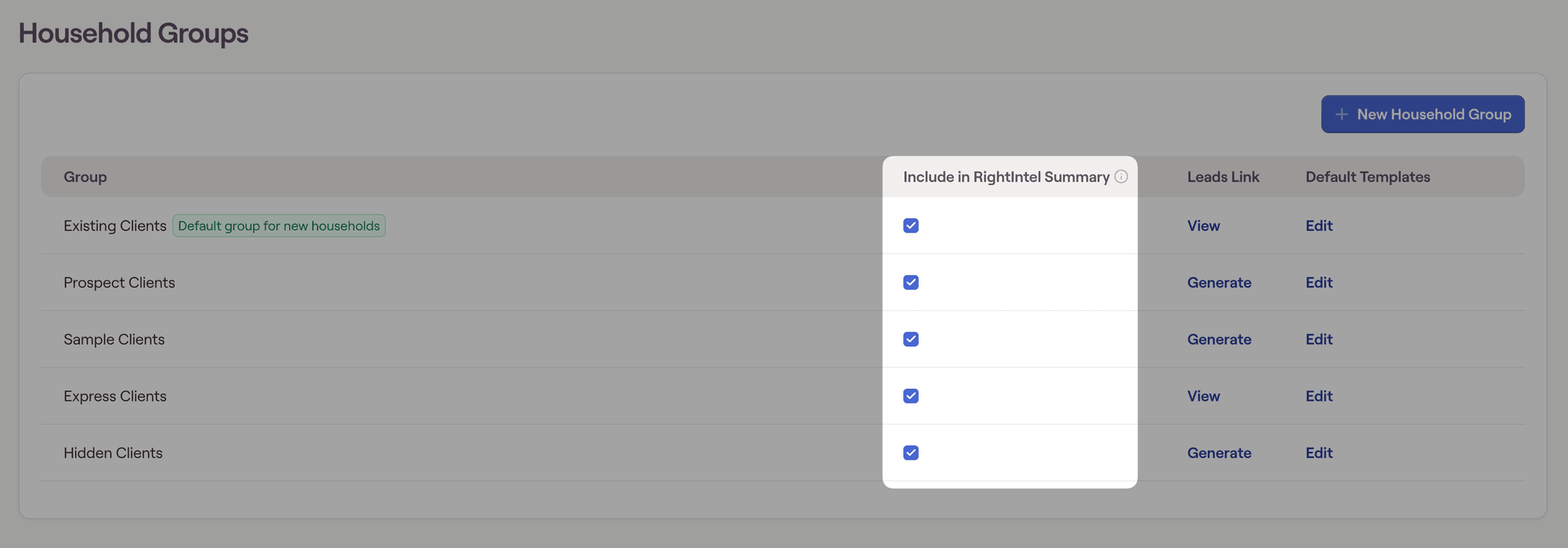
Including or excluding client groups from the RightIntel Summary is not an immediate change. This change will take effect when the RightIntel Summary next updates. This update occurs once per business day.
Default for New Households
Only one group can be chosen as the Default for New Households. By default, this will be the Existing Clients group. Any clients that are created manually in RightCapital or imported via a CRM or other integration will automatically be sorted into this group.
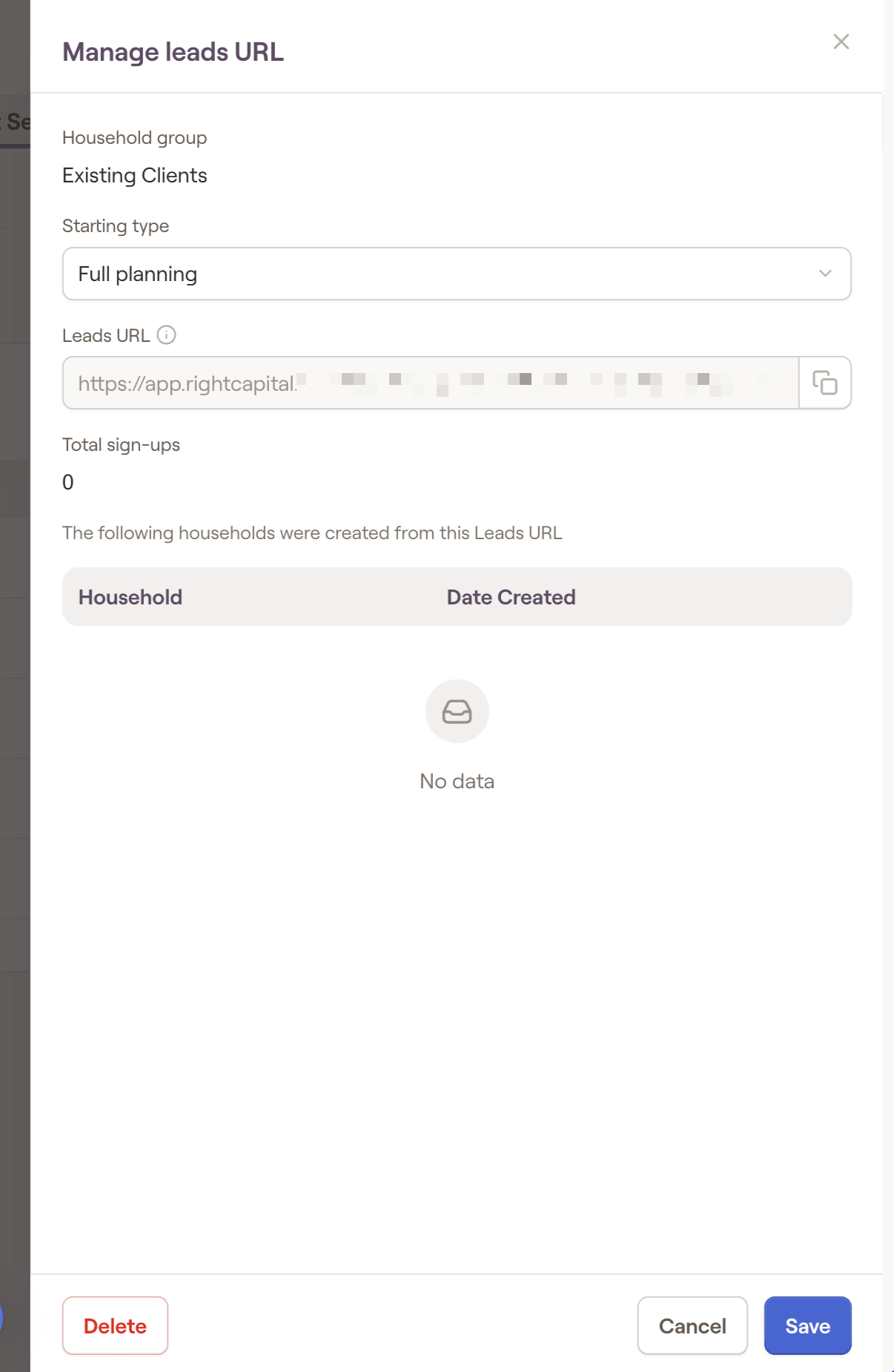
Leads Link
Here, you can generate lead URLs for each household group. Once a link is generated, you can adjust whether the clients will have full planning or RightExpress plans by selecting 'View'. Any prospects that sign up using these RightCapital Lead URLs will automatically be sorted into the corresponding group.
Default Templates
For household groups, you can adjust the default templates for each group by clicking the 'Edit' button to the far right. This will open a drawer on the right of your screen, allowing you to make your selections for:
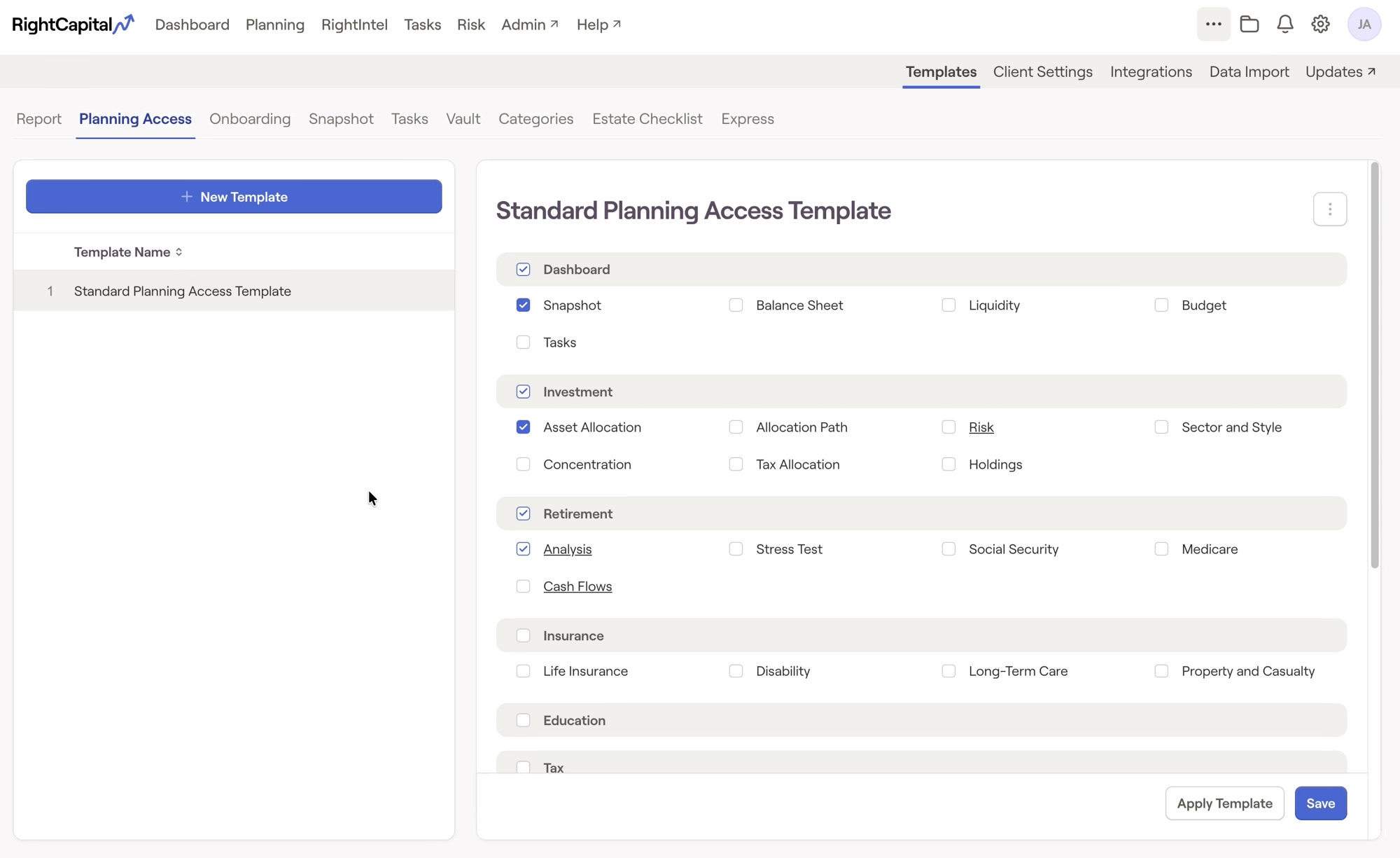
Default Planning Access
Default Estate Checklist
Default Snapshot Template
Default Vault Template
Default Categories Template
Default Onboarding Template
Default RightExpress Template
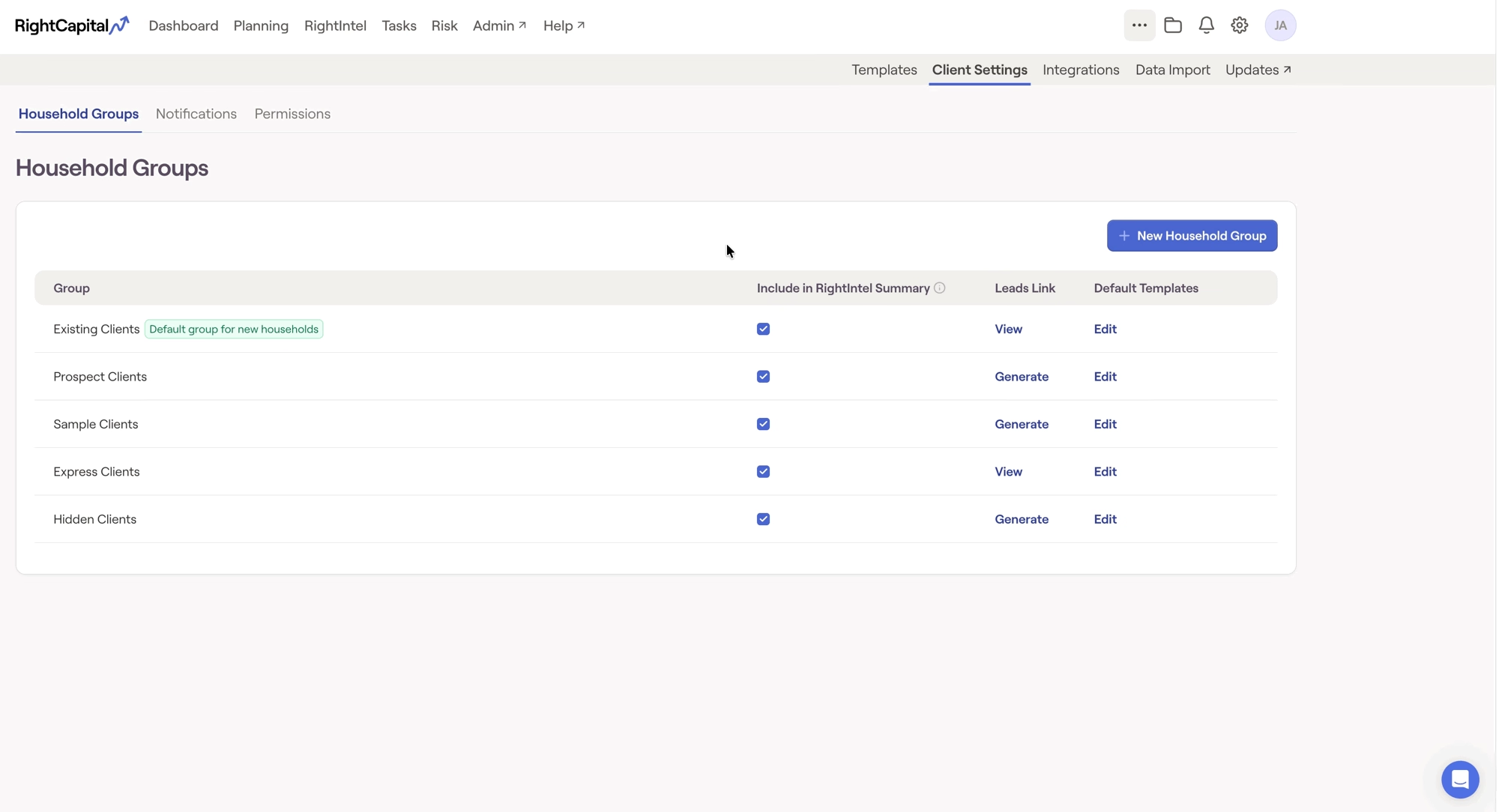
Rename or Delete Groups
Existing household groups can be renamed at any time by hovering your mouse over the group name, and clicking the three dots icon that appears to the right, then selecting "rename":
Changing a Household's Group
Where to Use Household Groups
After creating and customizing your client groups to your liking, they can be utilized in a number of places to streamline your day-to-day planning processes:
Household List
Tasks & Templates
When creating Tasks and applying Templates in your Advisor Portal, you will be able to select one or more household groups in addition to individual households. This makes quick and easy work of assigning specific tasks or applying specific templates to entire groups of households at once:
Additional Areas
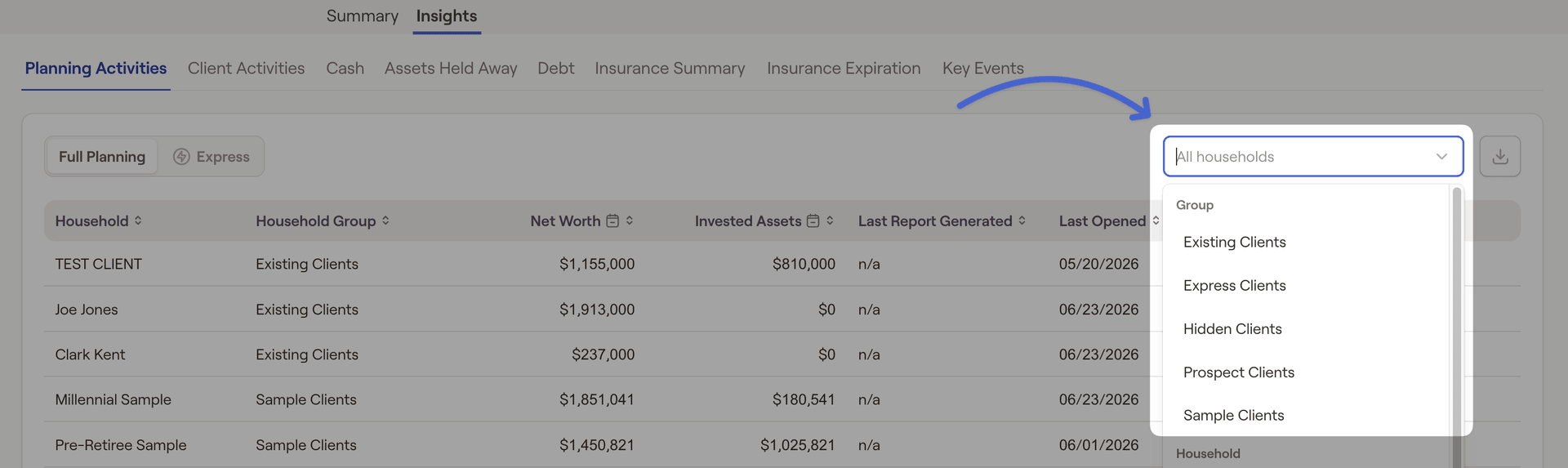
Filter by household group within the Insight tab of RightIntel:
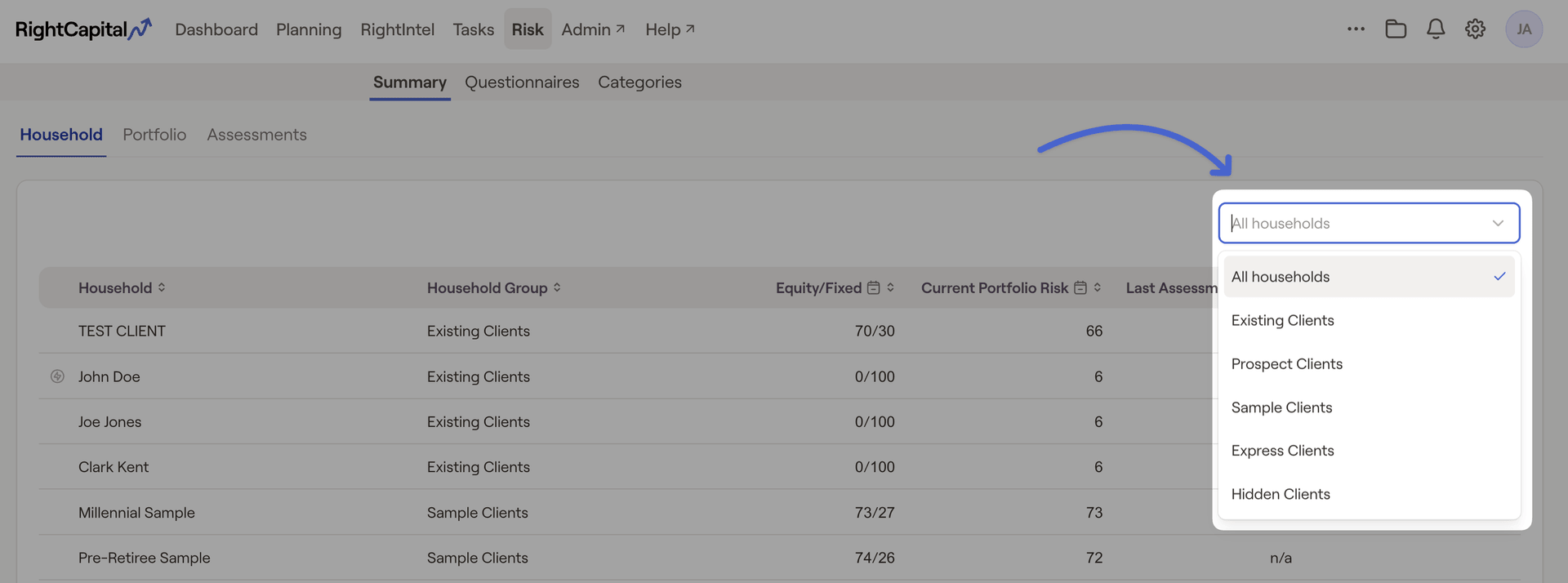
Filter by household group within the Summary > Household tab of Risk:
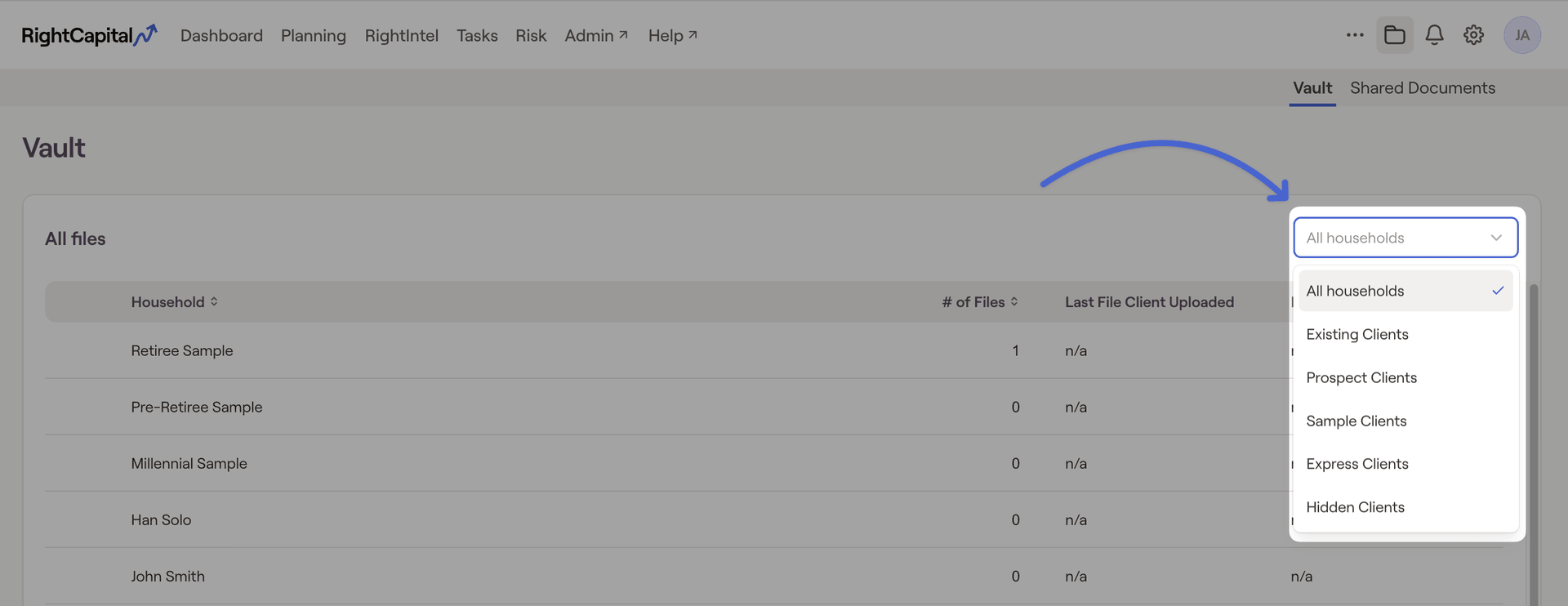
Filter by household group within the Advisor Portal Vault: