Add and Customize Household Groups

Adding Household Groups
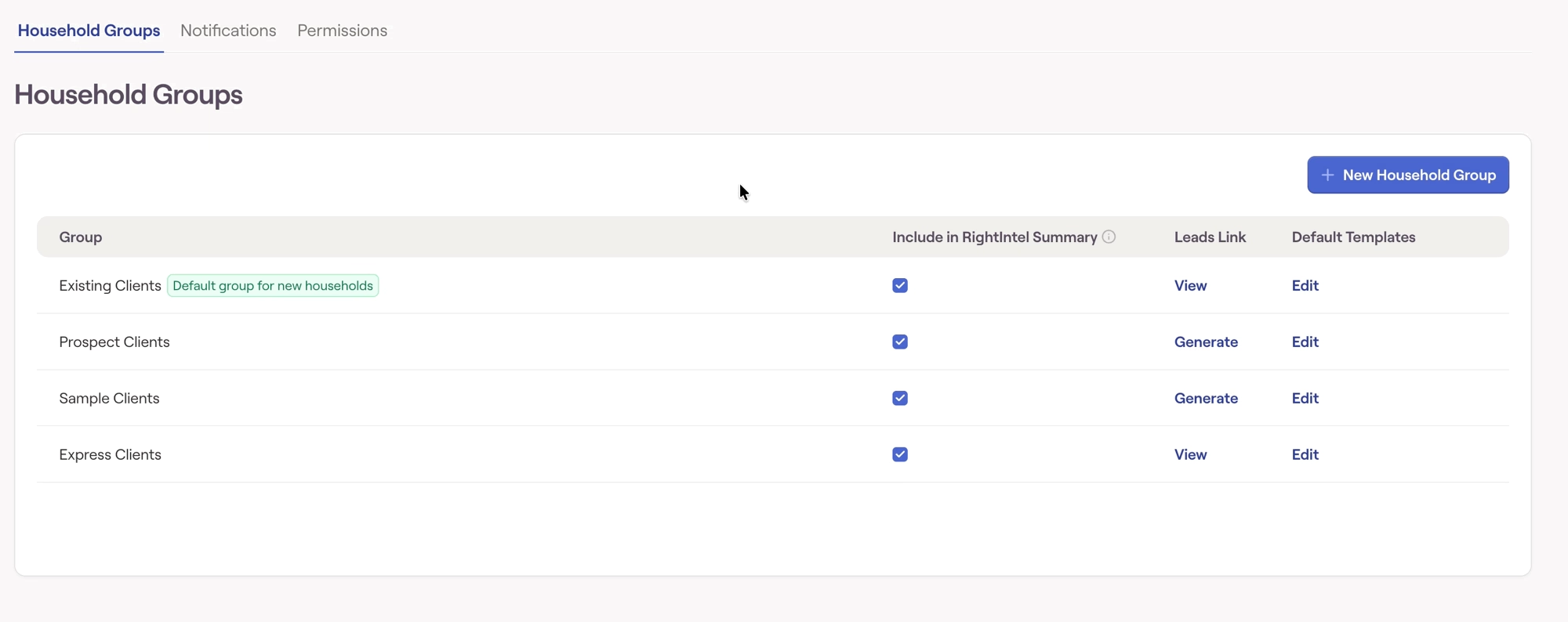
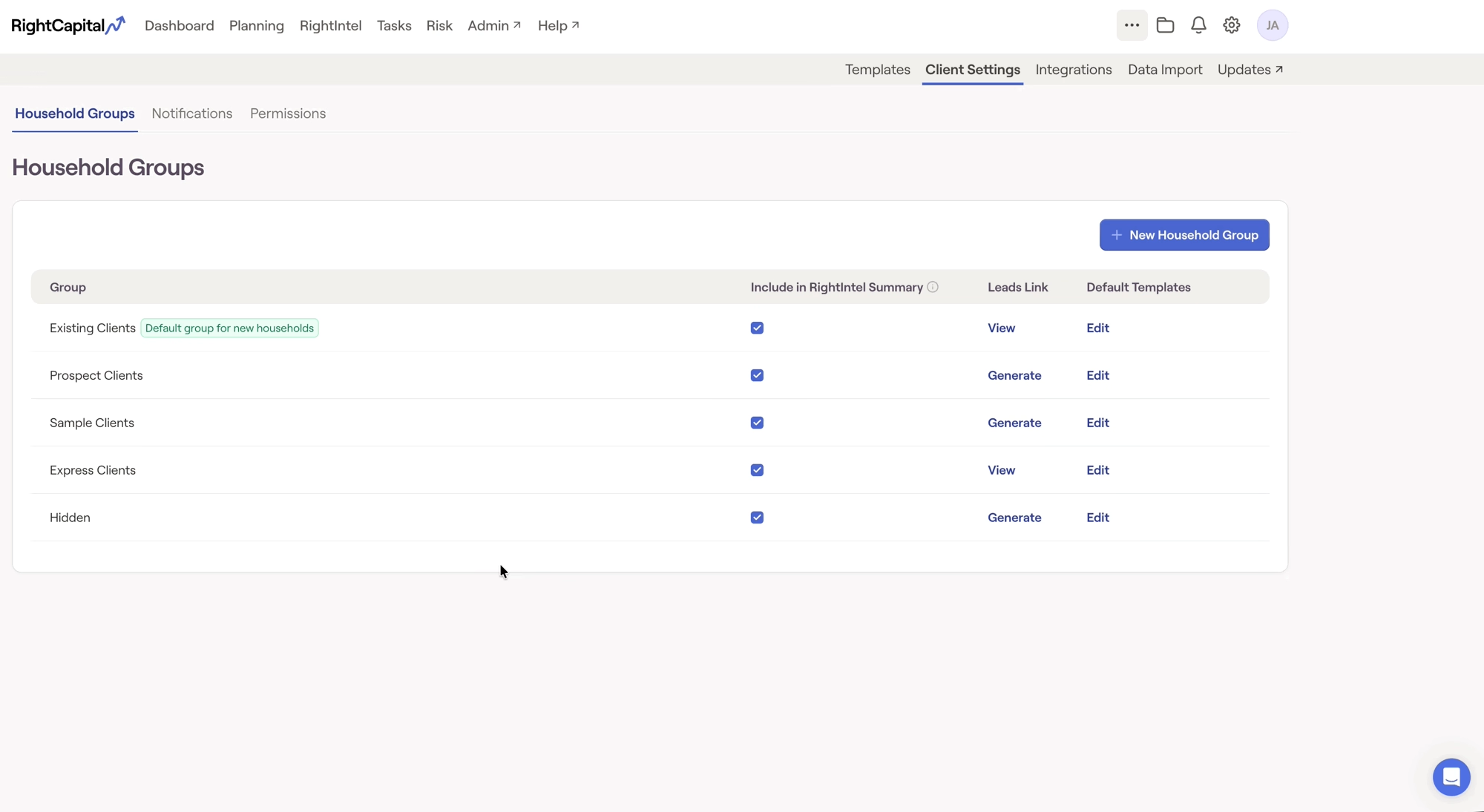
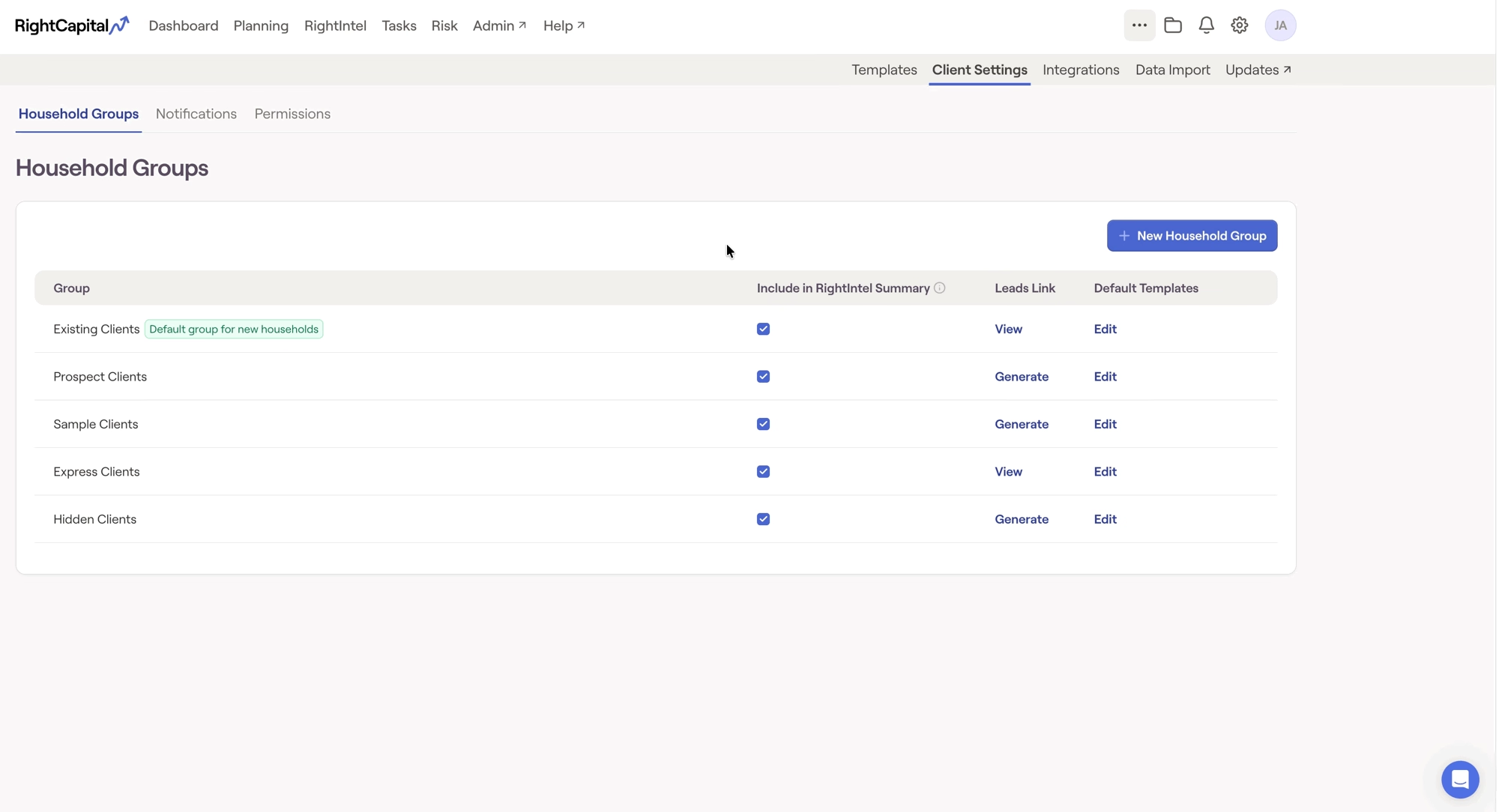
Within the Client Settings > Household Groups tab of the Advisor Portal you can add new Household Groups by clicking the '+ New Household Group' button located at the top of the Default Templates column:
After creating a new group, you can name the group whatever you'd like. Be sure to click the checkmark to the right of the textbox (or hit Enter on your keyboard) to save the group name.

Customizing Household Groups

Existing household groups can be customized in a number of ways within the Client Settings > Household Groups tab. Each column provides you with a different customization option for each group:

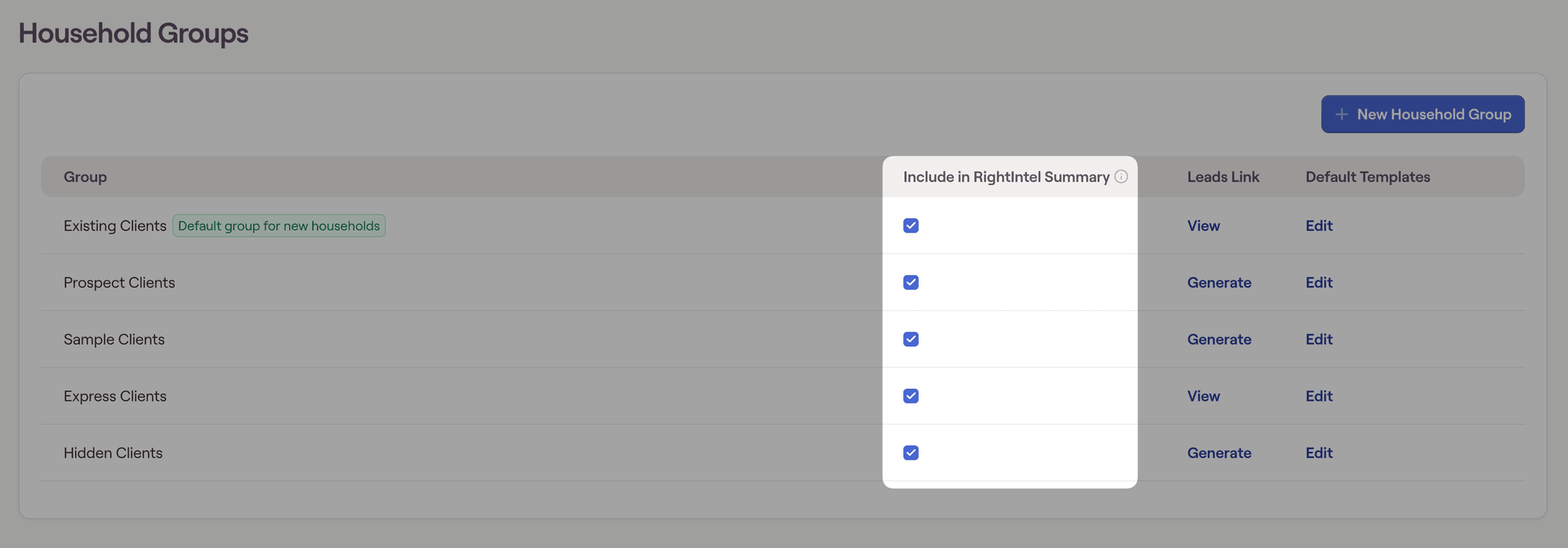
Include in RightIntel Summary

Checking this box next to a household group will update the RightIntel > Summary tab to include that group. Unchecking this box for a group will exclude that group from the metrics. RightIntel provides advisor-level analytics and key metrics across all of your included household groups:
When does this change take effect?

Including or excluding household groups from the RightIntel Summary is not an immediate change. This change will take effect when the RightIntel Dashboard next updates. This update occurs once per business day.

Default for New Households

Only one group can be chosen as the Default for New Households. By default, this will be the Existing Clients group. Any households that are created manually in RightCapital or imported via a CRM or other integration will automatically be sorted into this group.

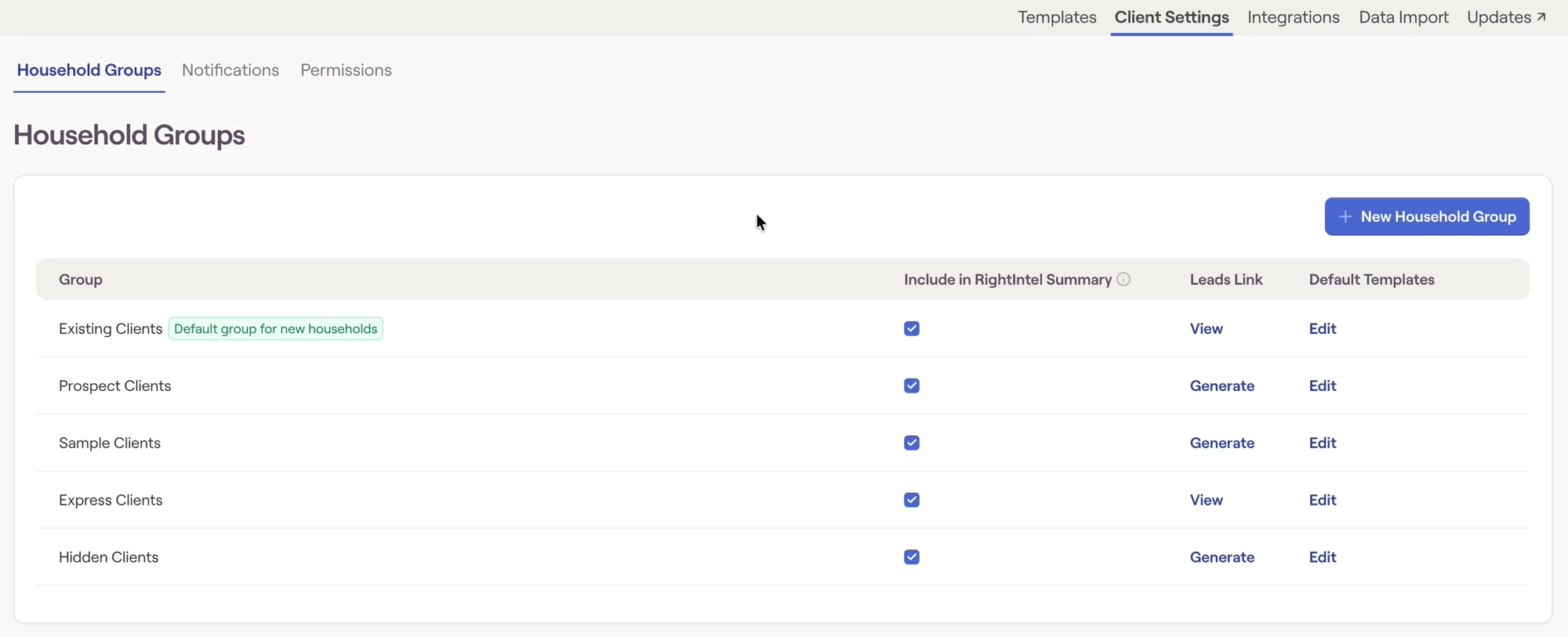
Here, you can generate a lead URL for each household group. Once a link is generated, you can adjust whether the clients will have full planning or RightExpress plans by selecting 'View'. Any prospects that sign up using these RightCapital Lead URLs will automatically be sorted into the corresponding group.

Default Templates

For each household group, you are able to adjust the default templates for each group by clicking the 'Edit' button to the far right. This will open a drawer on the right of your screen, allowing you to make your selections for:

These selections will be applied to new households created within each group going forward. Existing households within each group will not be impacted.

Rename or Delete Groups

To rename or delete a household group, go to Client Settings > Household Groups, hover over the group, then click the three dots ("...") that appear. From there, you can choose to rename or delete the group.
Contact Us

For additional assistance within RightCapital please contact our Support team.

Educational Webinars

RightCapital is committed to enabling your success. Each week, we cover essential planning modules and product updates.

RightCapital in Action

Check out our YouTube channel where we highlight Advisor Success Stories and share more Tips & Tricks!