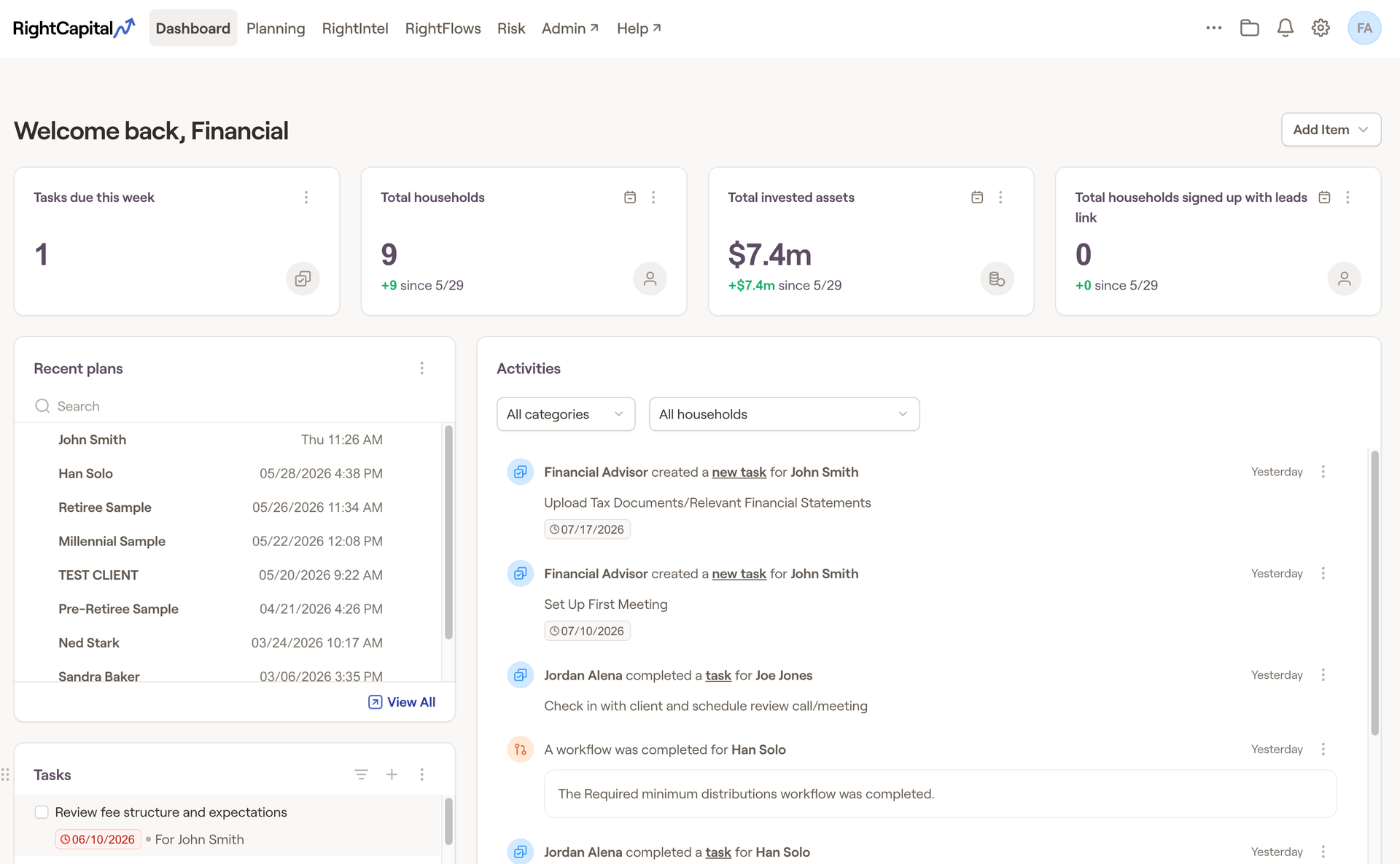
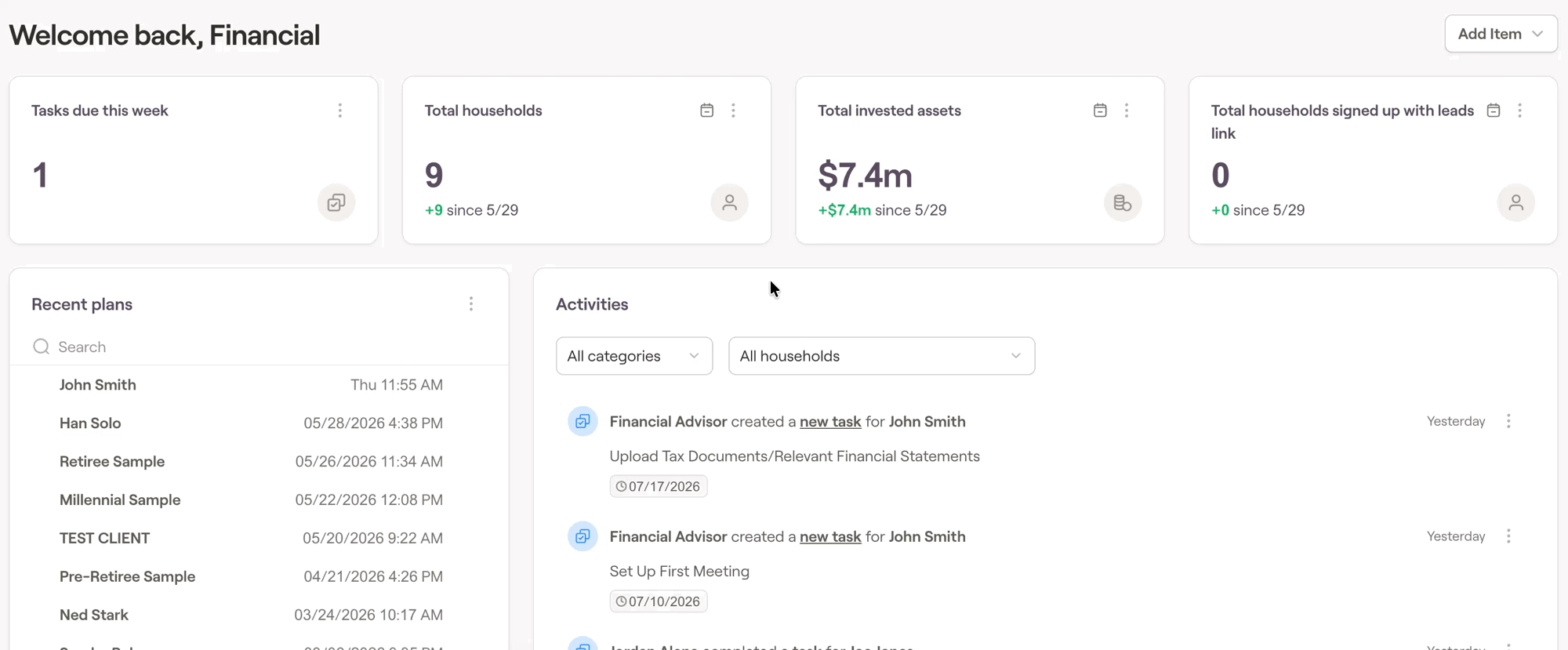
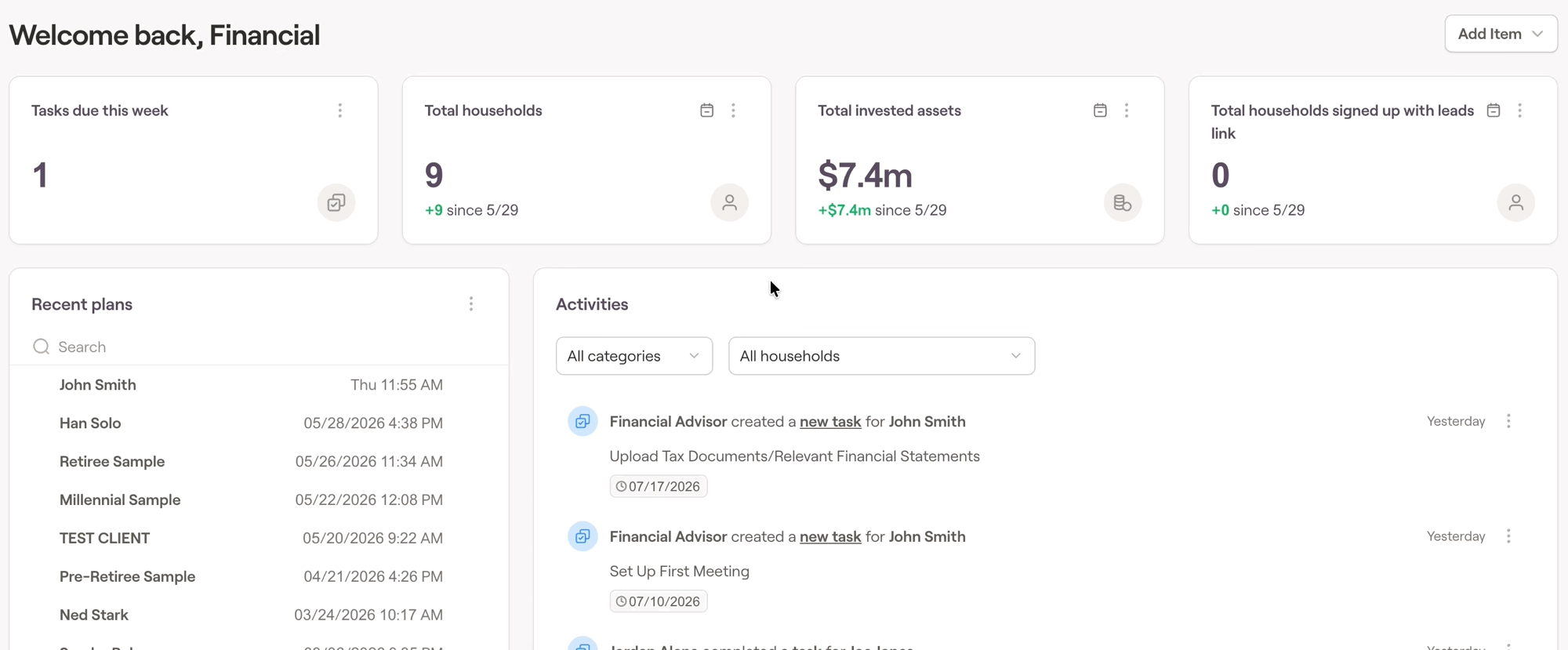
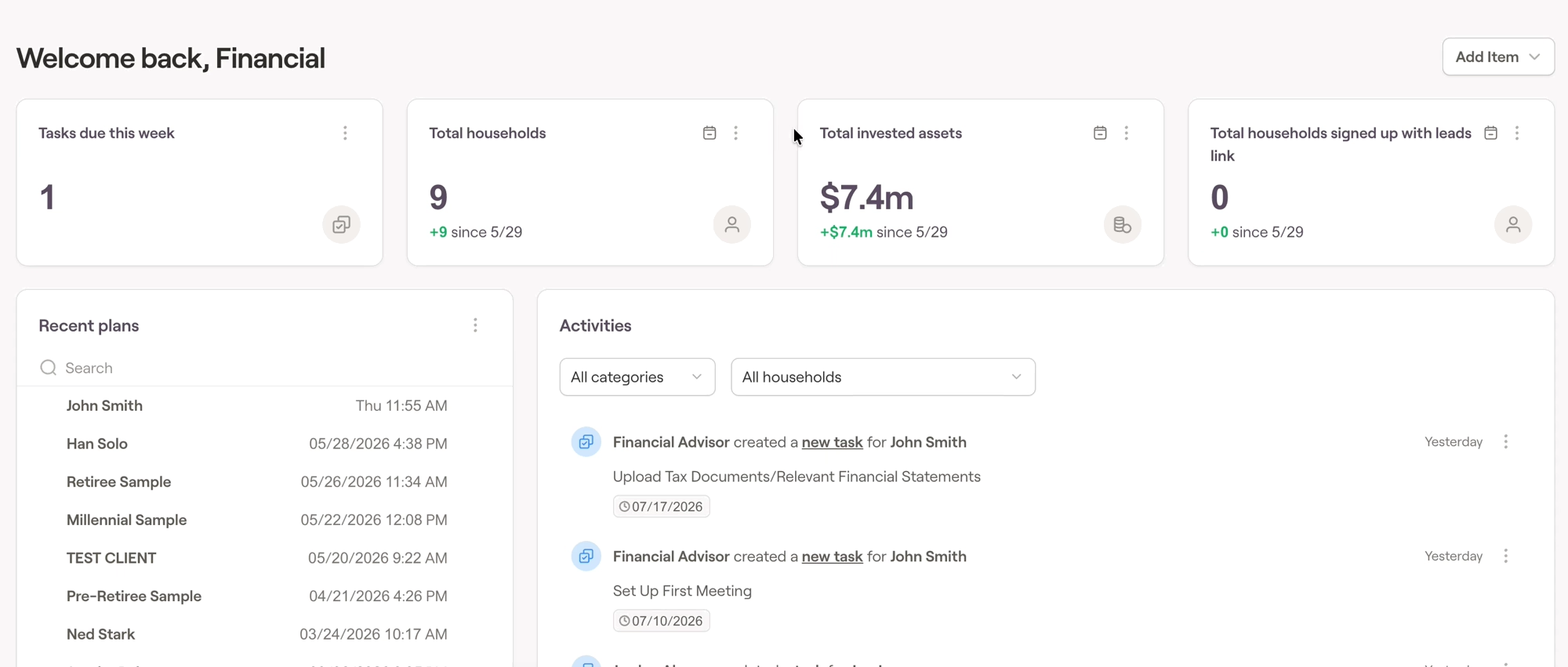
The Advisor Portal > Dashboard will act as the central information hub and default landing page of RightCapital. Here, you can get a birds-eye view of the households, asset values, tasks, etc. The dashboard acts as your one-stop shop to get a full overview of your RightCapital book of business.
New items can be added to the Dashboard by clicking the 'Add Item' dropdown in the upper right. You can choose from several items here- this includes key metrics like Total invested asset value and recent activity reports, as well as more specific charts and information from other modules such as RightIntel and RightFlows. In this way, you can tailor your dashboard to your specific needs.
To delete an item on the Dashboard, click the three dots icon on the upper right of the tile, then select 'delete'. After being deleted, you can always re-add the item via the 'Add Item' dropdown in the upper right.
Once all of the necessary items have been added, you can re-arrange the layout of the Dashboard by dragging and dropping each tile to the desired location. You can drag crucial elements to the top of the Dashboard for greater visibility.
Contact Us
For additional assistance within RightCapital please contact our Support team.
Educational Webinars
RightCapital is committed to enabling your success. Each week, we cover essential planning modules and product updates.
RightCapital in Action
Check out our YouTube channel where we highlight Advisor Success Stories and share more Tips & Tricks!