By default, the Income section is also the 2nd step of the initial data entry process for newly created clients (this can be changed via the Onboarding tab):
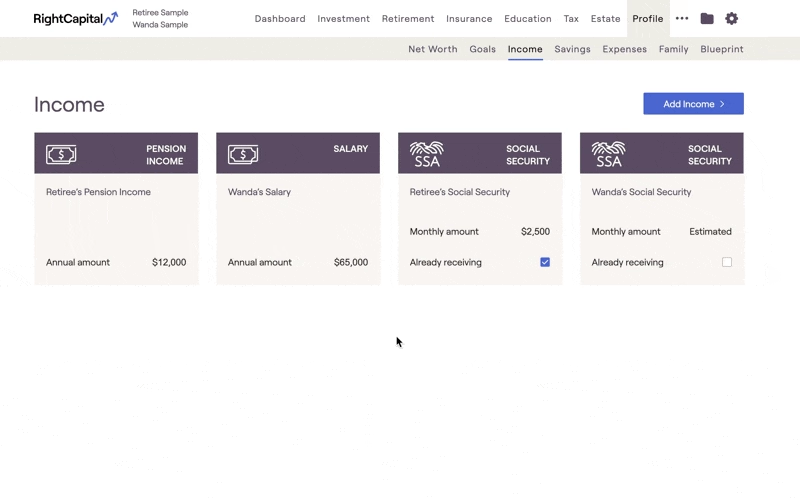
If you'd prefer a more guided, visual overview of the Income section, click the link below to watch our dedicated Income training video:
Default Income Cards
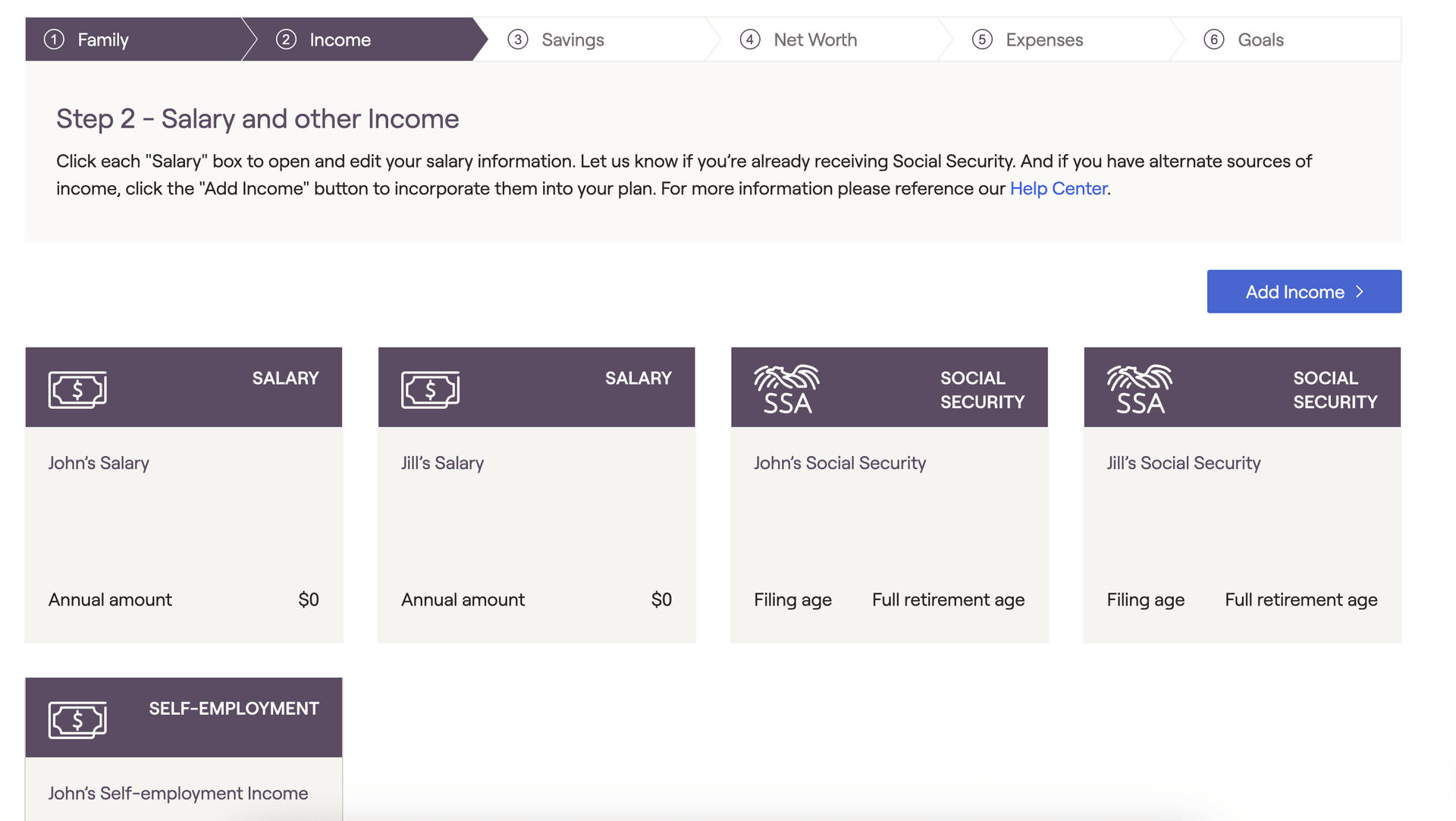
There will be a number of income cards pre-populated within this section when you create a new client plan. There will be a Salary card present for each client, as well as a Social Security card:
Salary Card
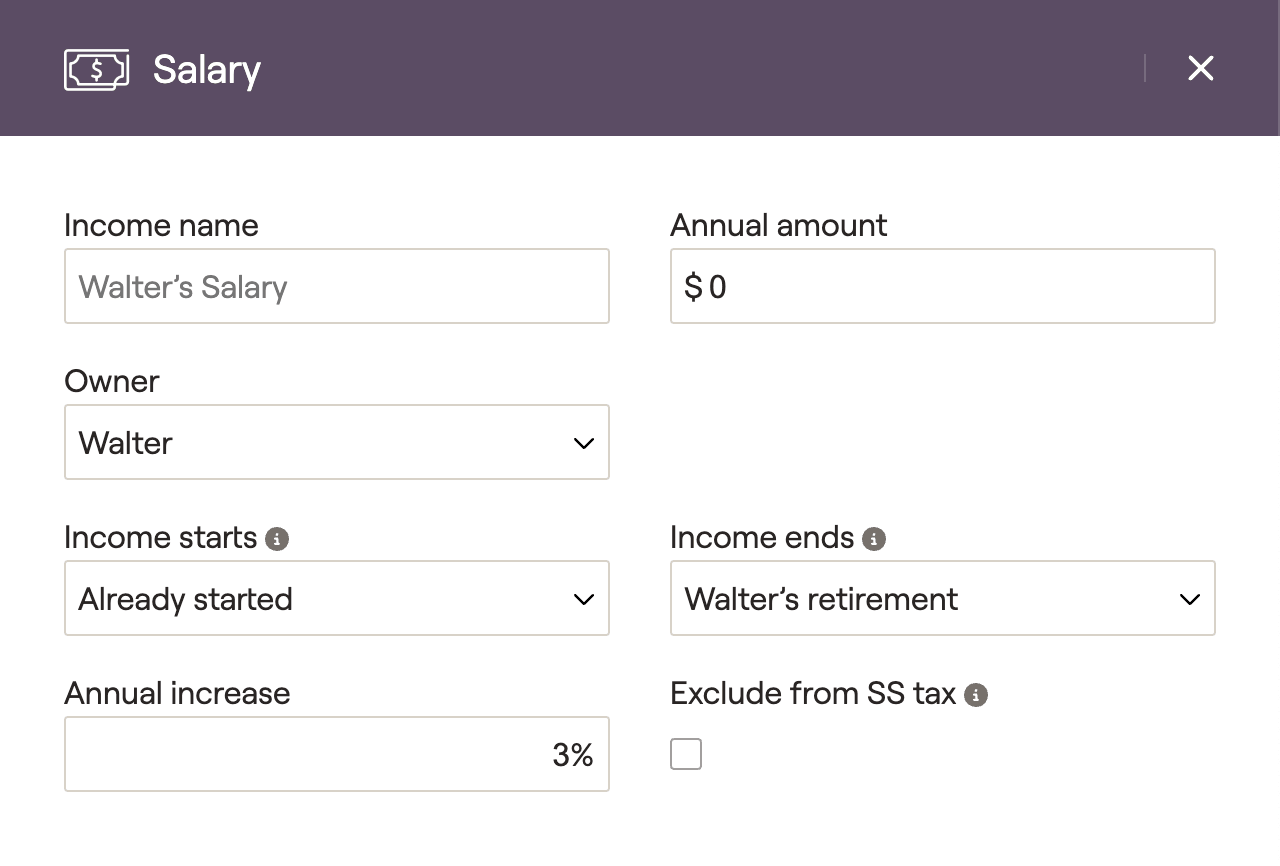
For clients with W2 income, you can utilize the pre-populated Salary cards for one or both clients. Click on this card to open a data entry drawer on the right side of your screen, allowing you to input the salary information:
Please click on the dropdown arrows below for more information on...
Social Security Card
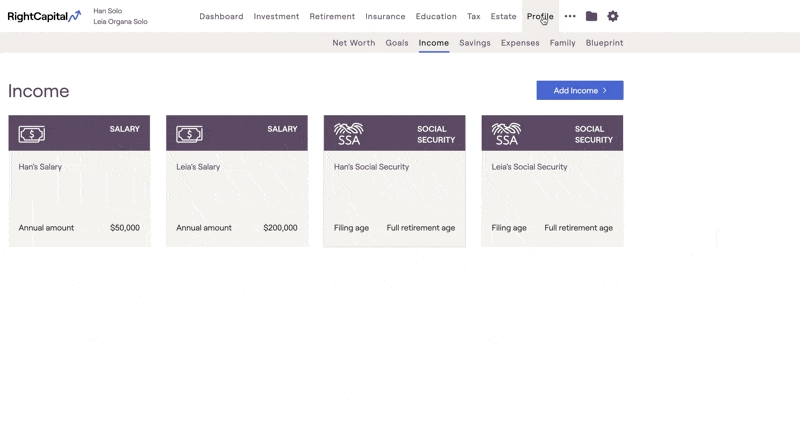
The other pre-populated entry within the Income section is the Social Security card. This card can be used to reflect both current and future social security retirement benefits. Click on this card to open a data entry drawer on the right side of your screen:
- Use Simple Estimate - Benefits are estimated using the annual amount and projected annual increase entered into that client’s Salary or Self-employment income card.
- Based on SS Statement Value - You will be asked to enter the monthly benefit amount and corresponding start age from the client's Social Security statement.
- Based on Historical Covered Earning - You will be asked to enter the client's annual covered earnings history.
- No Social Security - RightCapital will not calculate a retirement benefit for the client. We will also exclude any spousal or survivor benefits for that individual.
For a more detailed walkthrough of the data entry process for Social Security, please feel free to reference the article below:
Please click on the dropdown arrows below for more information on...
Add Income
To add additional sources of income to a client plan, click the blue 'Add Income' button in the upper right. This will allow you to choose from a long list of income options:
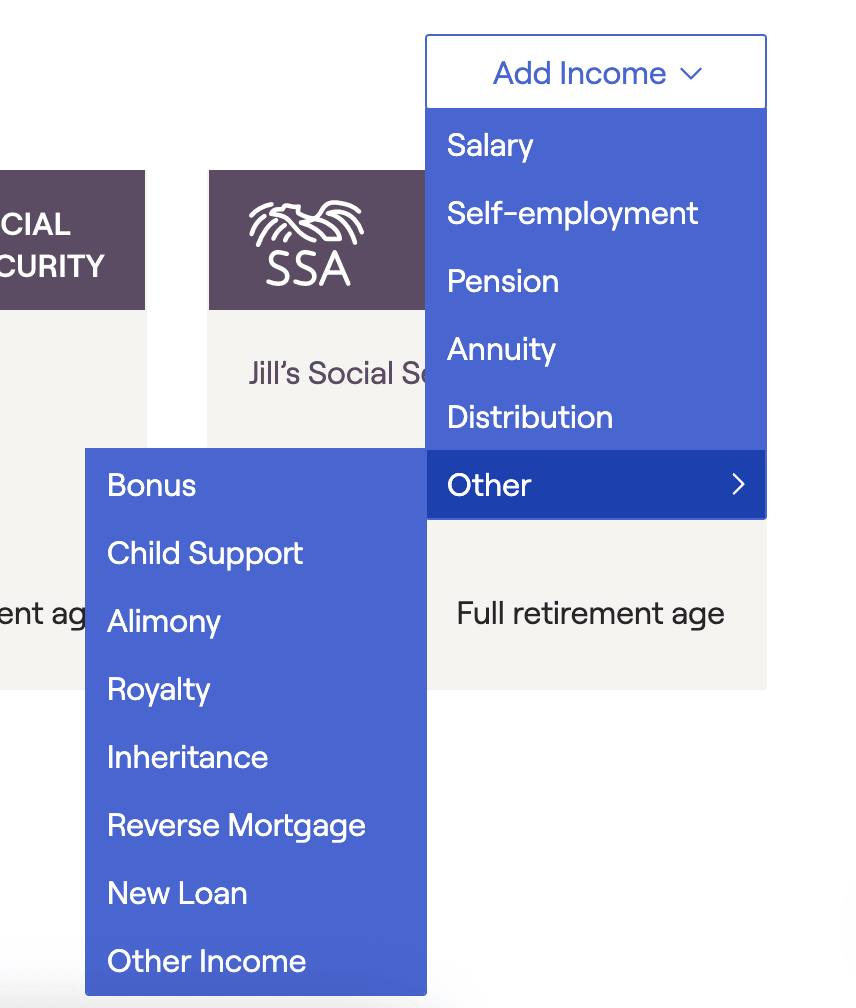
Below you will find a brief overview of each income card, followed by additional information on data entry, taxation, and cash flow location. Remember that if you ever have any questions while entering client data, you can always reach out to the RightCapital Support Team for assistance!
If you are using a 'Goal Based' planning method, only pension and annuity income will appear within the Add Income menu. To learn more about the planning method setting and its impact on your client plans, feel free to reference the article below:
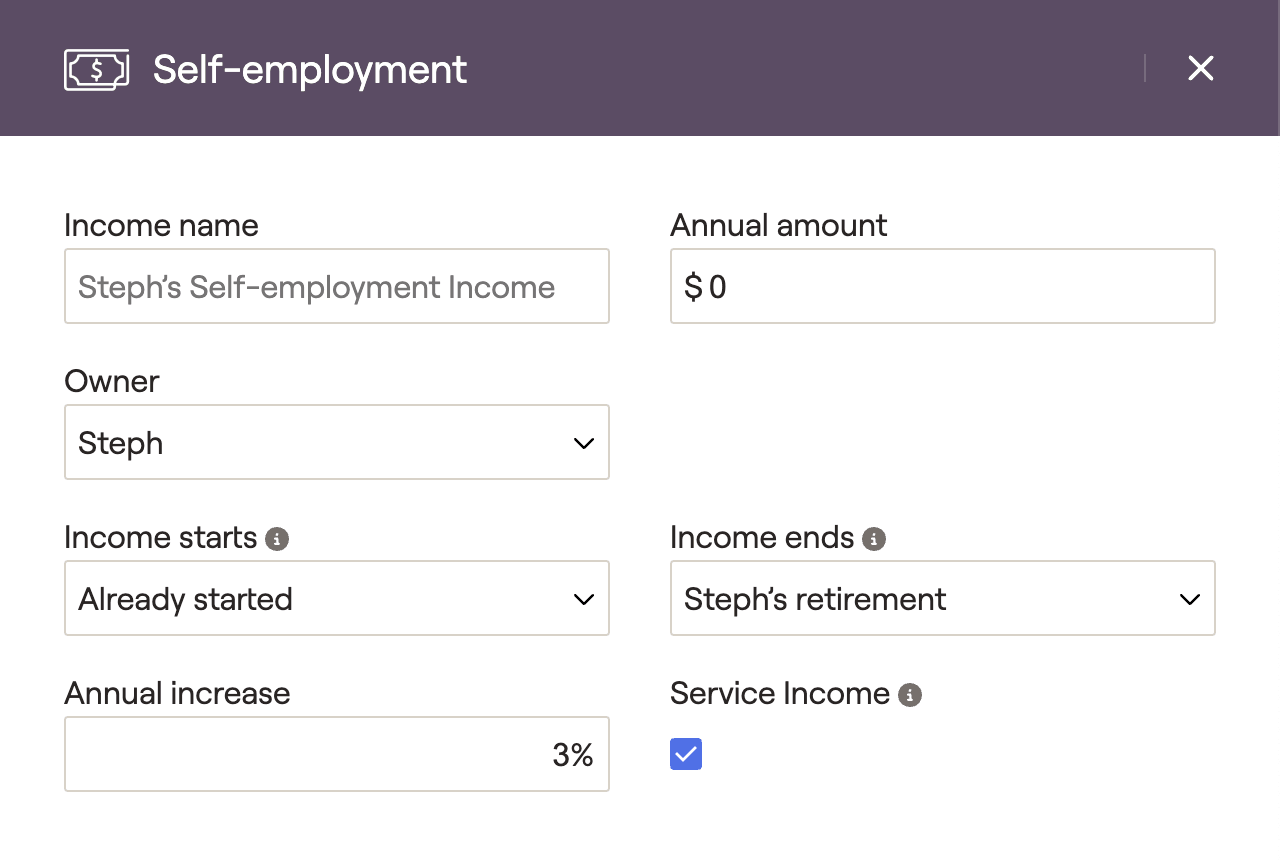
Self-employment
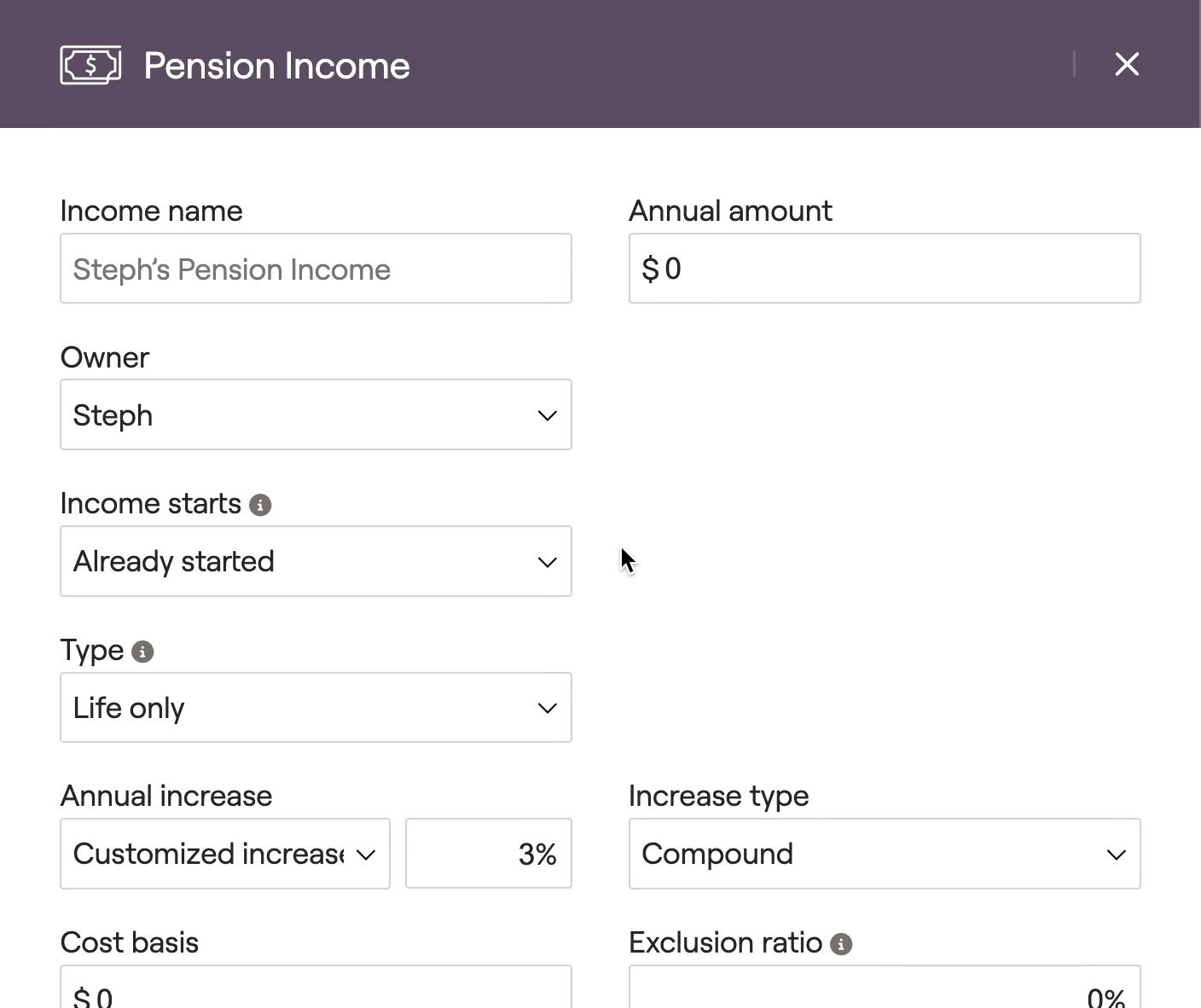
Pension
Annuity
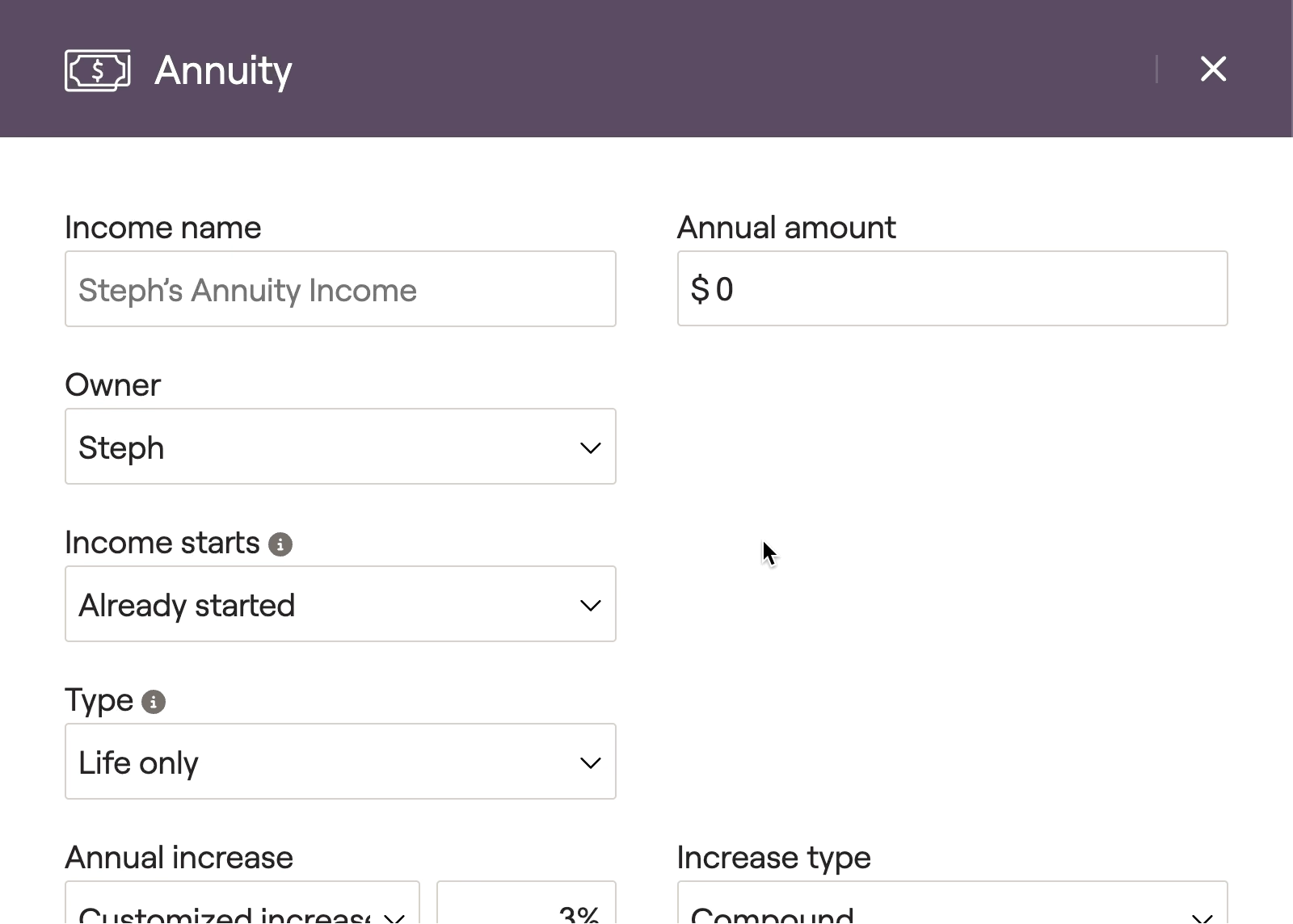
More often than not, annuities are entered as assets in the Profile > Net Worth section. Annuity income cards should only be used in cases where you want to model the annuity as a fixed income stream, without accounting for its current value (for example, an annuity that has previously been annuitized).
Distribution
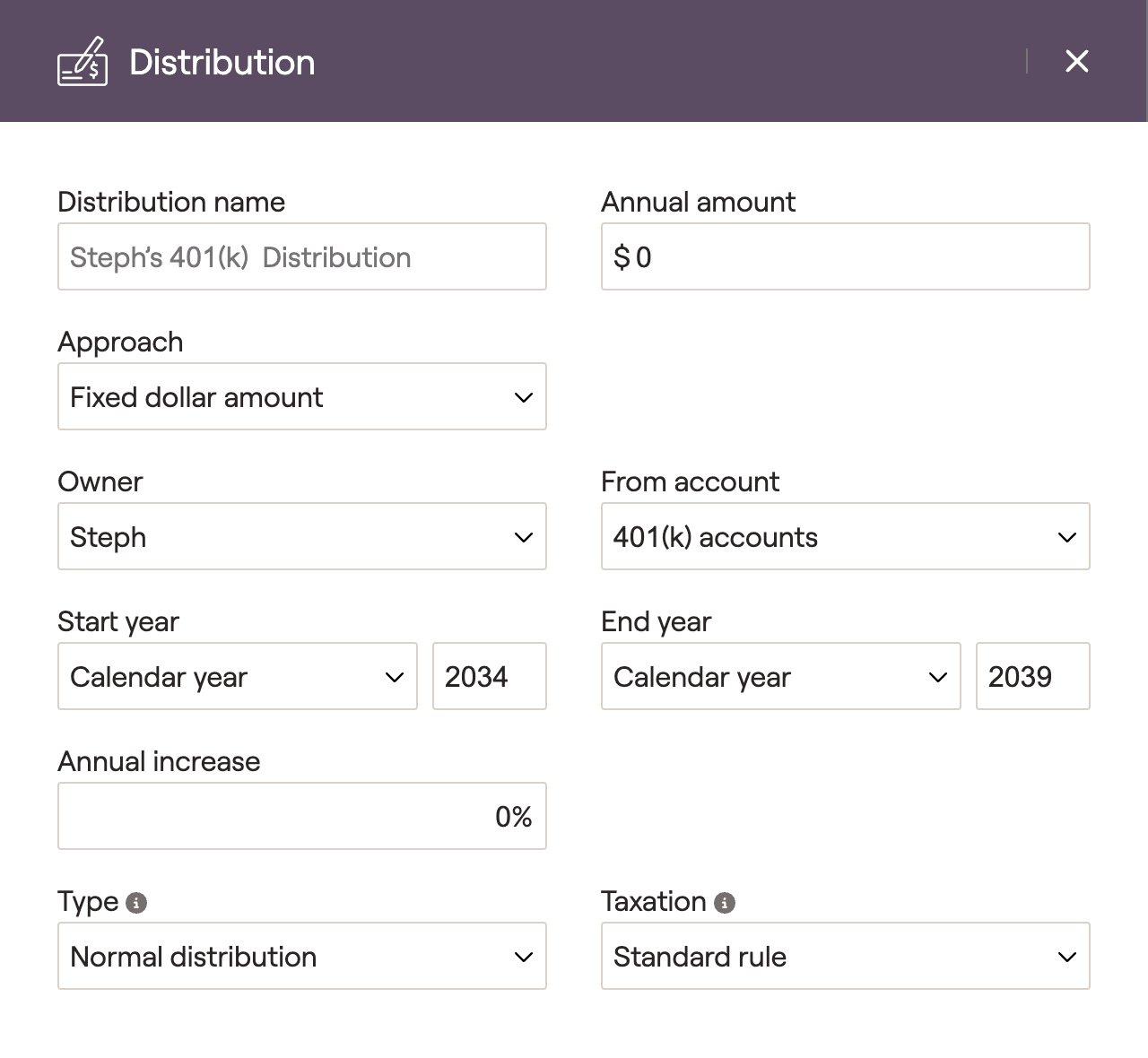
While primarily used to distribute invested assets as income, Distribution cards can also be used to model things like Roth Conversions, IRA Rollovers, and Net Unrealized Appreciation. To learn more, you can read our dedicated article on Income Distributions via the link below:
Other
Bonus income cards can be used to reflect expected annual bonuses, either as a dollar amount or as a percentage of the client's income.
- For salaried individuals (Self-employed box unchecked), bonus income will be taxed as W2 income (Line 1 of the 1040). Please note, this means bonus income will also impact 401(k) contributions. If the client is working a job that does not pay into Social Security, you can check the 'Exclude from SS tax' box to indicate that the salary is not subject to SS tax.
- For self-employed individuals (Self-employed box checked), bonus income will be taxed as Schedule C income (Line 3 of the Schedule 1, Line 8 of the 1040). If the 'Service Income' box is checked, this income will also be subject to the phase-out of the QBI deduction.
Bonuses can be tracked alongside a client's salary or self-employment income, within the Retirement > Cash Flows > Summary > Income Inflows column.
Allows you to model child support payments that a client is receiving now or in the future. Child support income is tax-free in RightCapital. Payments can be tracked within the Retirement > Cash Flows > Summary page, by clicking into Income Inflows > Other Income.
Allows you to model alimony payments that a client is receiving now or in the future.
- For divorces prior to 1/1/2019, income is taxable (Line 2A of the Schedule 1, Line 8 of the 1040).
For divorces on or after 1/1/2019, income is tax-free.
Payments can be tracked within the Retirement > Cash Flows > Summary page, by clicking into Income Inflows > Other Income.
When the Inherited asset is set to 'Cash and Investment', income will first be used to fund cash outflows in that year. The remainder will be saved and reinvested into the client's taxable investments.
- When inheriting a 401k or IRA (traditional or Roth), the income will not be used to fund cash outflows and will instead reflect as Planned Savings into the appropriate account bucket.
Allows you to model tax-free income associated with a future Reverse Mortgage. This data card will allow you to indicate interest rates, fees, closing costs, and which property the reverse mortgage is tied to. The payments will be visible in the Income Inflows > Other Inflows column of the Cash Flows > Summary. A Mortgage balance will also accrue within the Cash Flows > Net Worth table.
The New Loan income card can be used to model new loans being taken out in the future. This card will result in a one-time income inflow, followed by a long-term expense as the debt is repaid. You can specify the loan type and dollar amount, as well as the interest rate and loan term. You can also choose a loan to refinance, which will apply a one-time payment to the selected loan. Any excess income will be added to cashflows.
- The loan income can be found in the Income Inflows > Other Inflows column of the Cash Flows > Summary.
- The debt payments can be found in the Expenses section in the Cash Flows > Summary. Mortgage payments will appear within the Housing (or Rental & Vacation Home) column, while other debt payments will appear in the Debt column.
- The loan balance can be found and tracked within the Cash Flows > Net Worth screen. Mortgage balances will appear within the Mortgage column, while other loan balances will appear in the Other Loans column.
The 'Other income' option can be used as a catch-all to enter any additional income streams. These cards give you full control over the amount and duration of the income, as well as the tax treatment. All of these options will be reflected in Cash Flows > Summary > Income Inflows > Other Income column, except for 'Tax credit' which only impacts taxes. 'Minister's housing allowance' will only be subject to self-employment tax, Social Security tax & Medicare tax.


