Uploading Tax Returns - Tax Analyzer

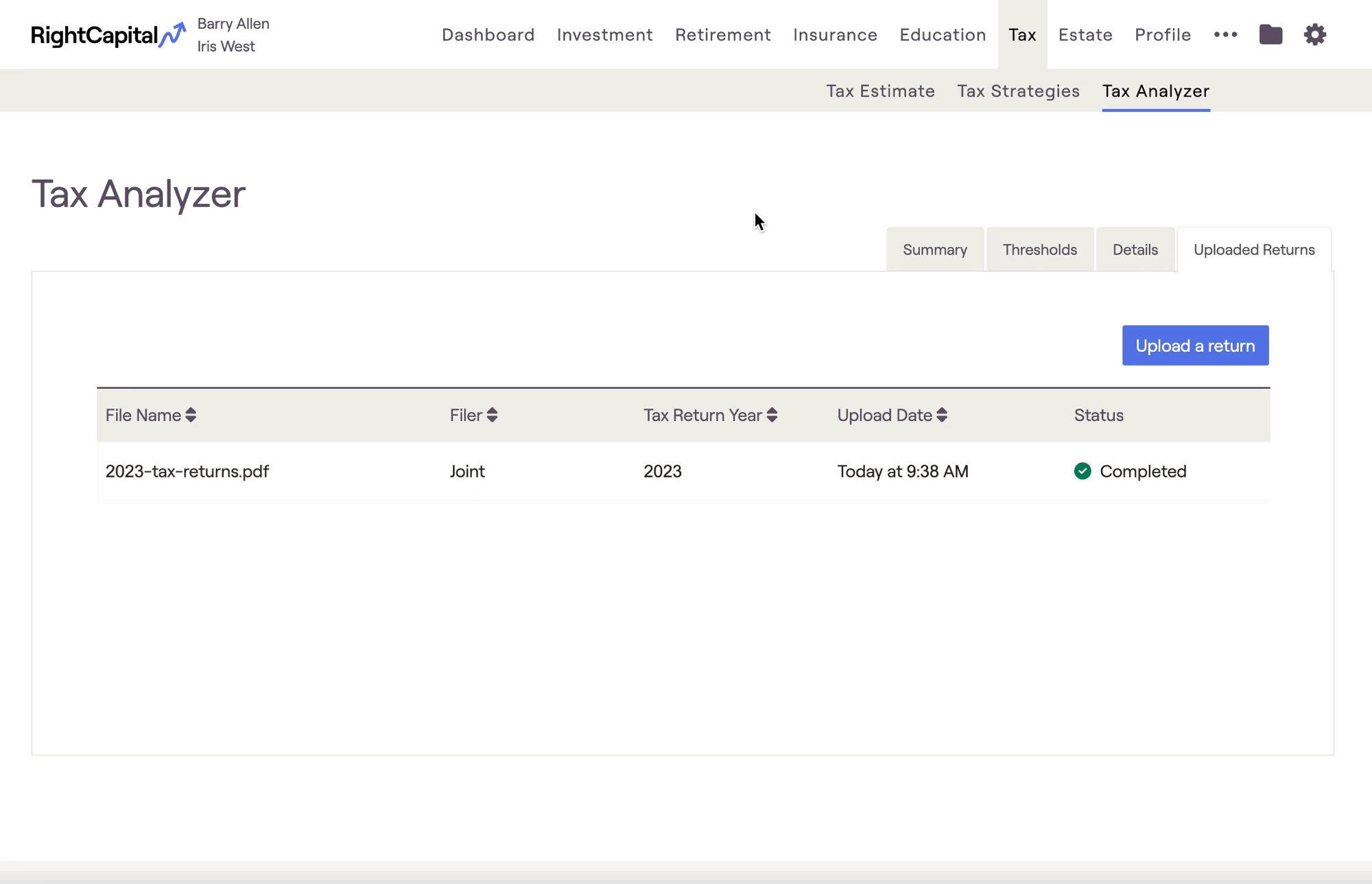
RightCapital's Tax Analyzer allows you to scan tax returns using state-of-the-art OCR technology, instantly converting a client's 1040 and other schedules into clear, malleable data for analysis and comparison. The Tax Analyzer module can be found within the Tax > Tax Analyzer tab of each client plan:
Tax Analyzer Availability
Trial
Basic
Premium
Platinum

The Tax Analyzer is available on both the Premium and Platinum subscription tiers. If you are interested in upgrading your account, please reach out to sales@rightcapital.com.

Uploading Returns
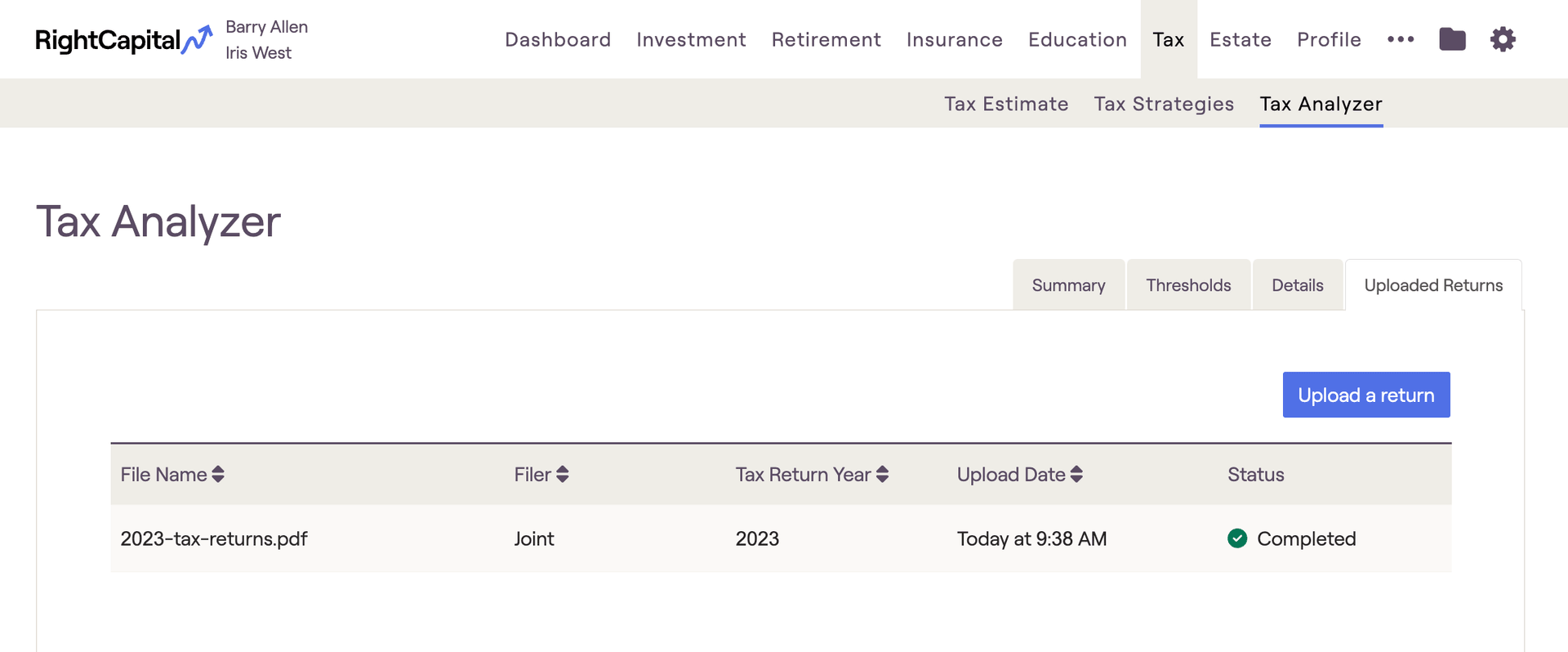
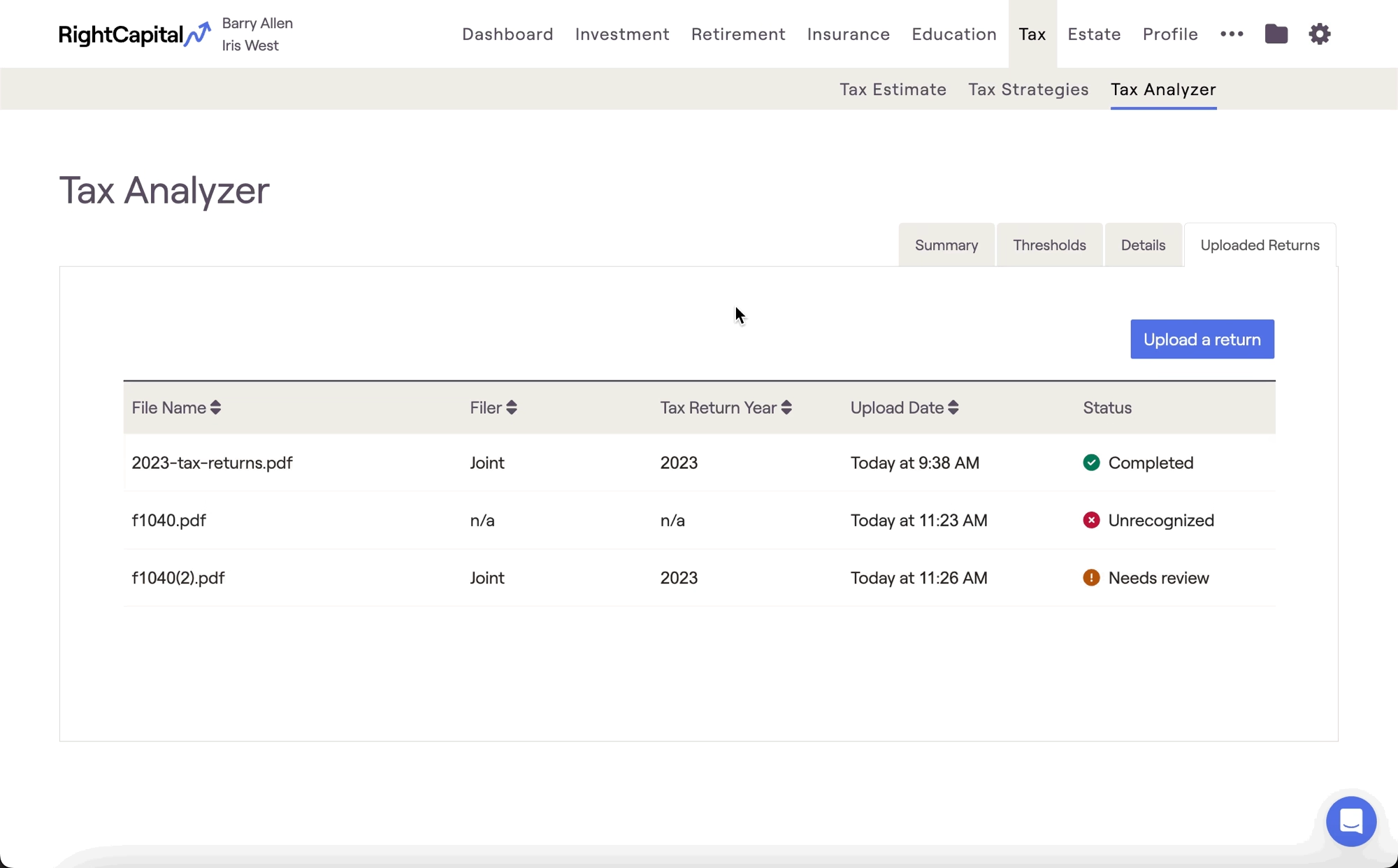
Returns can be uploaded via the Uploaded Returns tab. If you plan to upload a client's previous-year tax returns for analysis, this is likely the first thing you will want to do within this module:
Within this tab, click the blue 'Upload a return' button in the upper right corner to begin the upload. This will open a new window in the center of your screen, in which you can drag and drop a file, pick a file from your computer, or import a file from one of several file storage services:
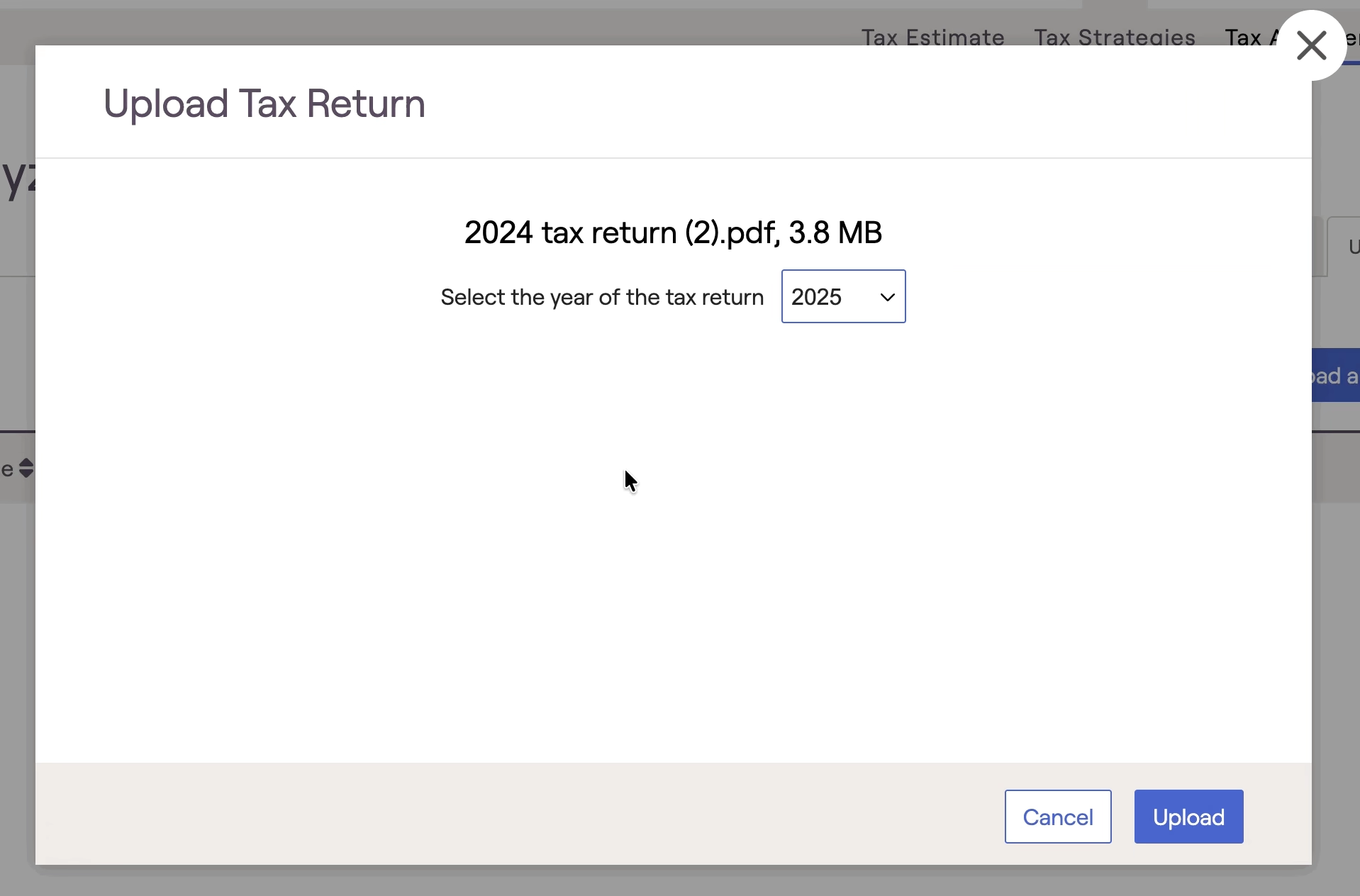
After choosing a file, be mindful to select the correct year using the toggle menu in the upper right. You can upload tax returns from either 2023, 2024, or 2025. With the correct year selected, click Upload in the lower right to perform the upload process:

Requirements

Please be mindful of the requirements below when uploading tax returns:

  • Only advisors are able to upload returns within the Tax Analyzer. Invited clients will not see the 'Upload a return' button on this page within their client portal.
  • Only tax returns from 2023, 2024, and 2025 are supported. Tax forms from any other year will not be recognized.
  • Uploads must include a populated 1040 form. Unpopulated 1040s and files without a 1040 will not be recognized.
  • In addition to the 1040, other supported forms include the Schedule 1, Schedule 2, Schedule A, Schedule D, Schedule SE, and Form 6251(AMT). State tax returns are not currently supported.
  • Only one file can be uploaded at a time. The 1040 and other schedules you wish to include should be merged into a single file prior to upload.
  • Returns must be uploaded as a PDF file. Other file types are not supported.
  • For the best results, upload a digital copy of the client's tax returns directly from their CPA or tax filing software. Alternatively, you can upload a clearly legible paper scan (300 DPI or higher is recommended).
Note on Privacy & Security

When tax returns are uploaded, RightCapital will automatically redact social security numbers, account/routing numbers, and other sensitive information across all forms. Returns are only saved and stored after they have been redacted; RightCapital will never store any sensitive personal information within the Tax Analyzer. Forms and schedules that aren't supported will never be stored, and are permanently deleted upon upload.

The Tax Analyzer uses the same bank-level encryption used by the RightCapital Vault. You can click these hyperlinks to review RightCapital's data security and privacy policies for more details.

Upload Status

After uploading your file, a brief period of processing will occur. Once this is finished, a status will appear in the 'Status' column to the far right of the page:
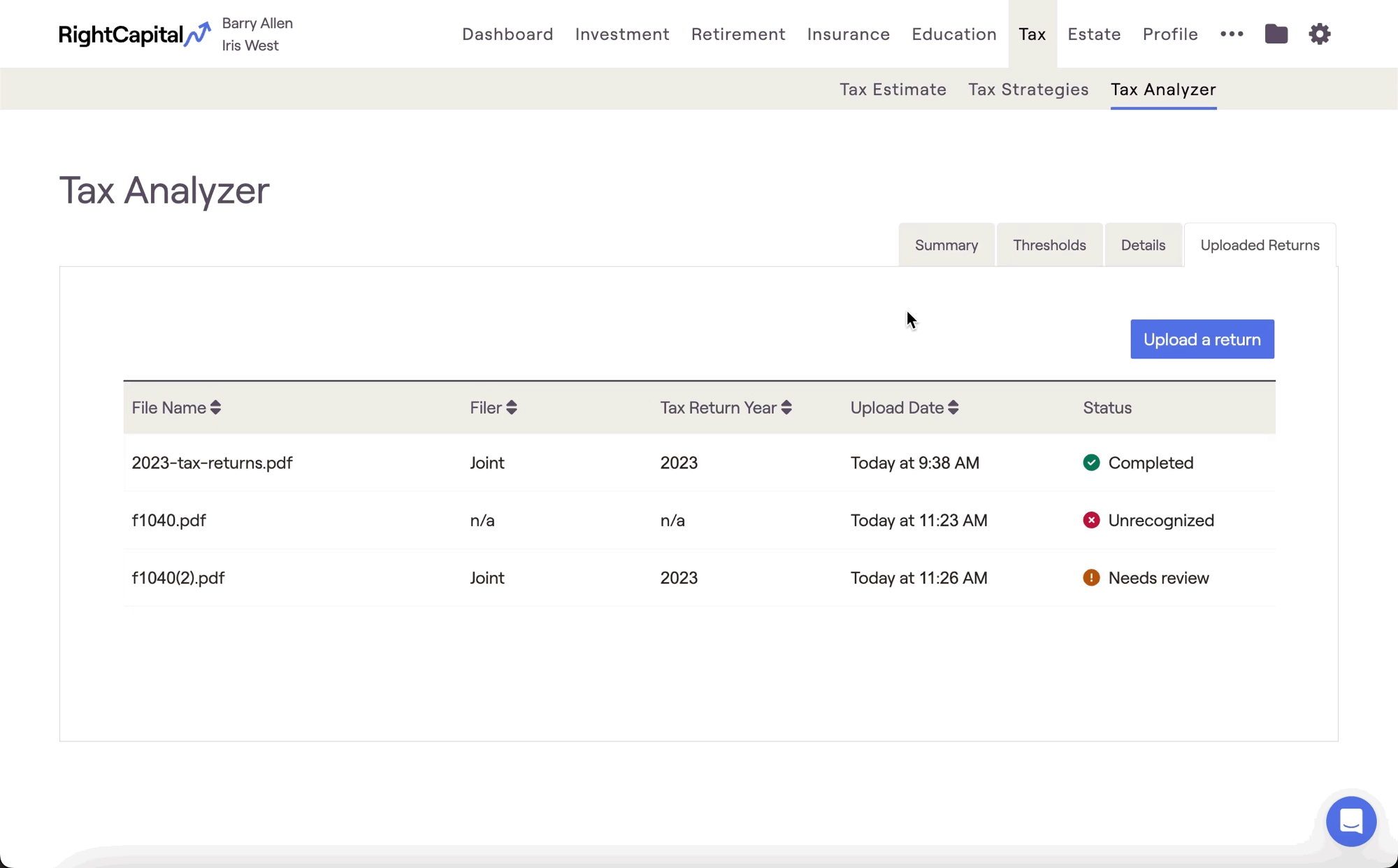
Completed - indicates that all information on the forms was legible, and all of the schedules necessary to fully calculate results are included.

Needs Review - indicates that certain schedules/information are missing from the upload. You can click on the status to review exactly what's missing, and what the implications are. When an upload needs review, you can either acknowledge the disclaimers and click 'Confirm' to continue, or you can re-upload a new file with the missing information.

Unrecognized - indicates that the information was unable to be read during the OCR process. To resolve this, you can try re-uploading a higher quality file with better visibilty. This may also occur if there is no 1040 included in the file, or if returns from unsupported years are uploaded (see Requirements above for more).

If your PDF meets the requirements above and is still resulting in an unrecognized status, we recommend flattening the PDF file and attempting to re-upload. This can be done using your preferred PDF software.

File Review

Once they've been uploaded, you can click on file names in the far left column to open a file preview. Within this window, you can view the redacted copies of the tax returns on the left-hand side, and a line-by-line overview of each form on the right-hand side:
If a value failed to scan or was captured incorrectly, you can hover your mouse over a line item and click the pencil & paper icon to the far right. This will allow you to override the value captured by the OCR with a new value. Be sure to click the blue checkmark to the right of the text box to save your changes.

Contact Us

For additional assistance within RightCapital please contact our Support team.

Educational Webinars

RightCapital is committed to enabling your success. Each week, we cover essential planning modules and product updates.

RightCapital in Action

Check out our YouTube channel where we highlight Advisor Success Stories and share more Tips & Tricks!