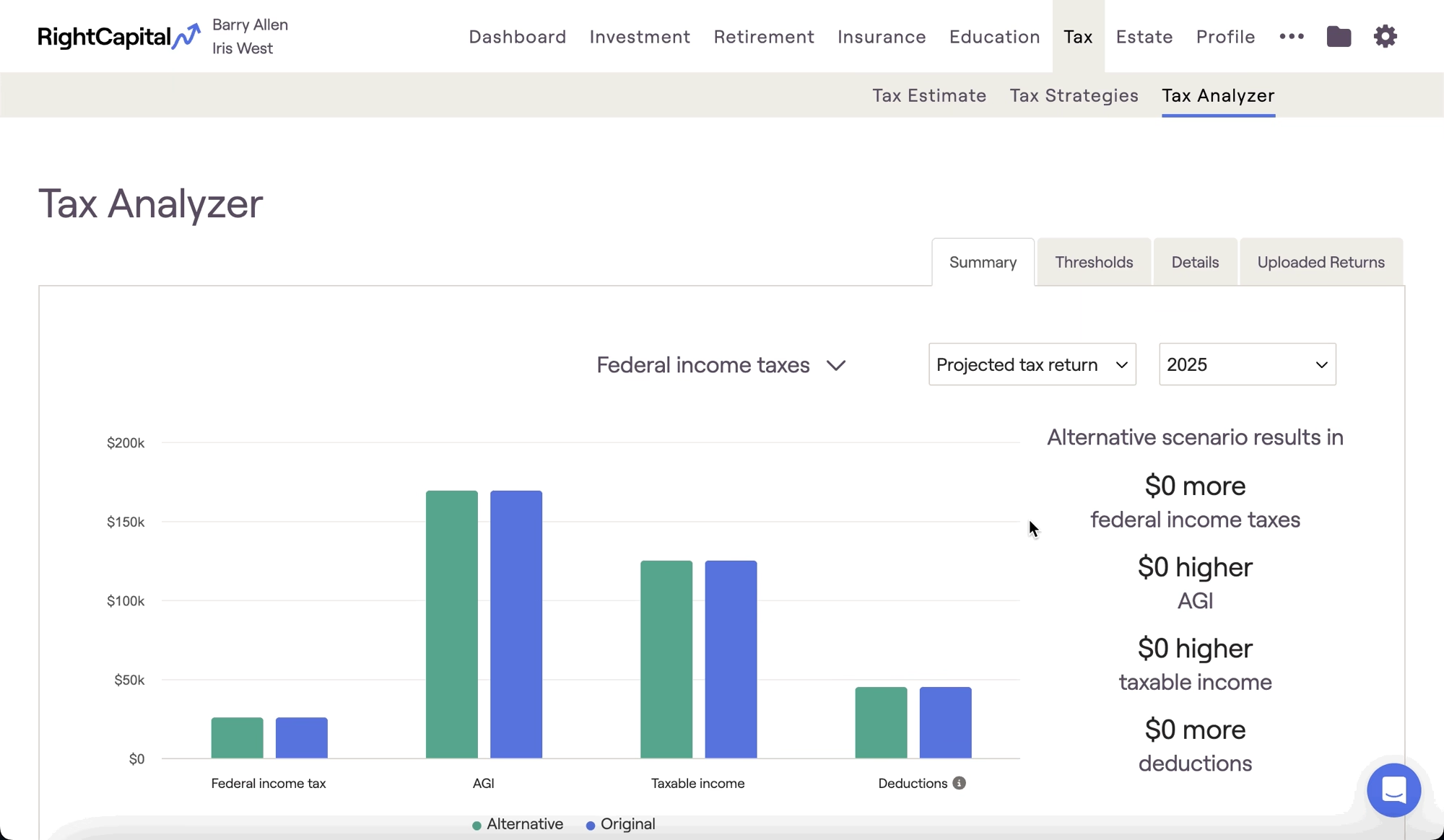
RightCapital's Tax Analyzer is a powerful and versatile module that provides key tax planning insights for advisors, and demystifies taxes for clients. If you aren't sure where to begin when dialing in an alternative scenario, we've got you covered! We've identified some common scenarios and outlined below what Action Items can be used to model them. If there's a scenario you'd like to model that you don't see listed here, remember that you can always reach out to the RightCapital support team for assistance!
The Tax Analyzer module can be found within the Tax > Tax Analyzer tab of each client plan:
Tax Analyzer Availability
The Tax Analyzer is available on both the Premium and Platinum subscription tiers. If you are interested in upgrading your account, please reach out to sales@rightcapital.com.
If you haven't done so already, we recommend taking a look over our Tax Analyzer - Module Overview to establish foundational knowledge of how the Tax Analyzer works. You can find a link to that article listed below:
Clients who are considering making Roth conversions may have questions about how the conversions will impact the federal taxes that they'll pay today. Using the Tax Analyzer, you can show clients how making Roth conversions might impact their AGI, total federal tax payment, and eligibility for specific contributions, deductions and tax credits.
You can model Roth Conversions (or IRA Distributions) by manipulating Line 4b IRA Distributions Taxable Amount. First, to add this line item to the Action Items display:
Open the Action Items, scroll down to the bottom of the page, and click the Edit button:
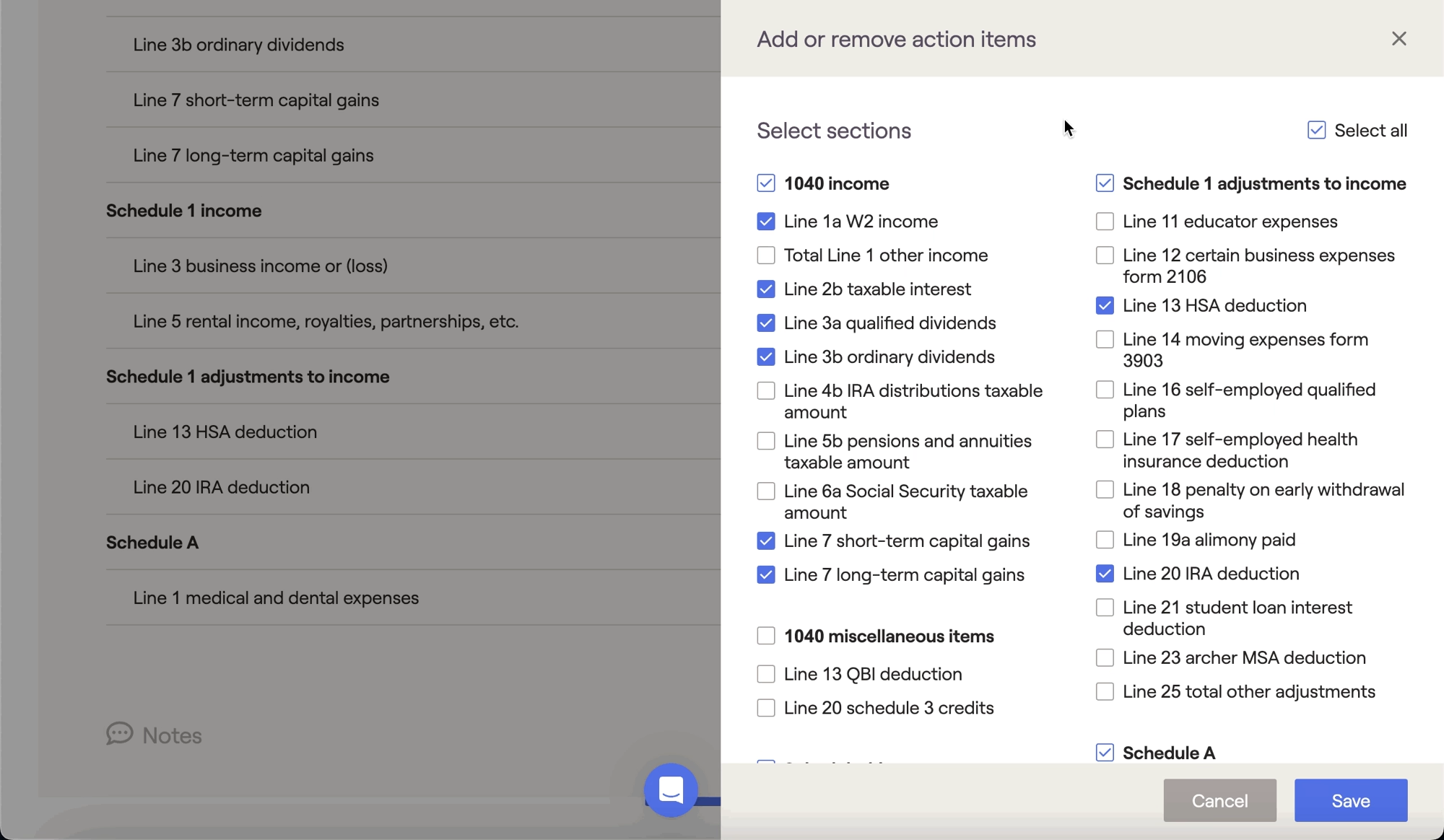
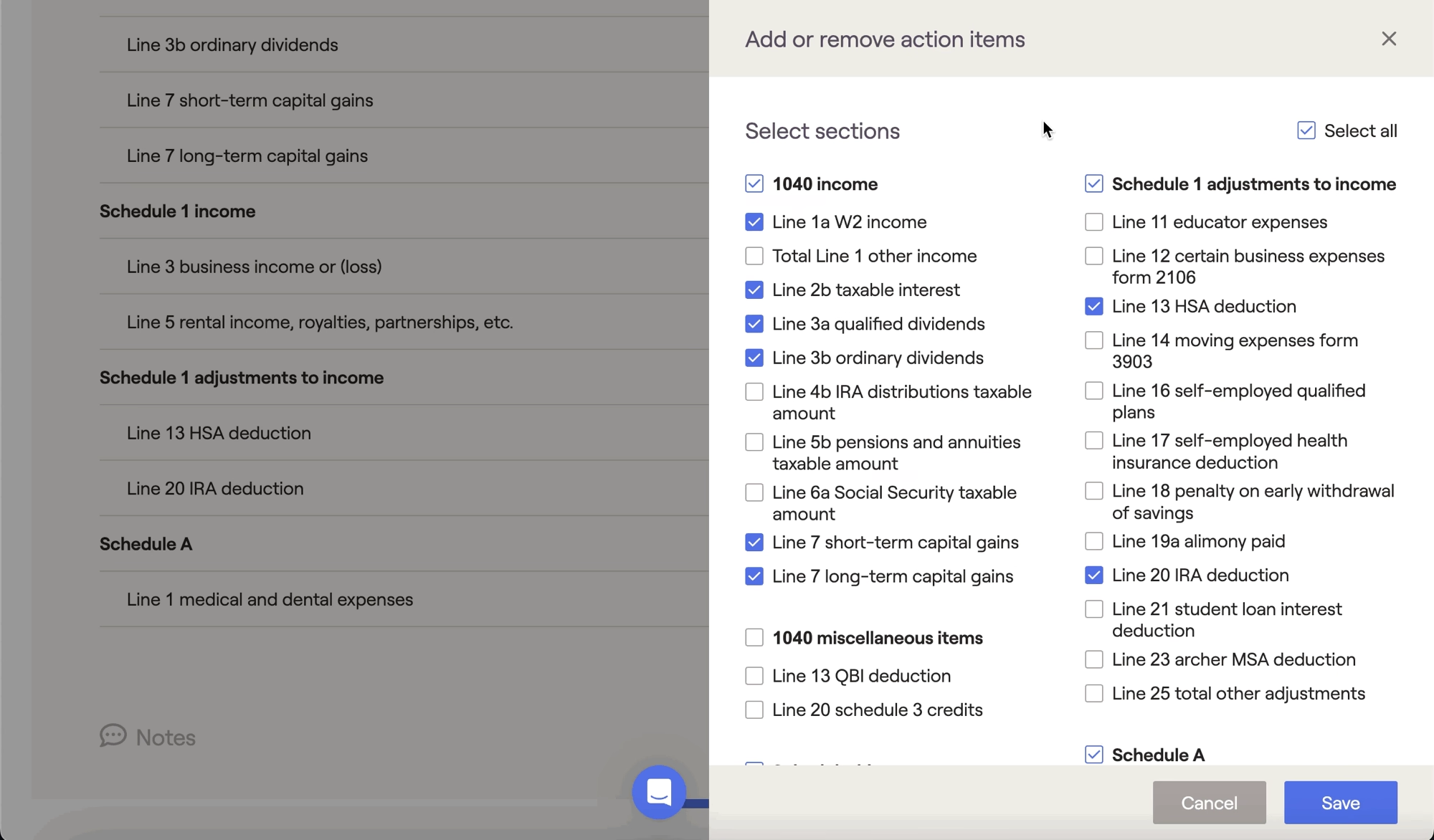
Within the drawer that appears, check the box for Line 4b IRA distributions taxable amount (left-hand column under '1040 income'). With this box checked, click Save in the lower right to add that line item to the Action Item display:
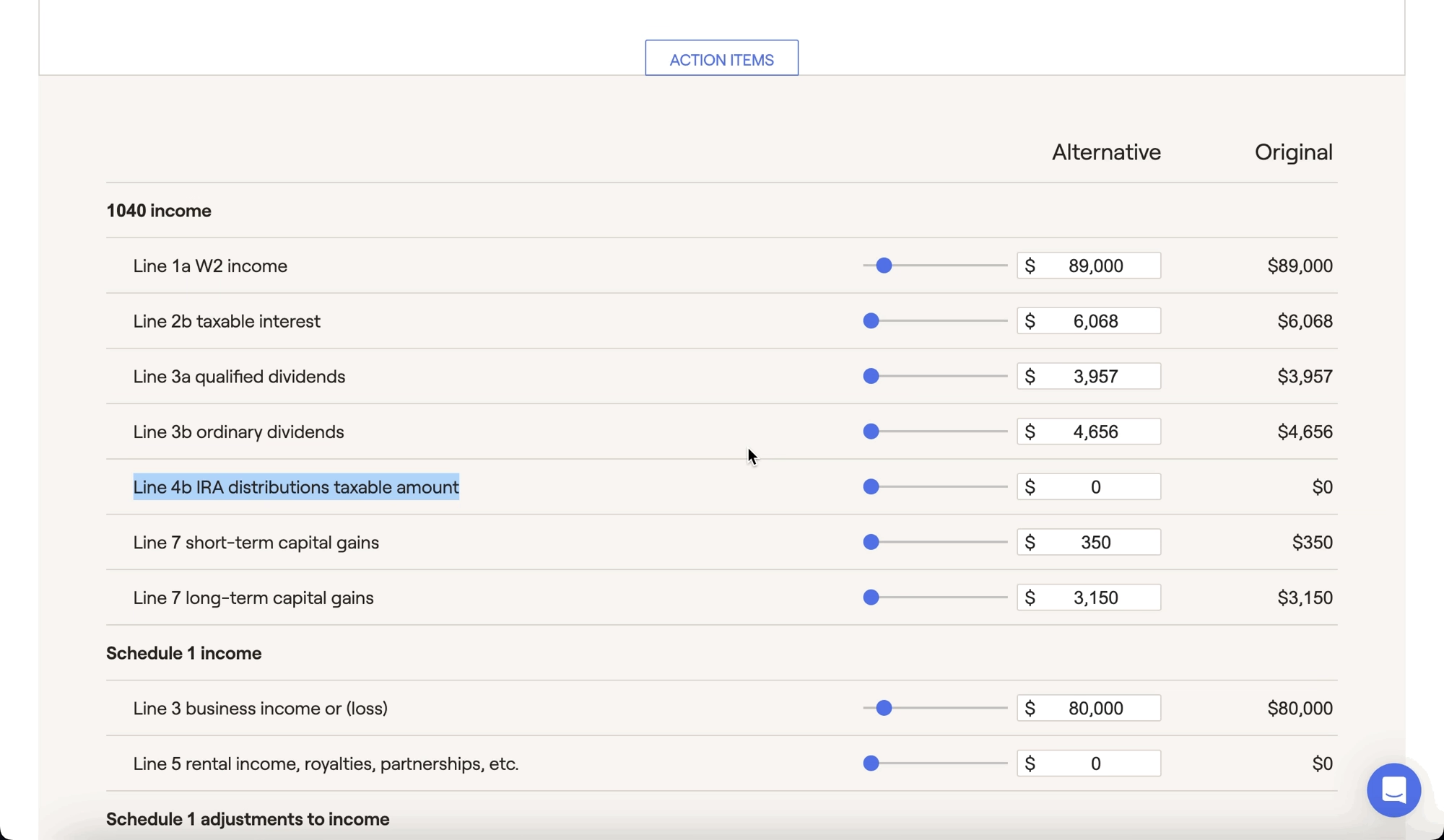
With the above steps complete, you can freely adjust Line 4b using the slider bar, or by typing a specific dollar amount into the text field. After clicking Refresh in the lower right, the Tax Analyzer will update to reflect the impact of your changes:
Clients may also approach you with questions about changes to their W2 income. For clients that are considering taking a higher-paying job (or in some cases, a career pivot accompanied by a pay cut) it can be valuable to quickly identify any changes that might occur to their AGI, contribution eligibility, and more.
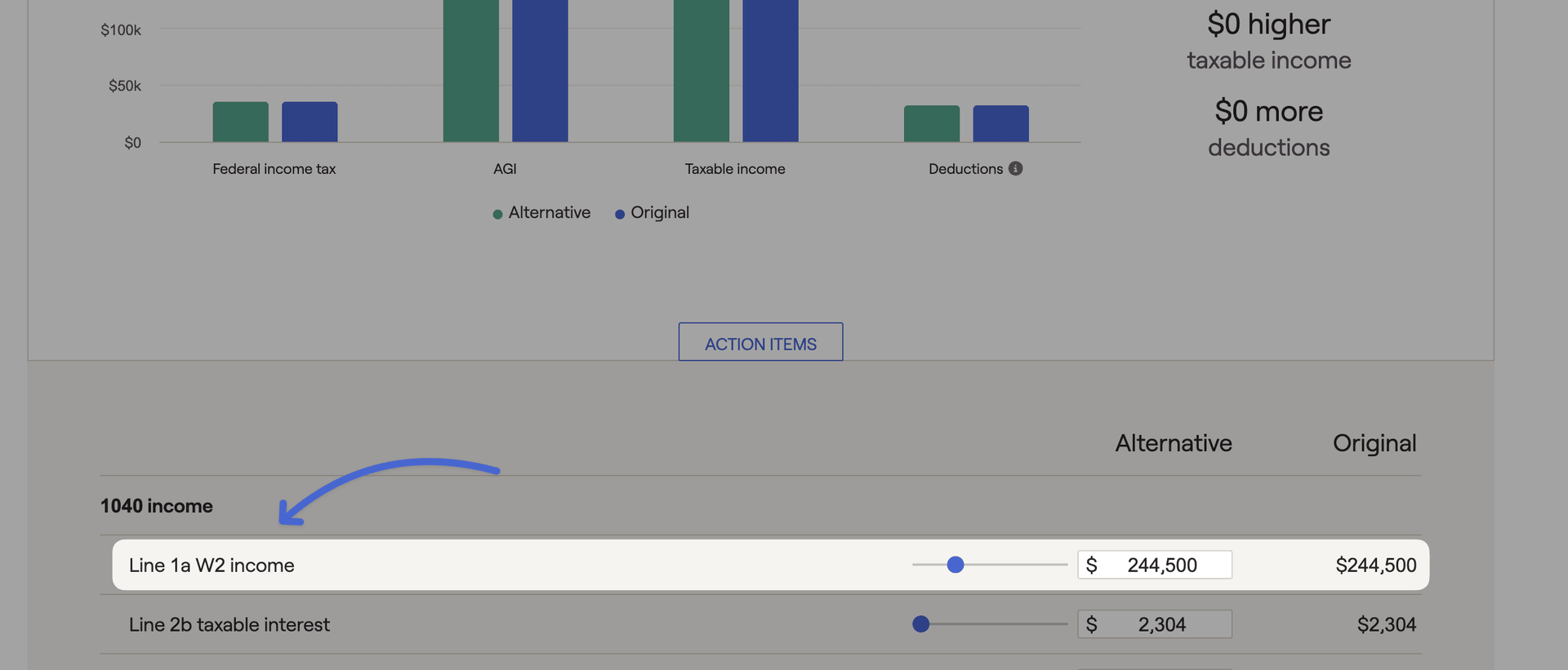
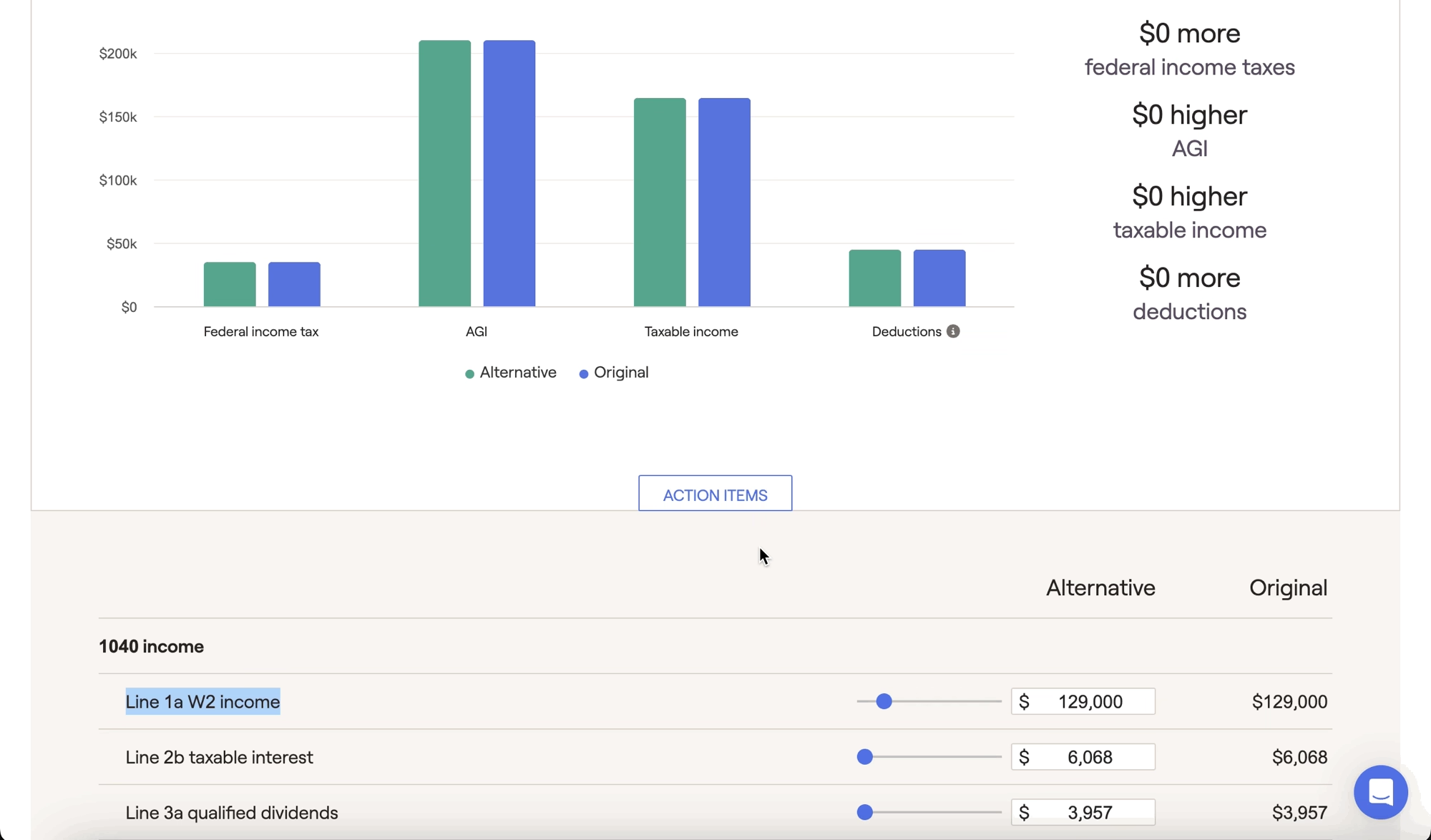
You can model changes to W2 income by manipulating Line 1a W2 Income. This line item should be included in the Action Items display by default:
You can freely adjust Line 1a using the slider bar, or by typing a specific dollar amount into the text field. After clicking Refresh in the lower right, the Tax Analyzer will update to reflect the impact of your changes. For example, you can easily identify if an increase in W2 income will prevent a client from making contributions to their Roth IRA:
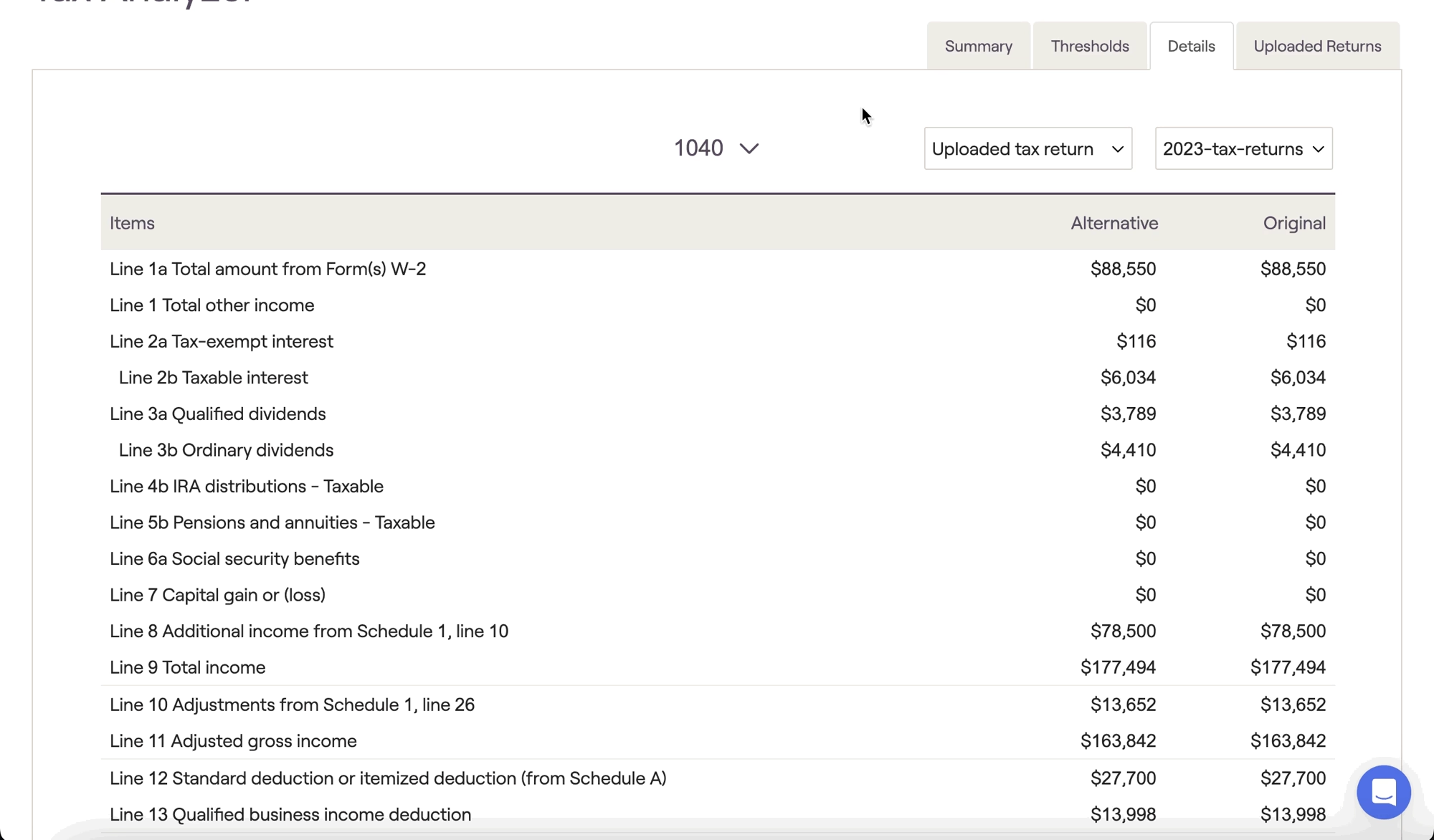
For clients that may benefit from itemizing deductions, being able to walk through their Schedule A line by line can provide tremendous value. If that same client claimed the standard deduction the prior year, you can upload their tax returns and curate an alternative scenario showing the impact had they chosen to itemize. You can identify if a client claimed the standard deduction within the Details tab:
The first step is to adjust the Action Item display to reflect each line item from the Schedule A:
Open the Action Items, scroll down to the bottom of the page, and click the Edit button:
Within the drawer that appears, deselect all line items by unchecking Select All in the upper right. Then, check the box next to Schedule A to select all line items for this form. With these boxes checked, click Save in the lower right to add those line items to the Action Item display:
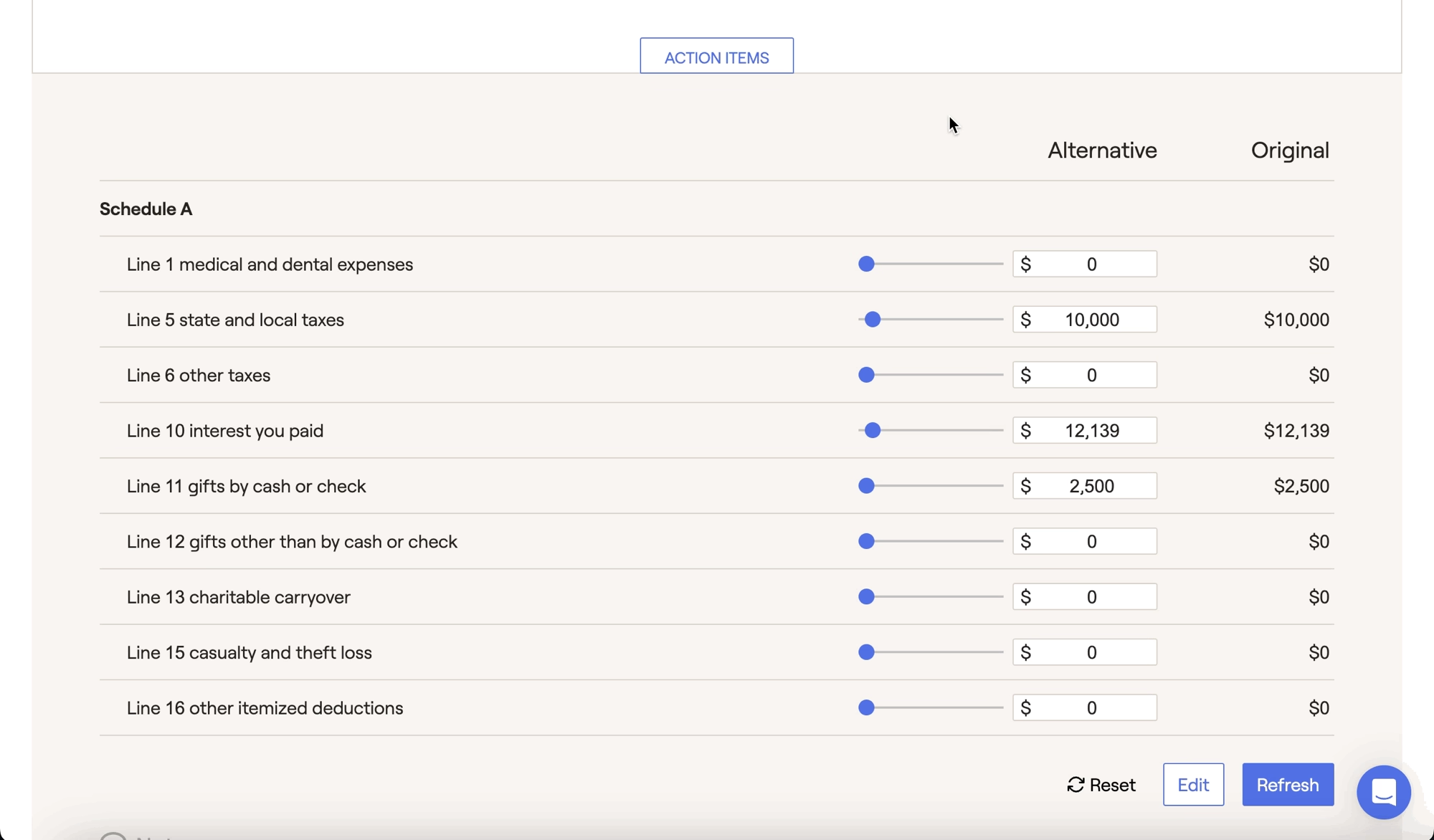
With the above steps complete, you can freely adjust each Schedule A line item using the slider bars, or by typing specific dollar amounts into the text fields. After clicking Refresh in the lower right, the Tax Analyzer will update to reflect the impact of your changes: