Alternative vs Original - Tax Analyzer

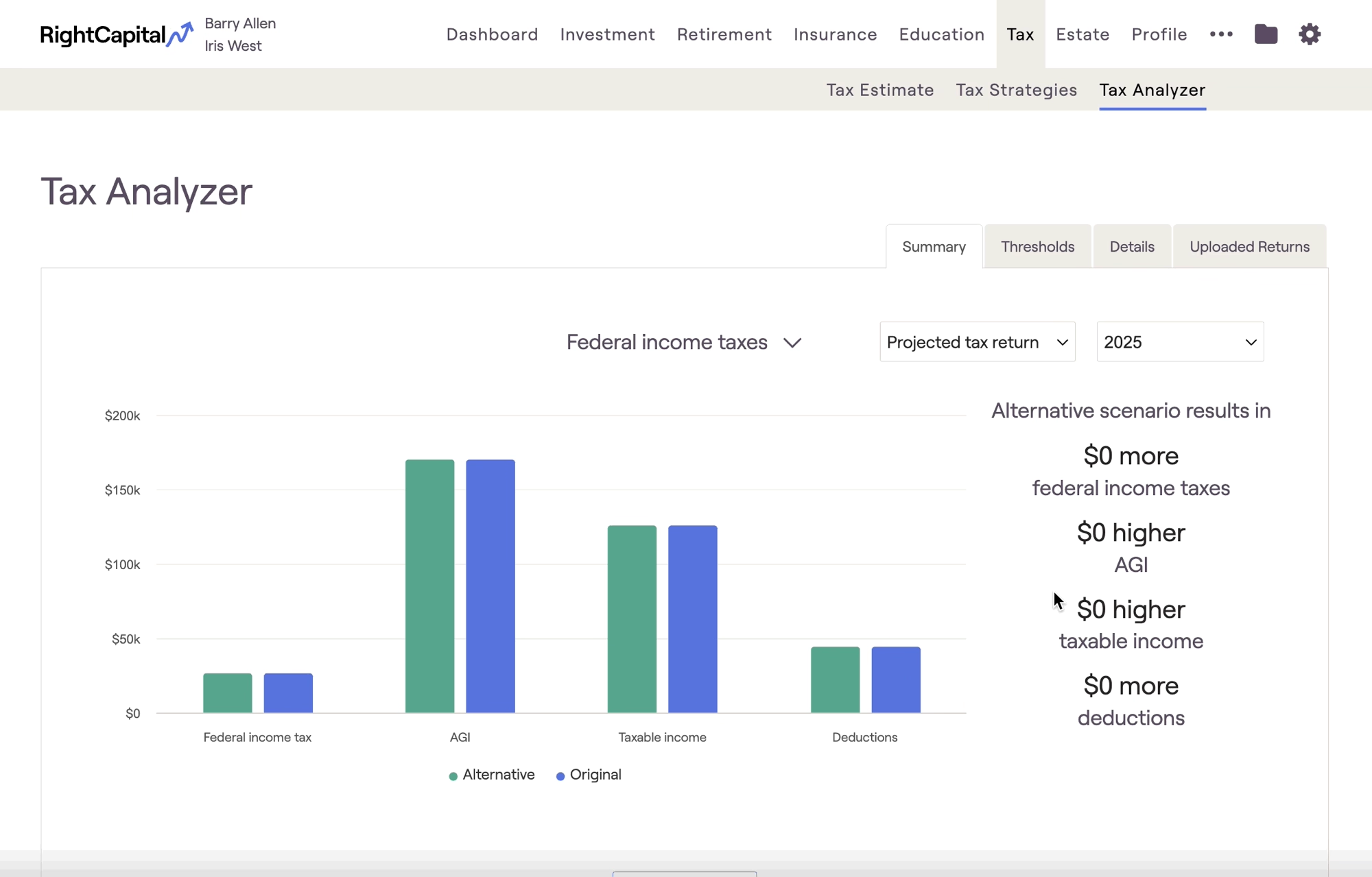
RightCapital's Tax Analyzer is a powerful and versatile module that provides key tax planning insights for advisors, and demystifies taxes for clients. Each subtab within the Tax Analyzer will compare a client's "original" tax scenario, to an "alternative" tax scenario. Let's review what each of these scenarios is, and how you can adjust each one to set up specific comparisons.

The Tax Analyzer module can be found within the Tax > Tax Analyzer tab of each client plan:
Tax Analyzer Availability
Trial
Basic
Premium
Platinum

The Tax Analyzer is available on both the Premium and Platinum subscription tiers. If you are interested in upgrading your account, please reach out to sales@rightcapital.com.

Original Scenario
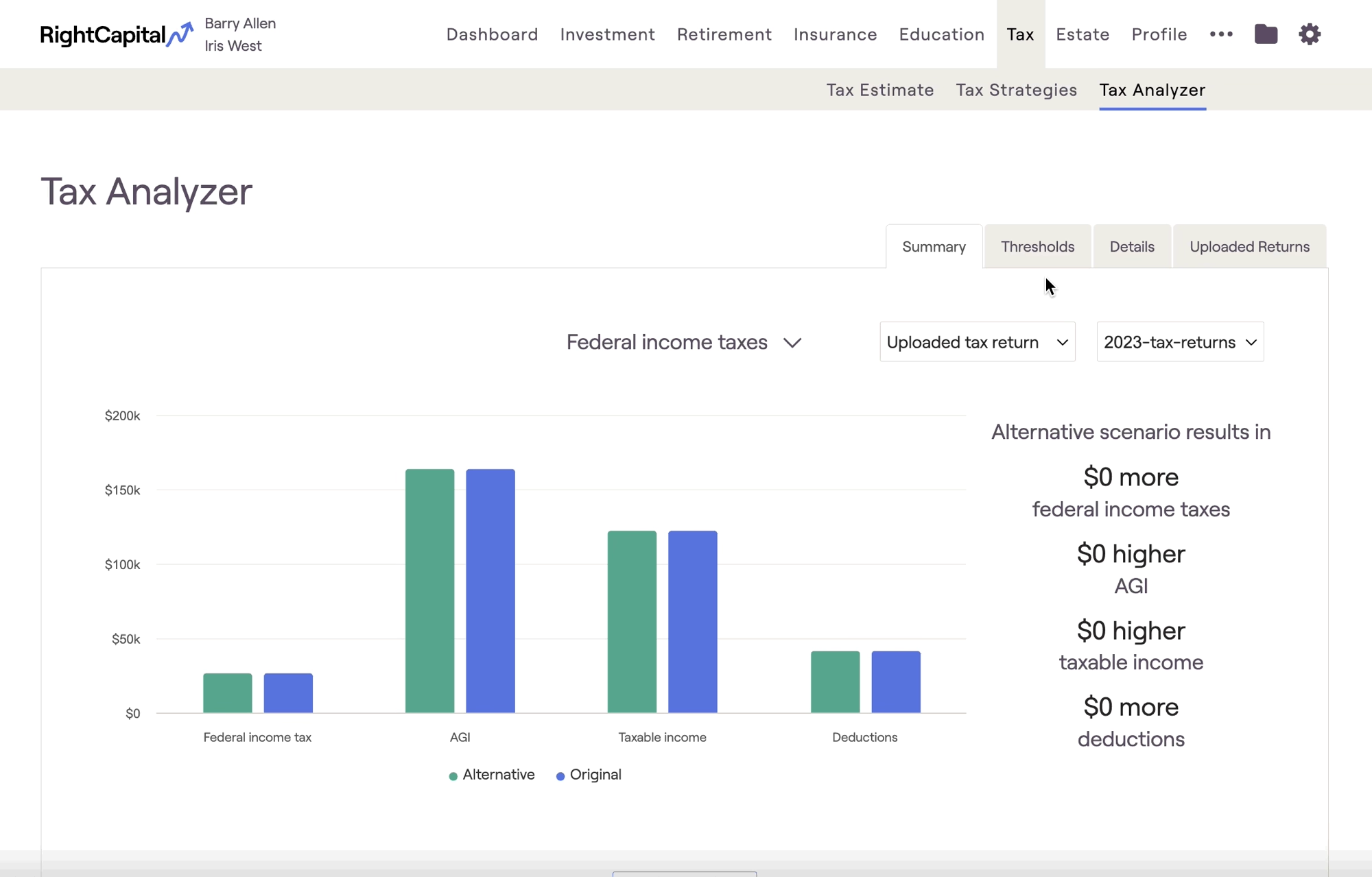
The original scenario can either be an uploaded tax return (for a historical comparison), or a projected tax return (for a future-looking comparison). You can choose between the two using the first dropdown menu in the upper right:
  • When using an "uploaded tax return", you can choose a specific file that you've uploaded in the Uploaded Returns tab. You can then select either the year of the upload or project taxes a year forward.

  • When using RightCapital's "projected tax returns", you can choose a future calendar year to view. These projected returns will be based on the Proposed plan from the Retirement Analysis module.
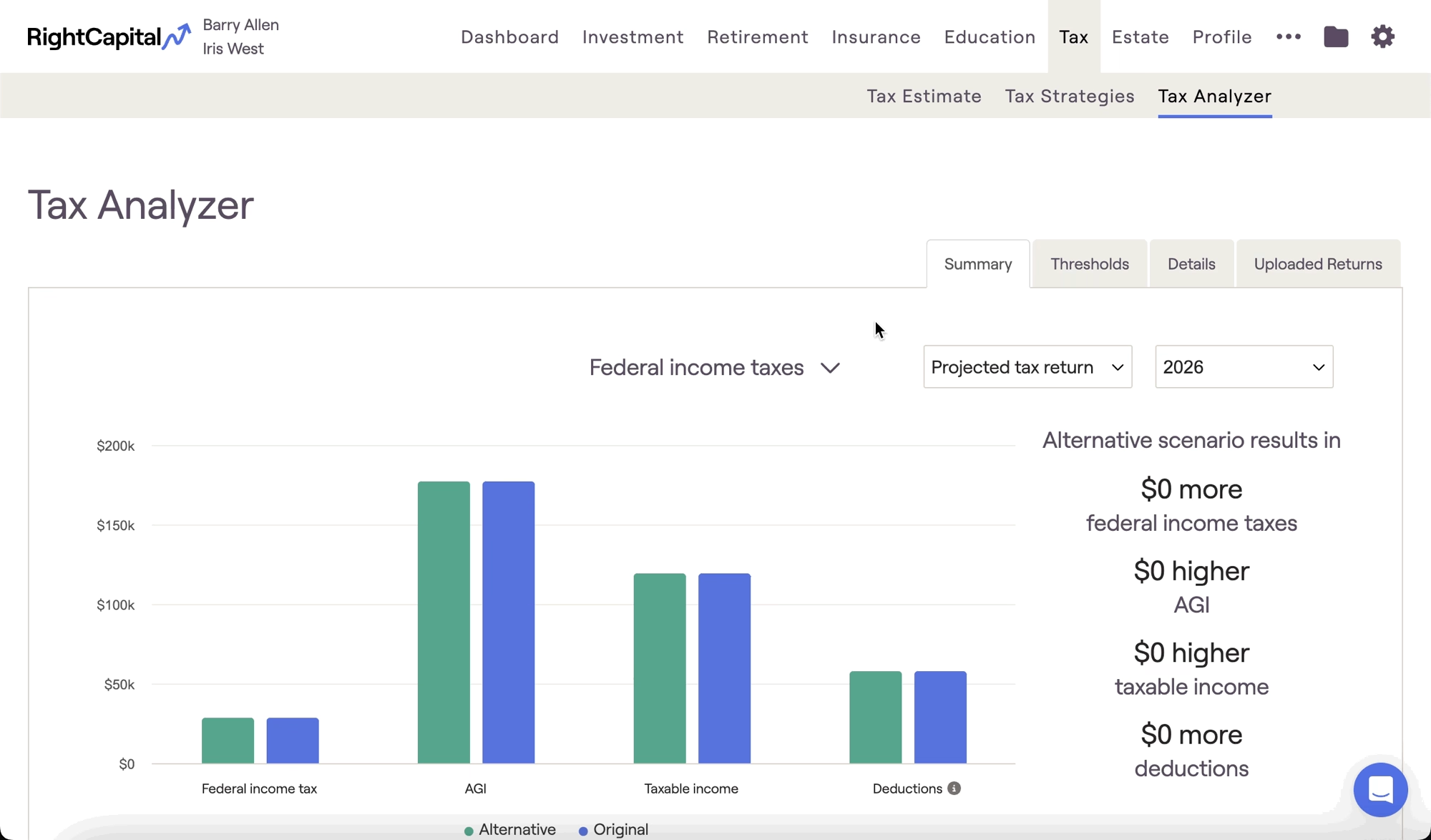
Not seeing 2025 for projected tax returns?

If you don't see 2025 listed within the tax analyzer, navigate to the Gear Icon > Settings > Methodology tab and update your 'Cash flow in simulation starts' settings to Jan 1st of this year:

Alternative Scenario

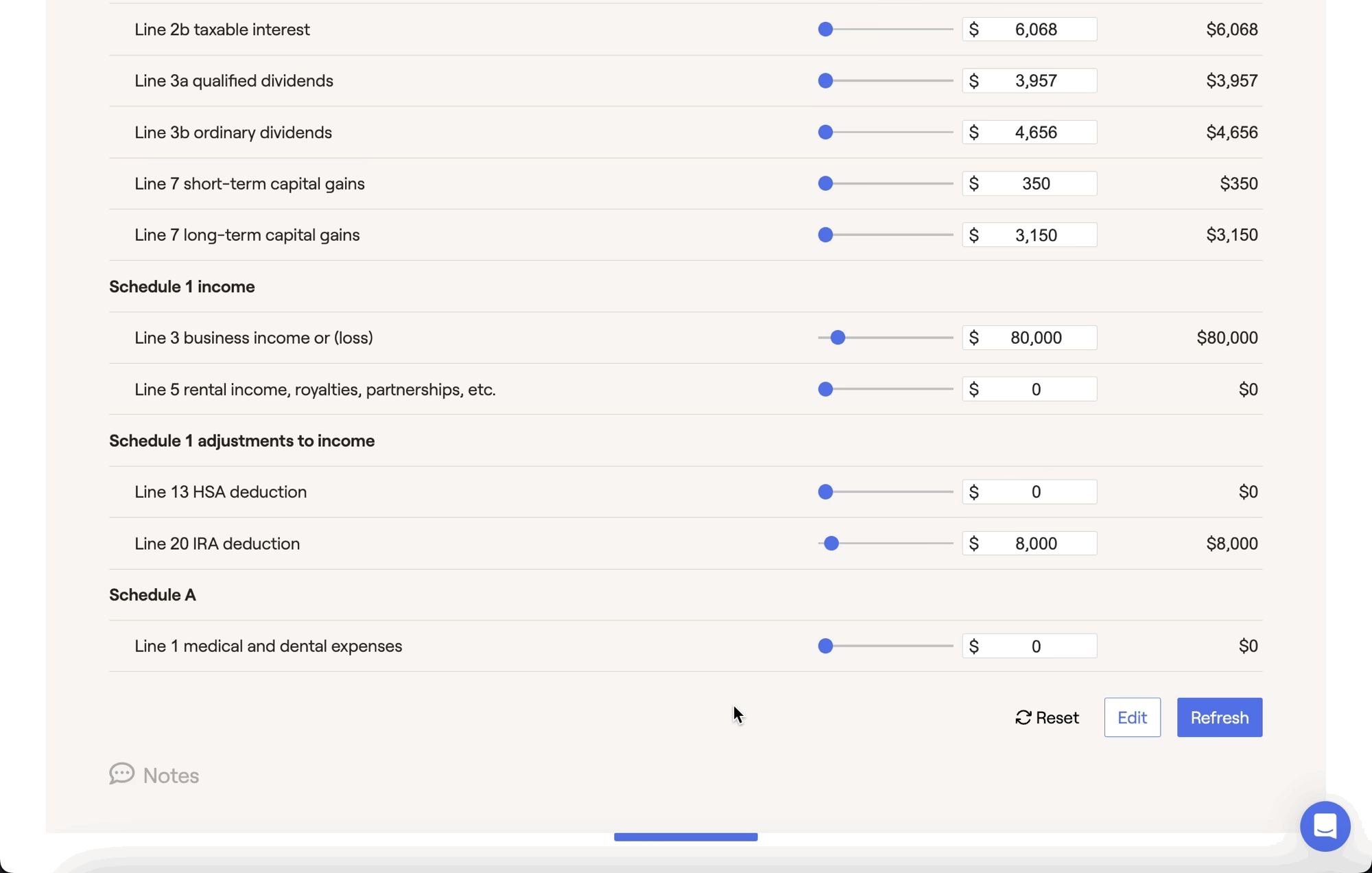
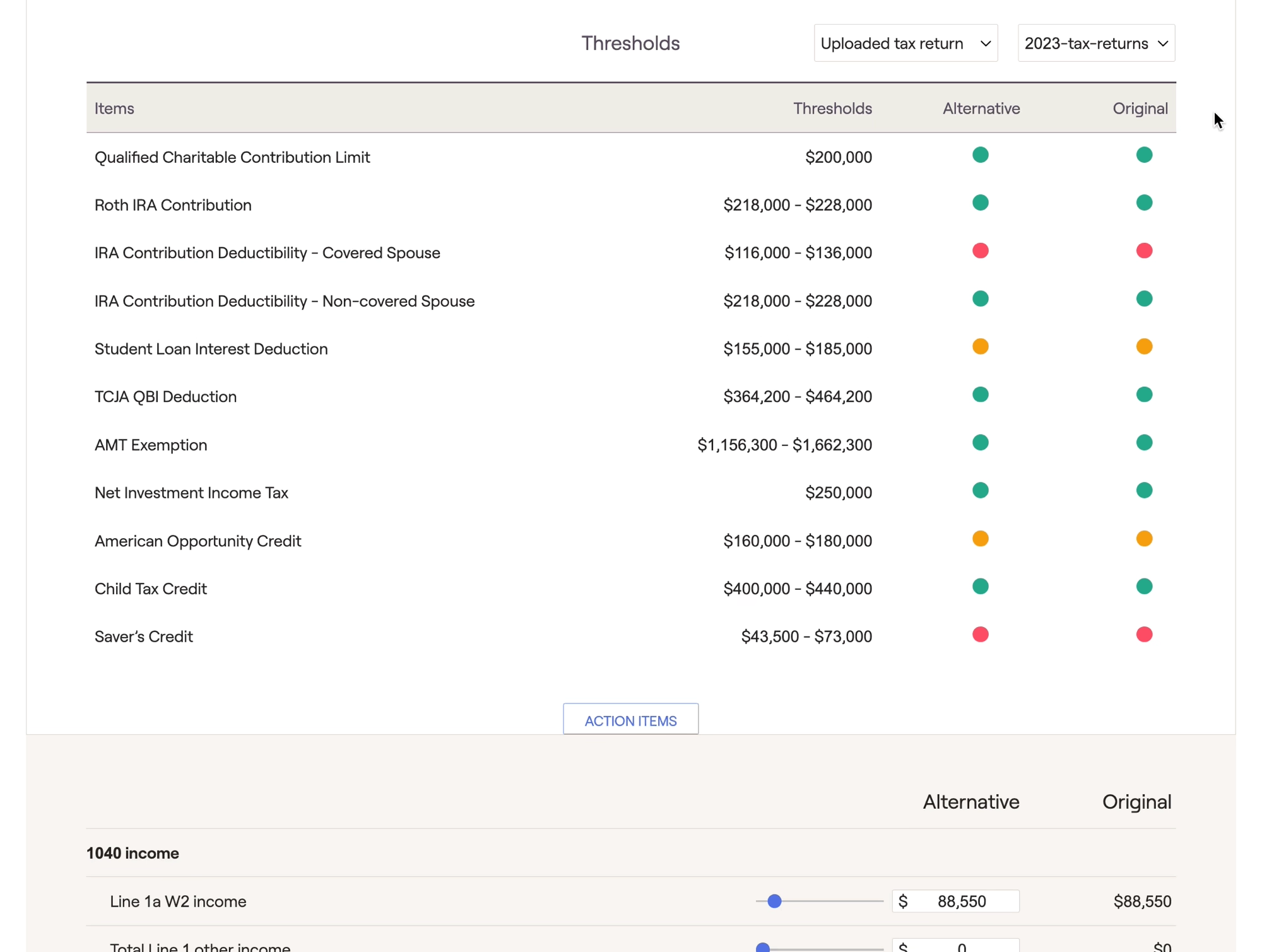
The alternative scenario will use your original scenario as a baseline, in addition to any changes that you've made using the Action Items. At the bottom of the page, you can make adjustments to the values of specific line items to curate your alternative scenario:
A limited number of essential line items will be displayed as a starting point, but you can click the Edit button in the lower right corner to open a full list of adjustable line items. Within this drawer, you can check the boxes to choose which line items you'd like to see, and click Save to update your action item display:
Note on Action Items
Please note that each year will have its own unique set of Action Items. Making changes to the values or layout for one year will not impact the action items for other years. This is true both for Projected Tax Returns, as well as Uploaded Tax Returns.

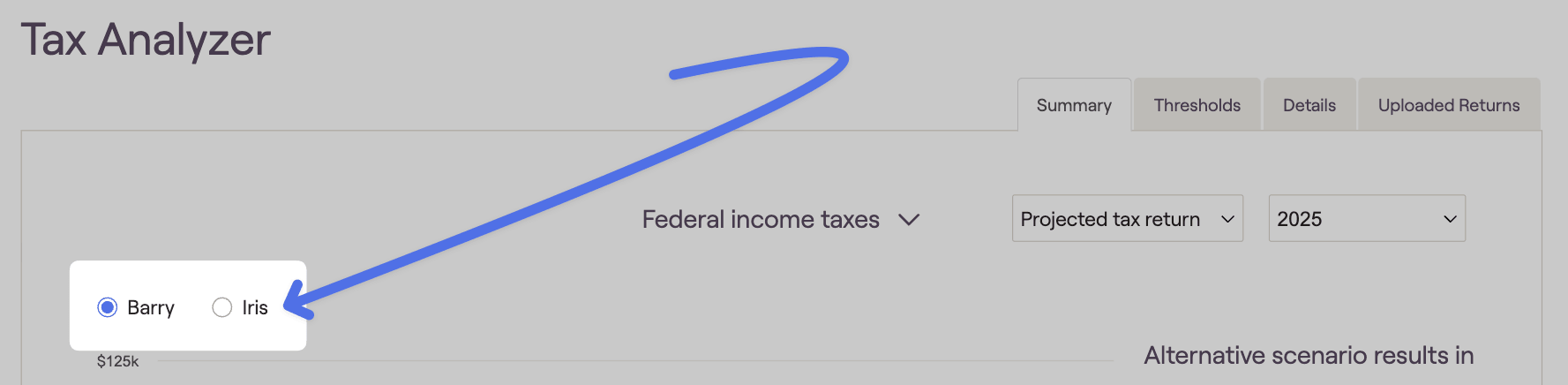
For clients that are married filing separately or non-married filing single, radio buttons in the upper left will allow you to switch between each's clients information. As a reminder, you can change a plan's tax filing status within the Profile > Expenses > Taxes and Fees card:
For example...

Using the Action Items, you can easily curate an alternative scenario that demonstrates to clients how taking a higher-paying job might impact their ability to contribute to a Roth IRA:
Contact Us

For additional assistance within RightCapital please contact our Support team.

Educational Webinars

RightCapital is committed to enabling your success. Each week, we cover essential planning modules and product updates.

RightCapital in Action

Check out our YouTube channel where we highlight Advisor Success Stories and share more Tips & Tricks!