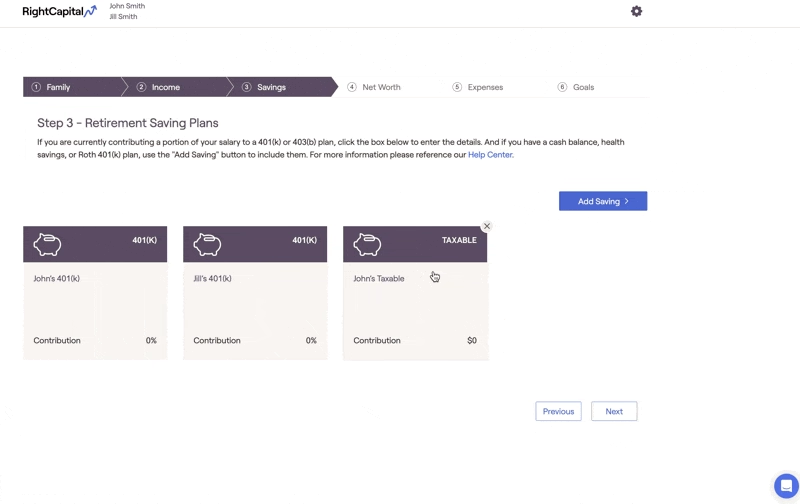
For clients with 401(k)s, you can enter ongoing contributions and employer matches within the Savings section of the Profile (or the Savings step of the initial data entry process). If this is a new client plan, a 401(k) card will already be preopulated for each client within this area. A new 401(k) savings card can be added by clicking Add Saving in the upper right, hovering your mouse over 401(k)/403(b)/457(b), and choosing the 401(k) option:
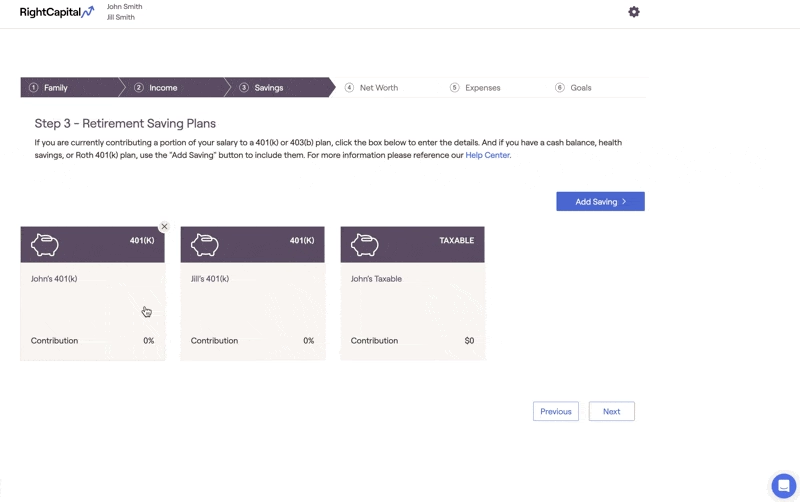
401(k) Savings Data Entry
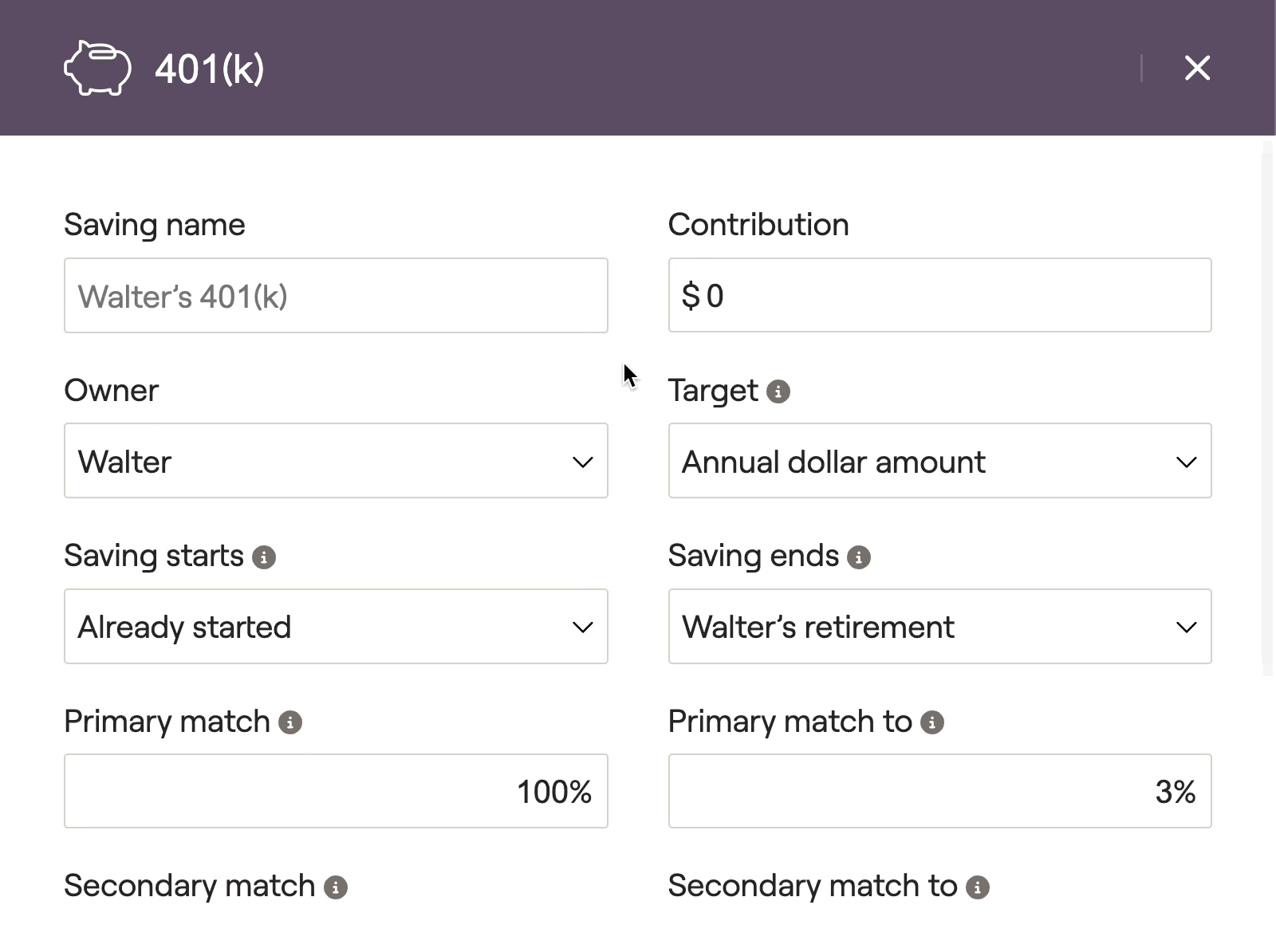
Click on this card to open a data entry drawer on the right side of your screen, allowing you to input the contribution information:
1
The Saving name will default to [Client's] 401(k), but you can enter a custom name if you'd like. In joint plans, you will also want to choose either the client or the co-client as the Owner.
2
Enter the client's annual Contribution to their 401(k). Depending on the option you choose in the Target field, this can be an annual dollar amount, a % of the client's income, or the maximum contribution amount.
3
Specify the duration of the contributions using the Saving starts and Saving ends fields. By default, these will be set to 'Already started' and '[Client's] retirement' respectively.
4
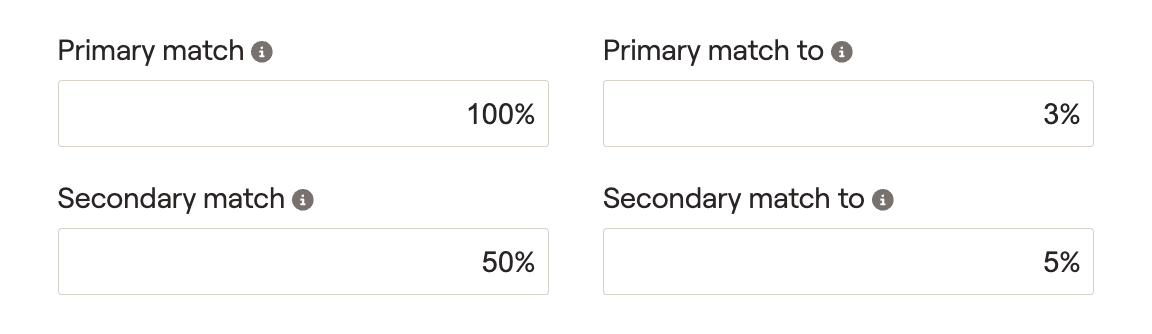
Enter the details of the employer match, starting with the Primary match (full or partial) and the Primary match to (% of client's contribution). If necessary, you can also specify the Secondary match and Secondary match to percentages.
A common example might look like a full match of 100% up to 3% of the client's contribution, and a partial match of 50% up to 5% of the client's contribution:
5
For non-elective employer matches, you can skip the primary and secondary matches and instead enter a Flat percent match or a Flat dollar match. These will occur regardless of employee contributions.
6
If some or all of the employer match is designated as a Roth contribution (as per Secure Act 2.0), indicate this percentage in the % of match to Roth field.
7
If the Target is set to "% of salary income", then 2 additional fields will be available at the bottom of the savings card. Escalation Rate and Escalation Rate Ends. These fields can be utilized to model the client increasing the percentage of salary they are contributing to the 401(k) over time.
What does "Self-employed" do?
Checking the Self-employed box will cause this card to calculate employee/employer contributions based on the client's Self-employment income, rather than Salary income.
Additional Information
Contribution Limits and Taxation
Total employee contributions will be capped at the IRS maximum value ($24,500 for 2026, plus $8,000 catch-up at 50, $11,250 from 60-63). This limit is shared between 401(k), Roth 401(k), 403(b), and Roth 403(b) contributions.
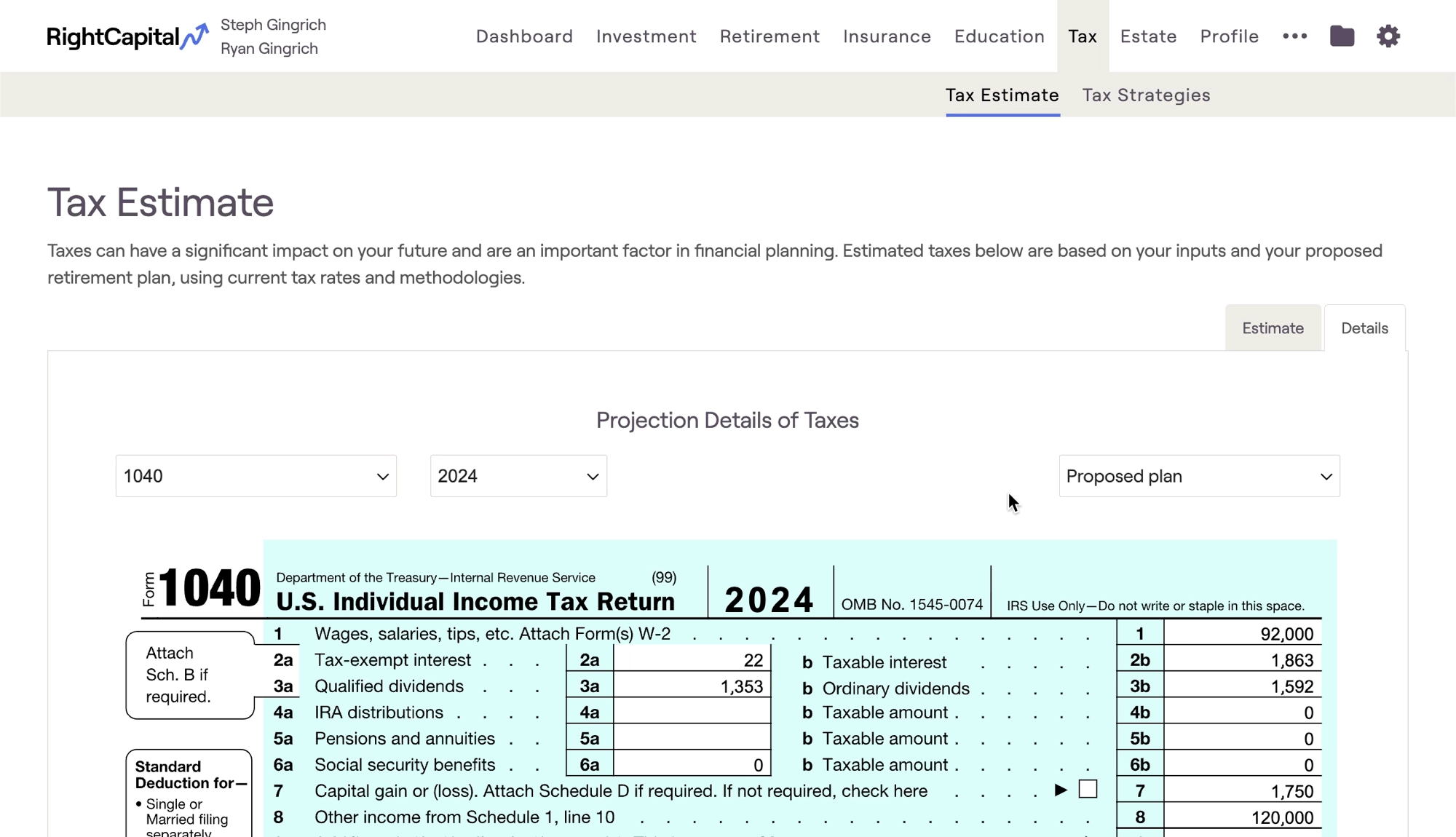
For salaried clients, traditional 401(k) contributions will be deducted from the client's wages on Line 1 of the 1040. With the 'Self-employed' box checked, contributions will be treated as Adjustments to Income (Line 16 of the Schedule 1, Line 10 of the 1040).
Sample tax forms can be viewed in the Tax > Tax Estimate > Details tab:
Cash Flows Location
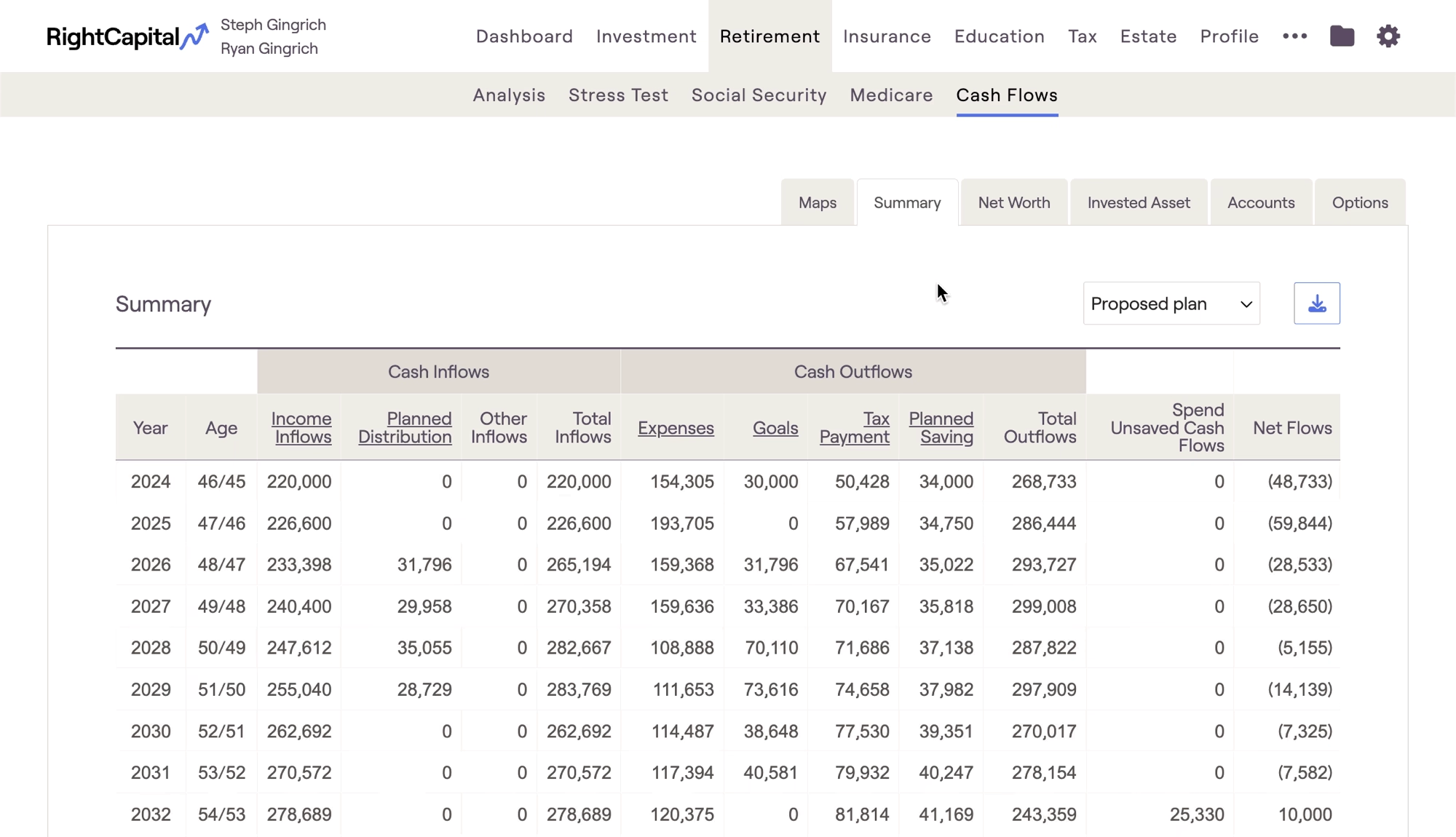
Client contributions can be tracked in two locations within the Retirement > Cash Flows:
- The Summary tab > Planned Savings column
- The Invested Asset tab > Planned Savings column
Employer matches can be found in the Invested Asset tab > Employer Match & Other column:
Removing 401(k) Savings Cards
For clients that are not making 401(k) contributions, these cards can be removed. Hover your mouse over the card, click the 'x' icon that appears in the upper right, and then click Delete. If you remove a 401(k) card and need to add it back at any time, you can do so by clicking Add Saving > 401(k)/403(b)/457(b) > 401(k):