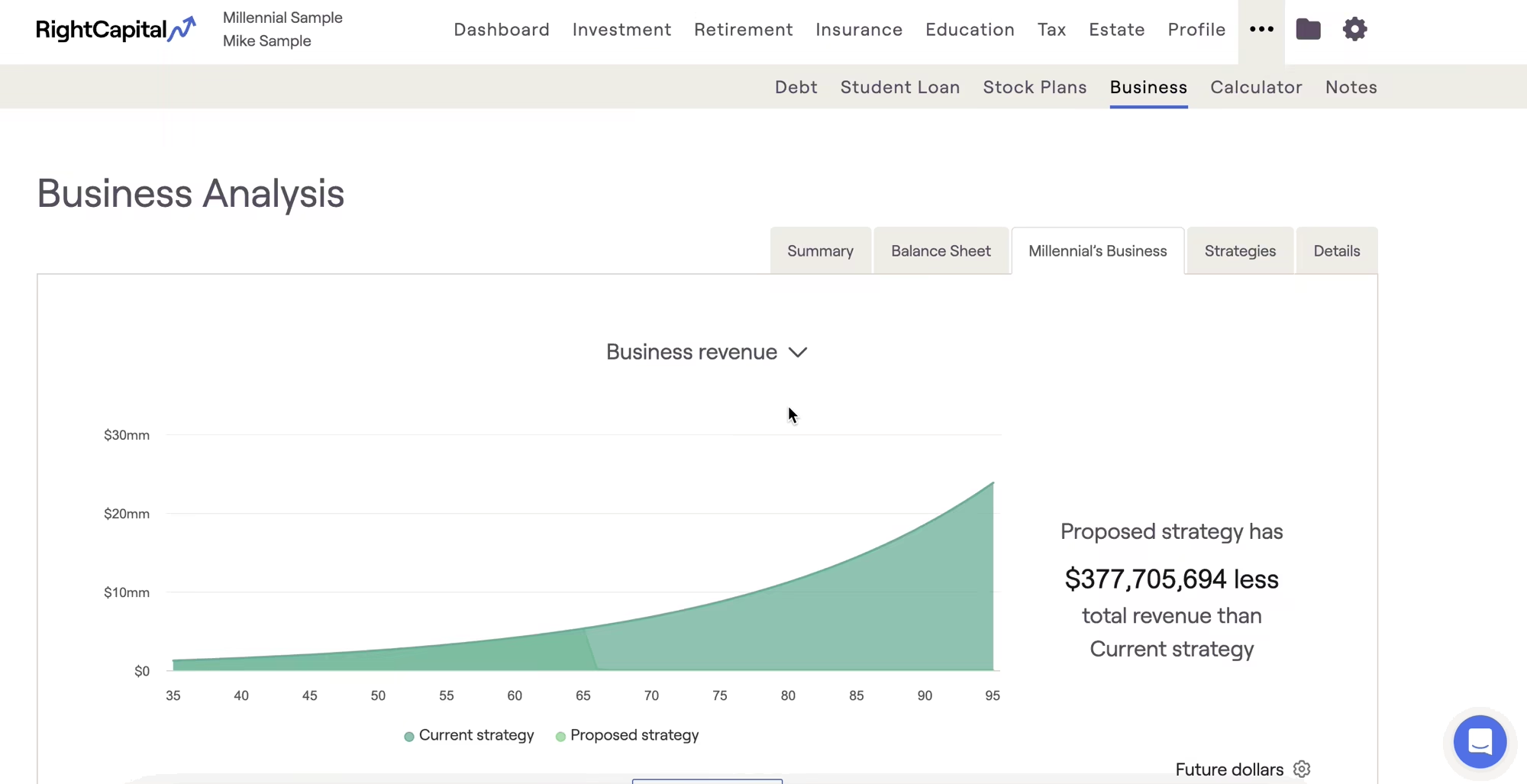
Business Tab Overview
The Business tabs are available in the Business Module in a client's plan under More Menu "..." > Business.

This "Business" tab section will include a tab for each business in the plan. Within these tabs, you can view details for each company and adjust action items to create proposals specific to that asset.
This tab will display various data points for each business and the impact of any proposed action items. By selecting the title of the graph, you can switch between visuals of the:
- Business revenue
- Business expenses
- Business Distributions
- Total assets over time
- Capital gains at sale of business
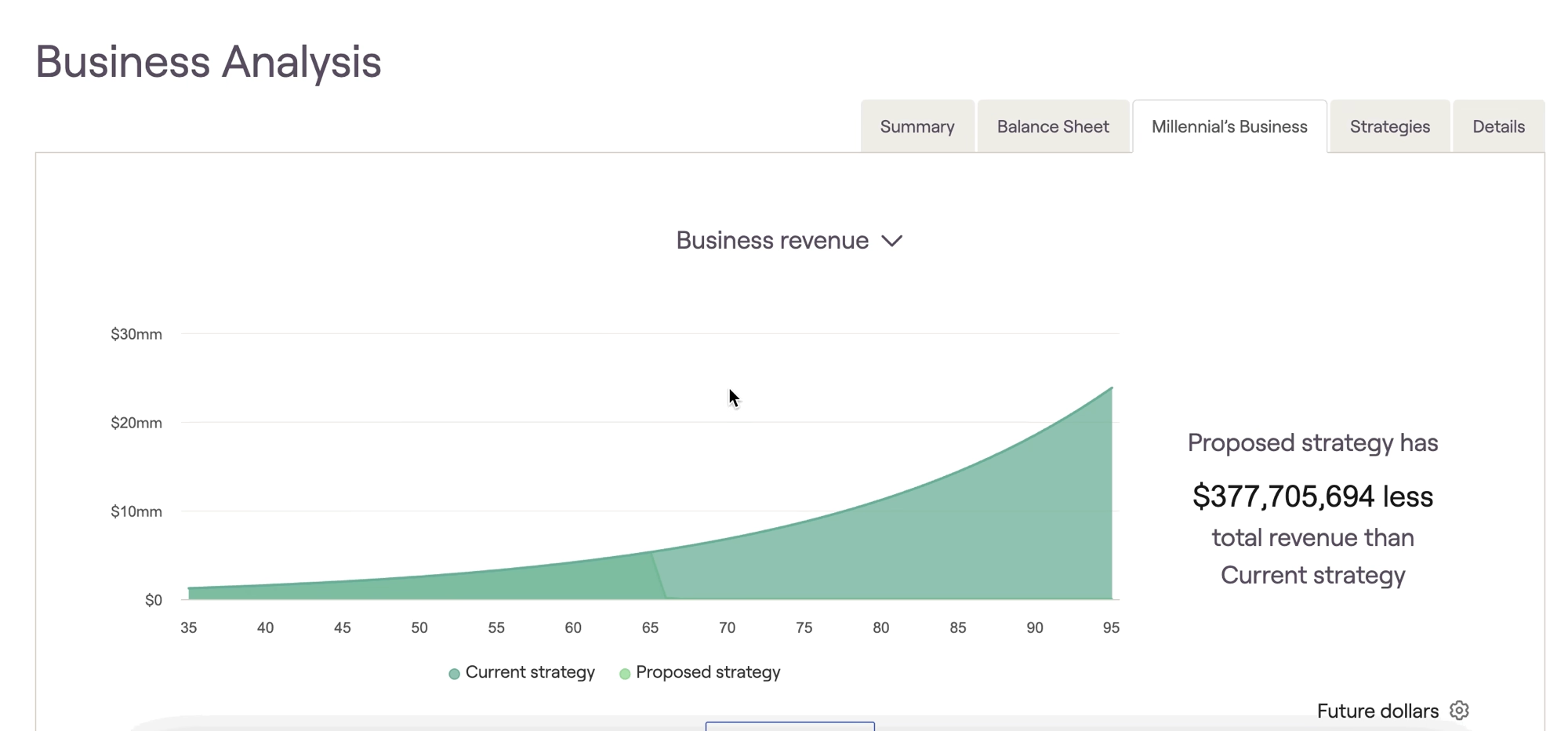
In the bottom right corner of the graph, you can also select the gear icon to adjust specific settings, such as today/future dollars, or to display years instead of the client's age on the x-axis.
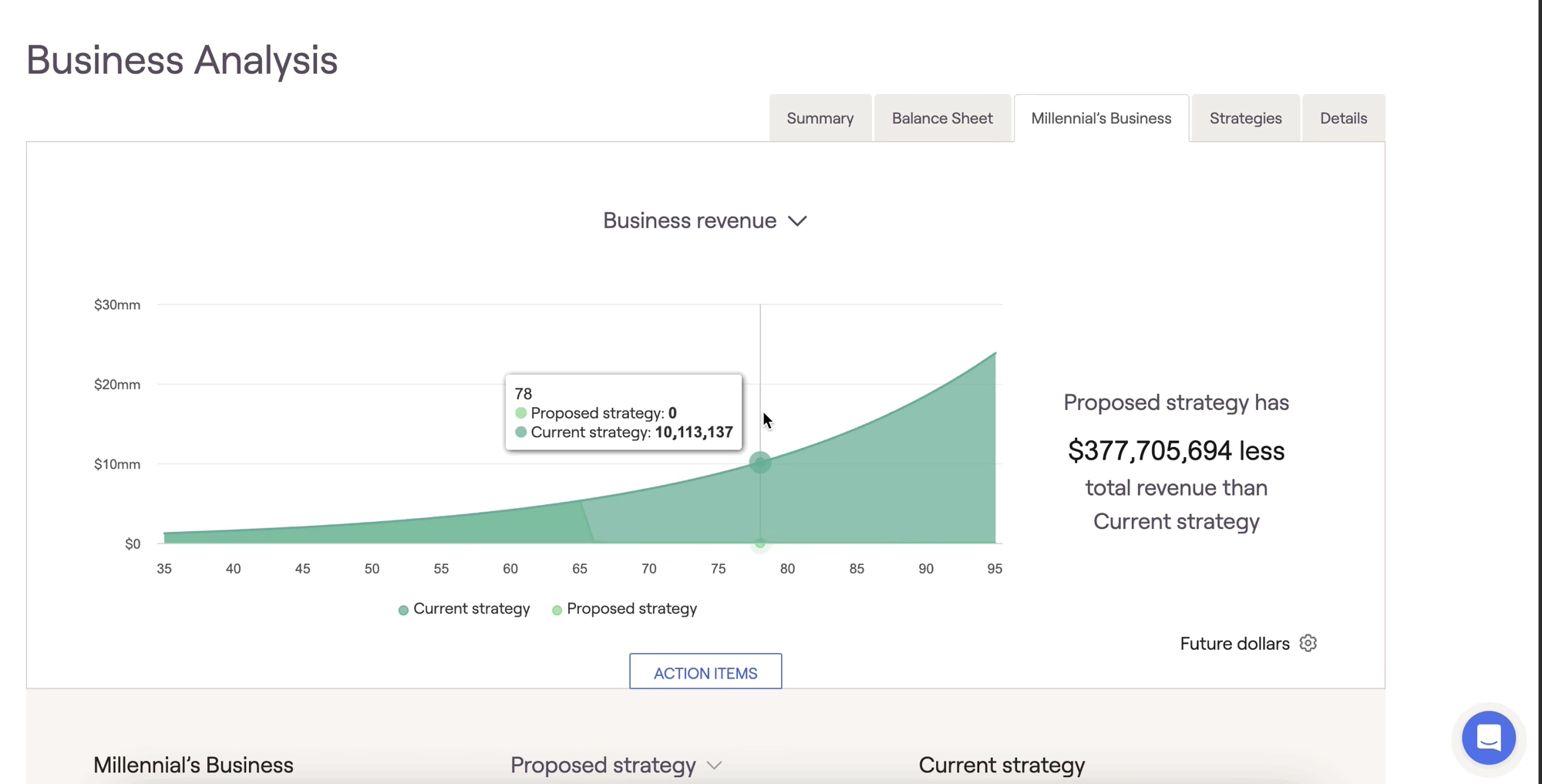
Action Items
The action items at the bottom of the page allow you to create alternative proposals for the selected business. They are divided into three sections: Sale Strategy, Revenue and Expense Strategy, and Distribution Strategy.
"Core Business"
Changes made to the action items should reflect the Core Business, not the assets controlled by the business. For example, revenue adjustments should be reflective of the business itself, not a change in revenue for a property owned by the business.
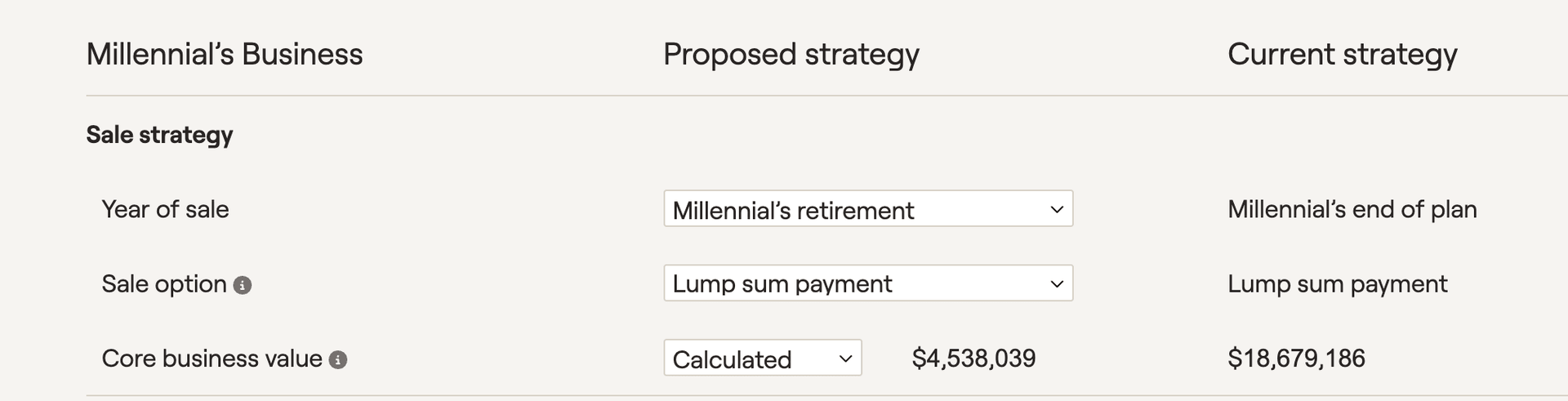
Sale Strategies
Sale strategies allow you to adjust the year of sale, the sale option (lump sum/installment), and the core business value.
Revenue and Expense Strategies
This section will allow you to control the approach, revenue, revenue growth, expenses, and expense growth.
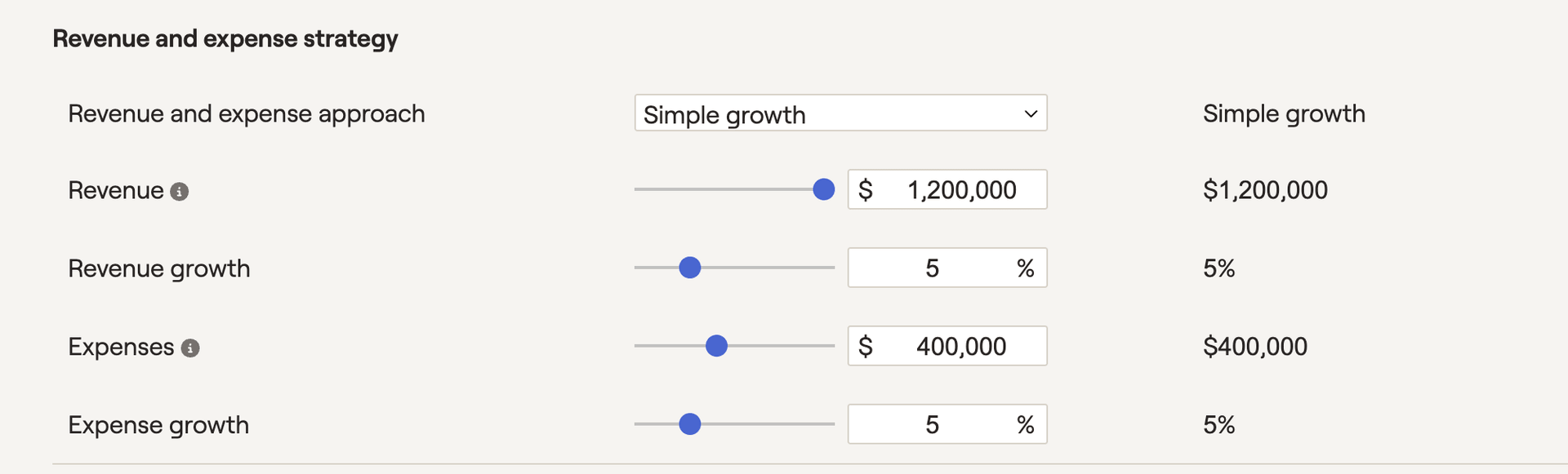
Simple growth will increase the revenue and expenses according to the percentages entered. Switching to a Detailed Schedule will allow you to customize the revenue and expense amounts for every year in the plan. Additional details on this process can be found here.
Distribution Strategies
This final section will allow you to control the distribution approach, type, amount, and growth.
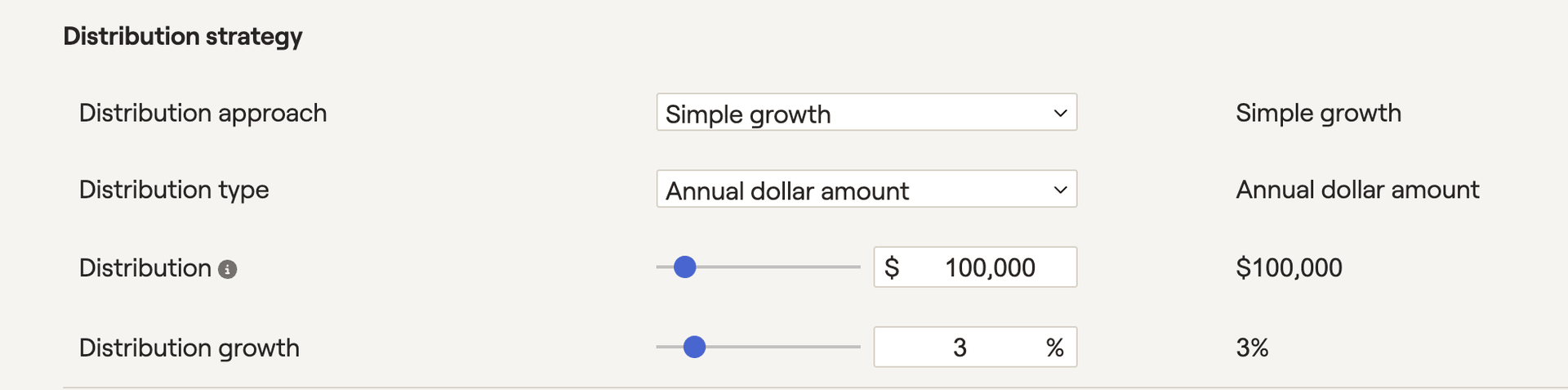
Lastly, by selecting "Edit" at the bottom, you can control which items are shown in the action items and save strategies. These can then be used in other pages such as the Retirement > Analysis > Action Items for use within a larger proposed plan.