Overview
Passkey setup is an advanced security feature for your RightCapital account. It is designed to make your login process more intuitive by replacing traditional password entry.
Passkeys make use of services such as FaceID or Touch ID, which make it easy for you to access your account while staying secure with an additional layer of security. Passkeys use public-key cryptography and store a private key securely on your device, making them a strong defense against phishing attempts.
Passkeys make use of services such as FaceID or Touch ID, which make it easy for you to access your account while staying secure with an additional layer of security. Passkeys use public-key cryptography and store a private key securely on your device, making them a strong defense against phishing attempts.
Single Sign-On (SSO)
Passkeys are unavailable if your organization uses a SSO login. To confirm whether your organization uses an SSO, you can reach out to our Support Team.
Setting up a Passkey
1
Head to the Advisor Portal > Gear Icon > Security > Passkey page:

2
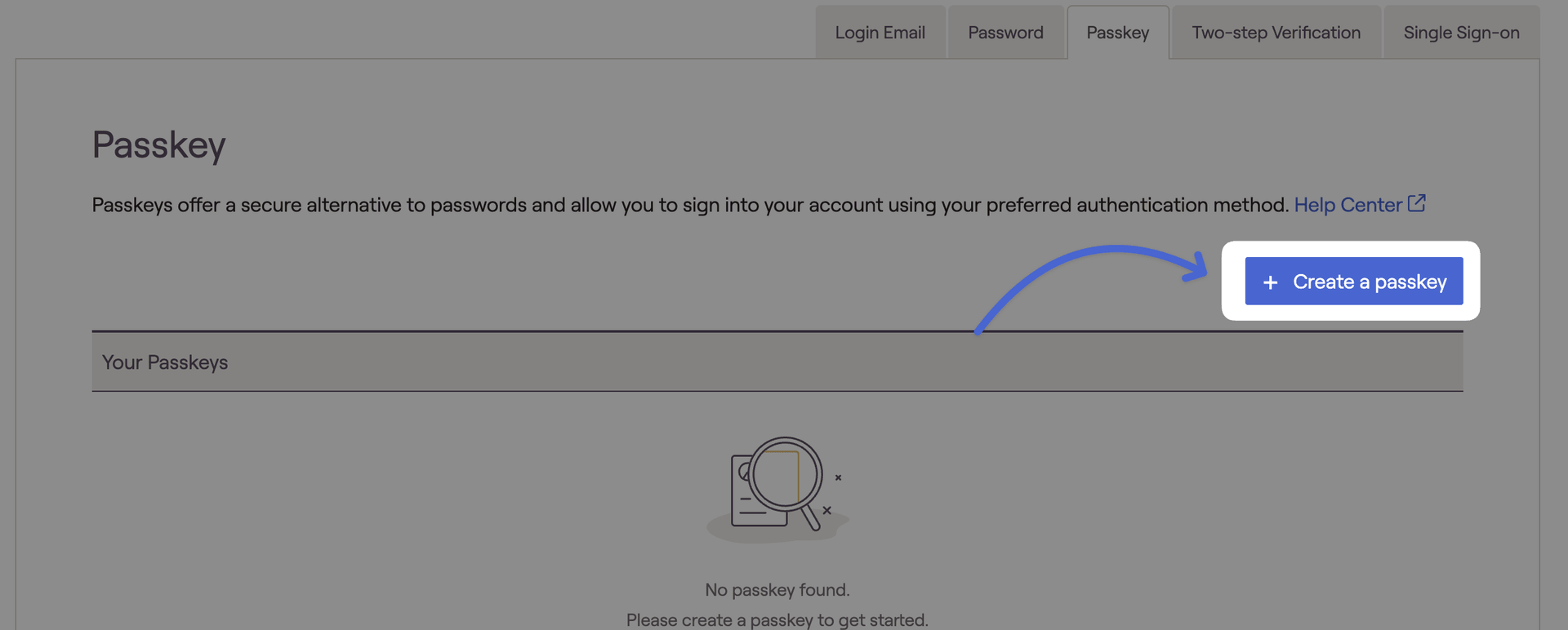
Select the blue "+ Create a passkey" option in the top right of the page:
3
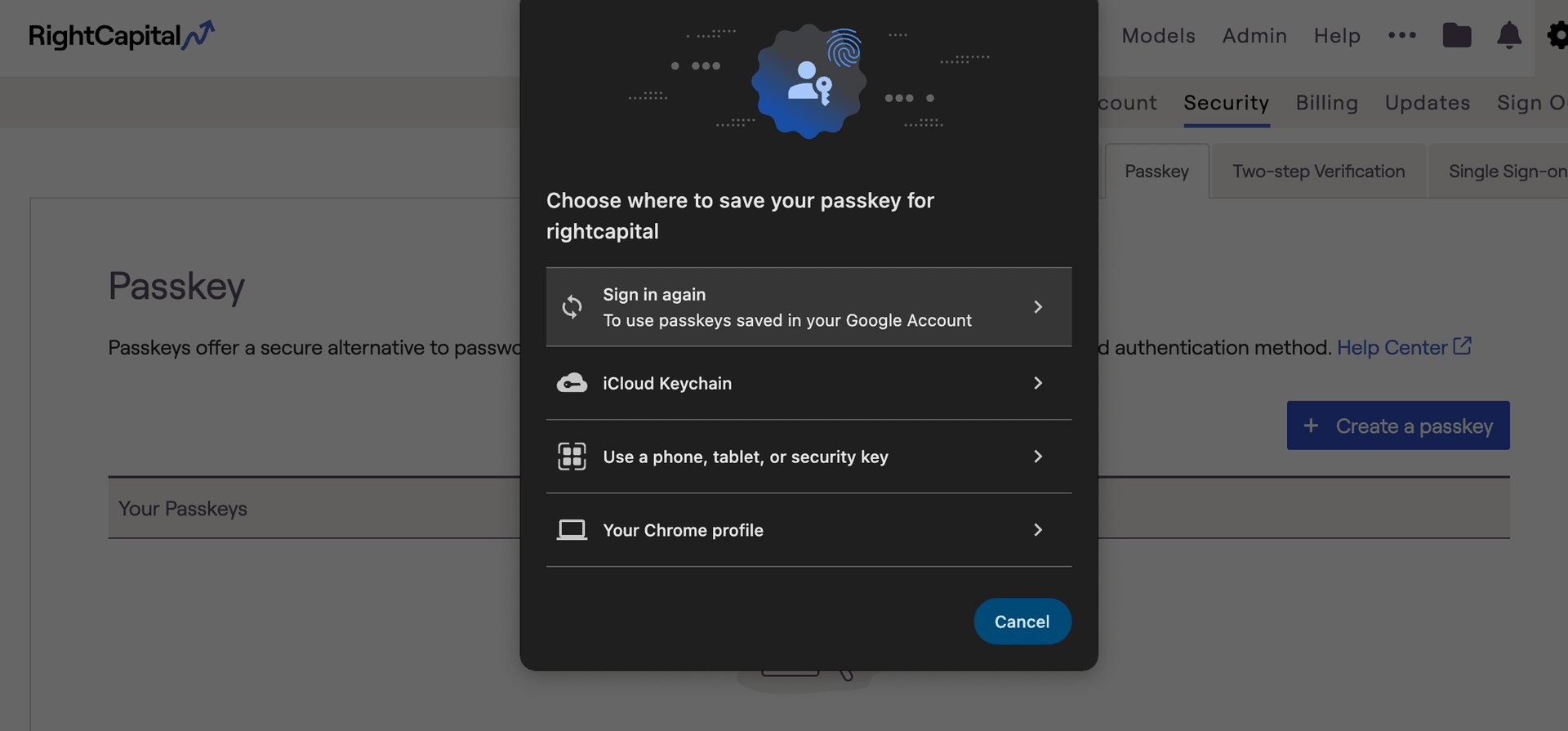
Choose your preferred passkey method in the prompt that appears:
4
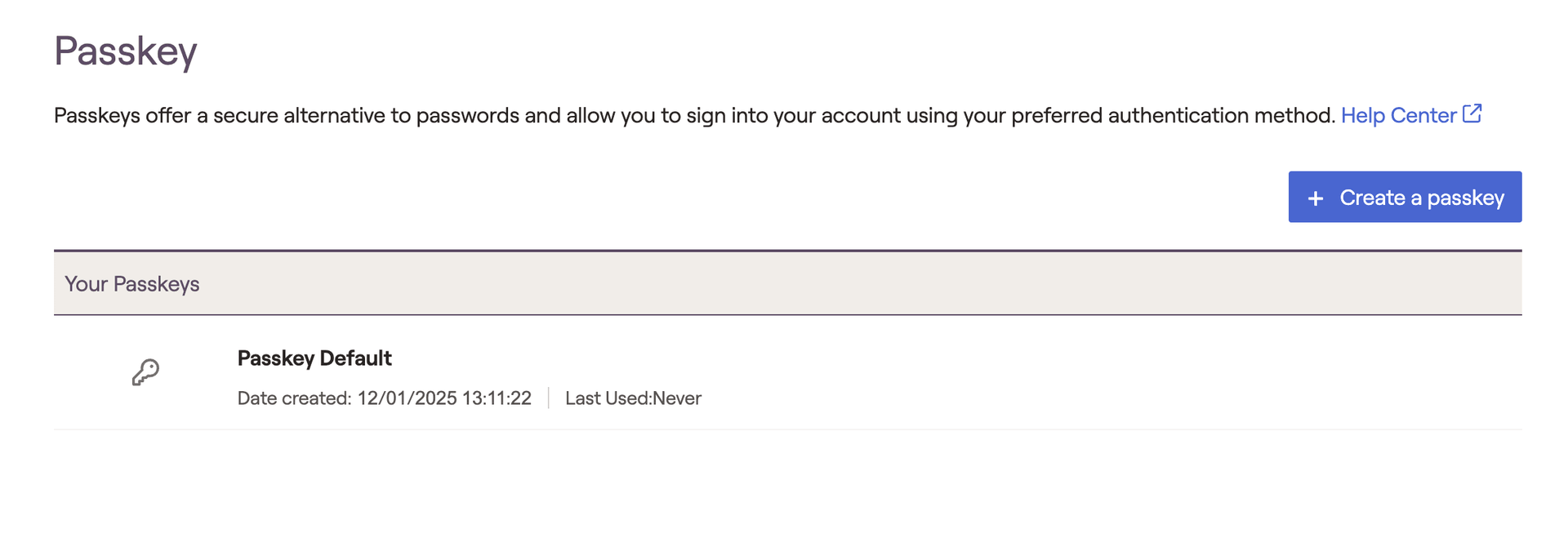
That's it! Once set up, the passkey option will appear below.
Passkey Pop-Up
The pop-up that appears when selecting "+ Create a passkey" will vary depending on your browser/OS.
Modifying a Passkey
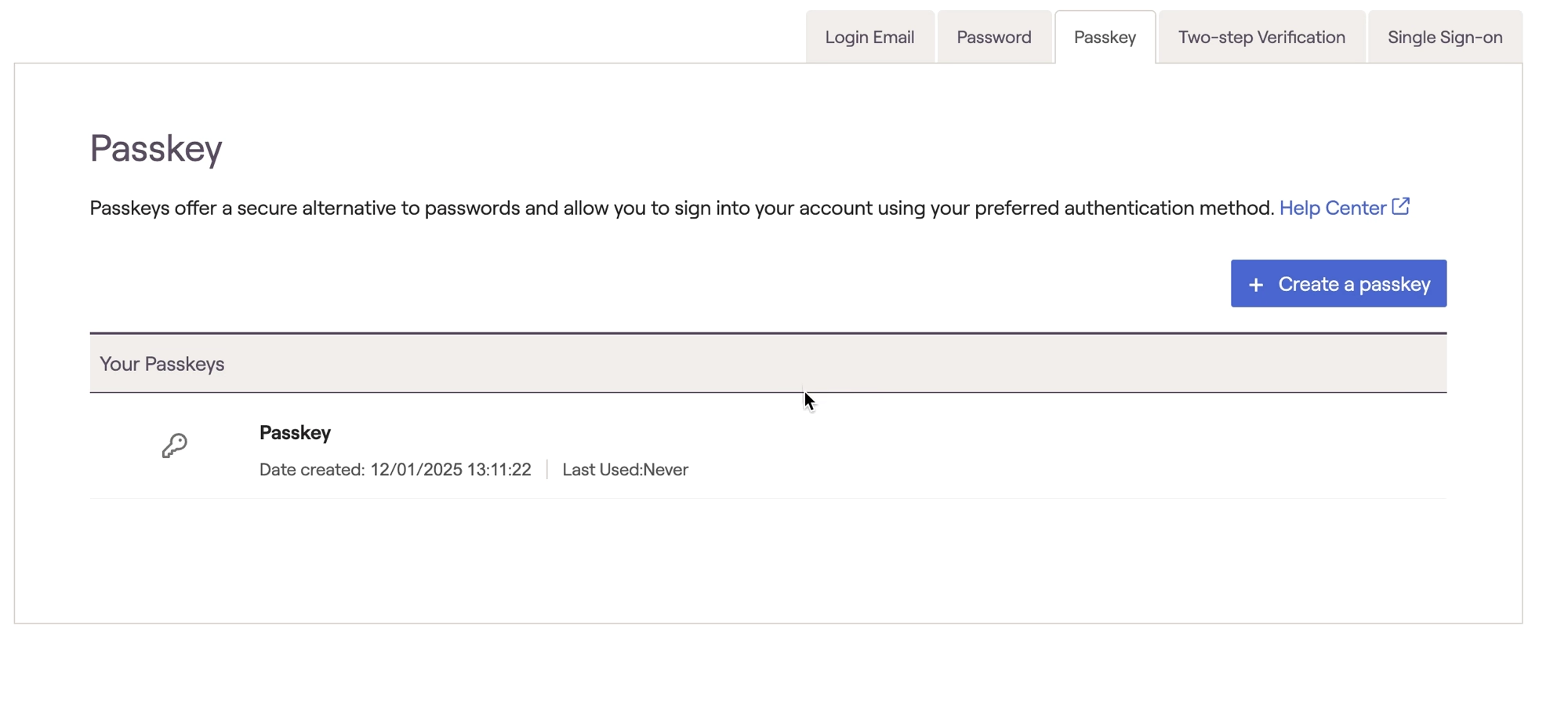
Once a passkey has been setup, you can rename or delete the passkey by selecting the three dot icon:
Using a Passkey
To use a passkey, simply select this option on the log-in screen:
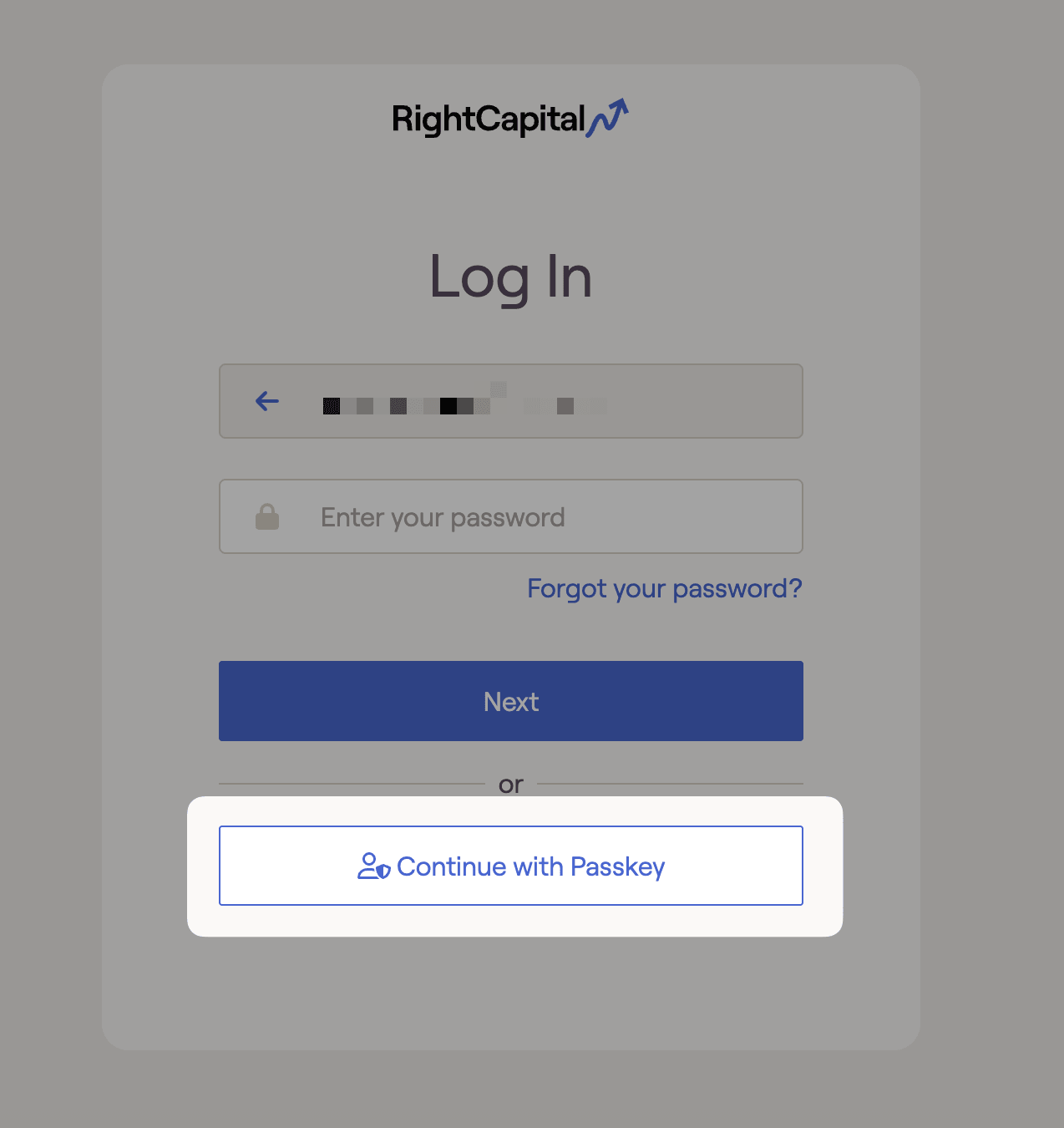
Once selected, the system will prompt you to complete your passkey method of choice. You will then be automatically be logged in.


