Overview
To access Iris, you can select the sparkle icon in the top right of any client plan:
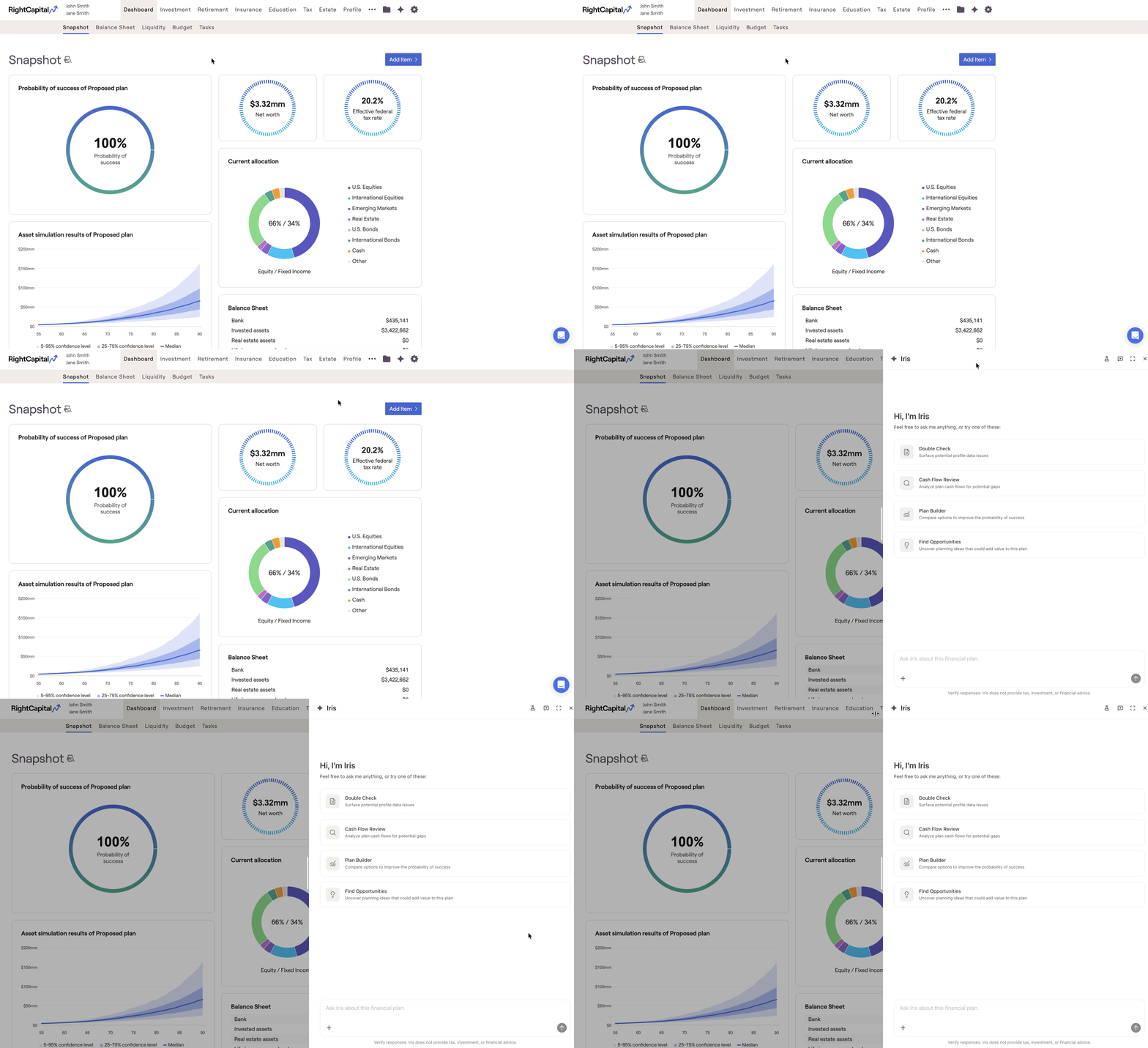
This will open a drawer on the right side of your screen. Here, you can ask Iris questions regarding the plan, general information on the software, or use specific pre-built prompts.
Iris Features
Double Check
Double check will instantly audit the client profile for data-entry issues and anomalies. Current criteria that Iris can identify are:
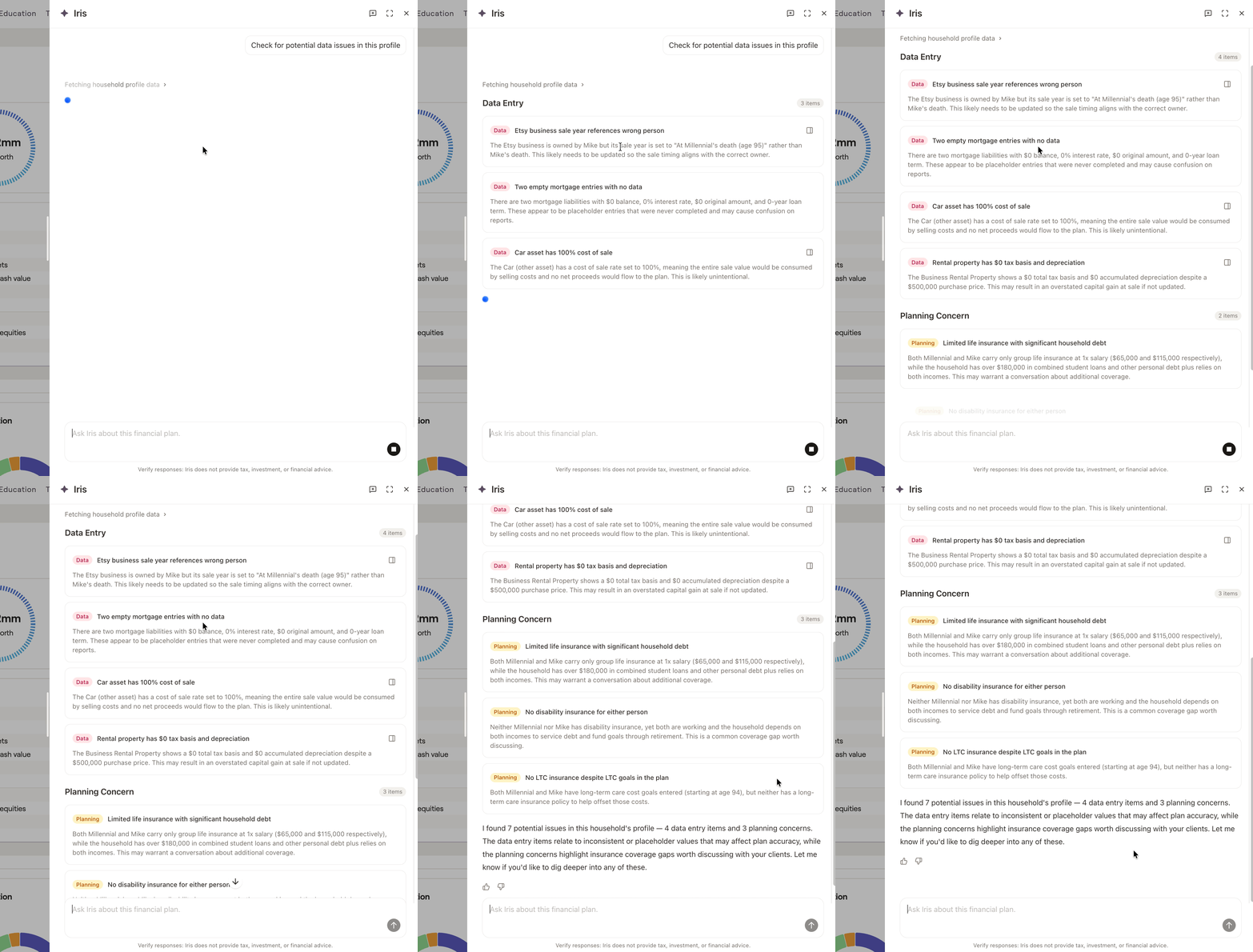
On certain results, you are able to automatically open the relevant card or account by selecting this option:

Cash Flow Reviews
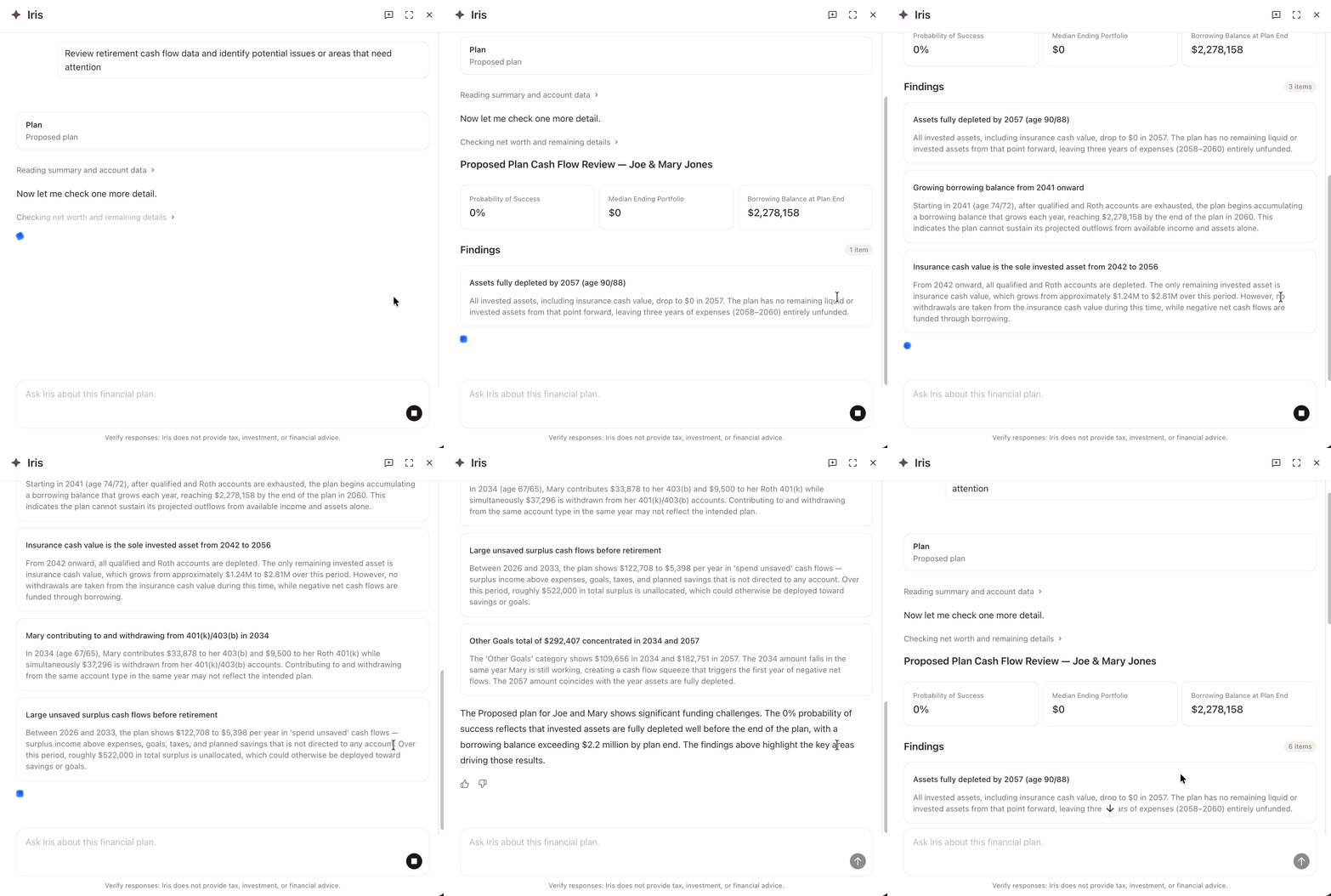
Cash Flow review delivers a prioritized analysis of the client's financial picture, with key metrics like probability of success, median ending portfolio value, and ending net worth, while flagging other areas to review.
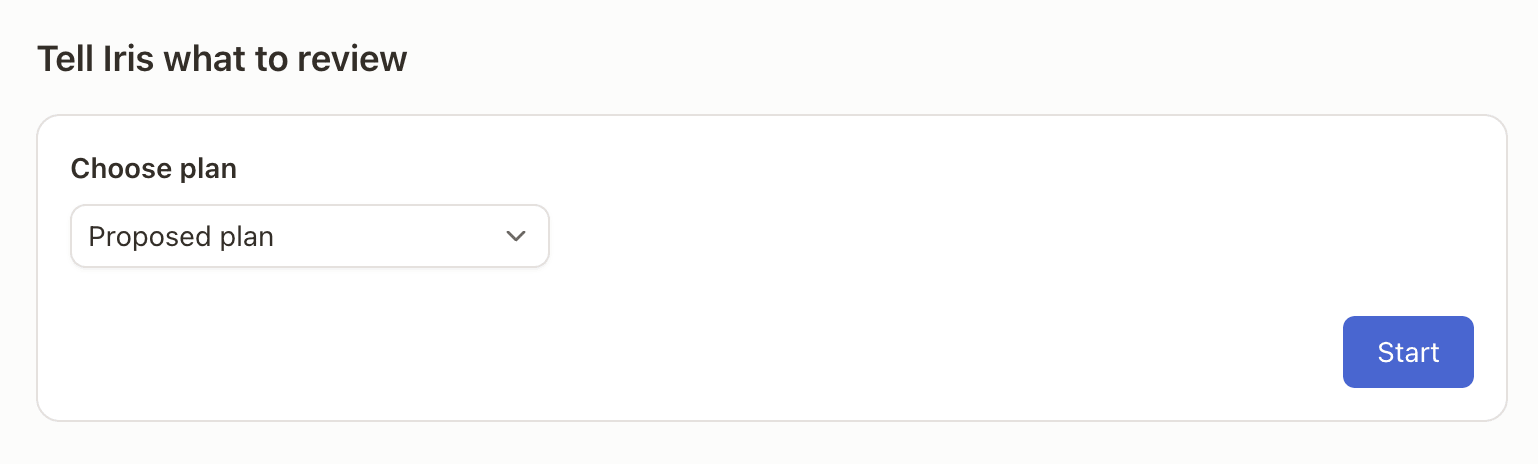
To start, select "Cash Flow Review" from the main chat page. Confirm which plan you want to analyze, and select "start":
Iris will first display the probability of success, median ending asset value, and ending invested assets (or year in which plan ran out of assets). Various findings will then be presented that highlight potential areas of improvement, and which levers in the plan are having the largest impact on the probability of success:
Plan Builder
The Plan Builder acts as your planning co-pilot. Set a target success rate, choose which levers to adjust and Iris will generate three options, each with specific changes, key considerations, and the resulting probability of success.
To use the Plan Builder. First, specify which plan to analyze, the target probability of success, and which levers should be adjusted within the plan. Iris is currently able to adjust the:
Savings rate
Retirement age
Roth Conversions
Pre-retirement expenses
Retirement expenses
Goal amounts
Social Security filing age
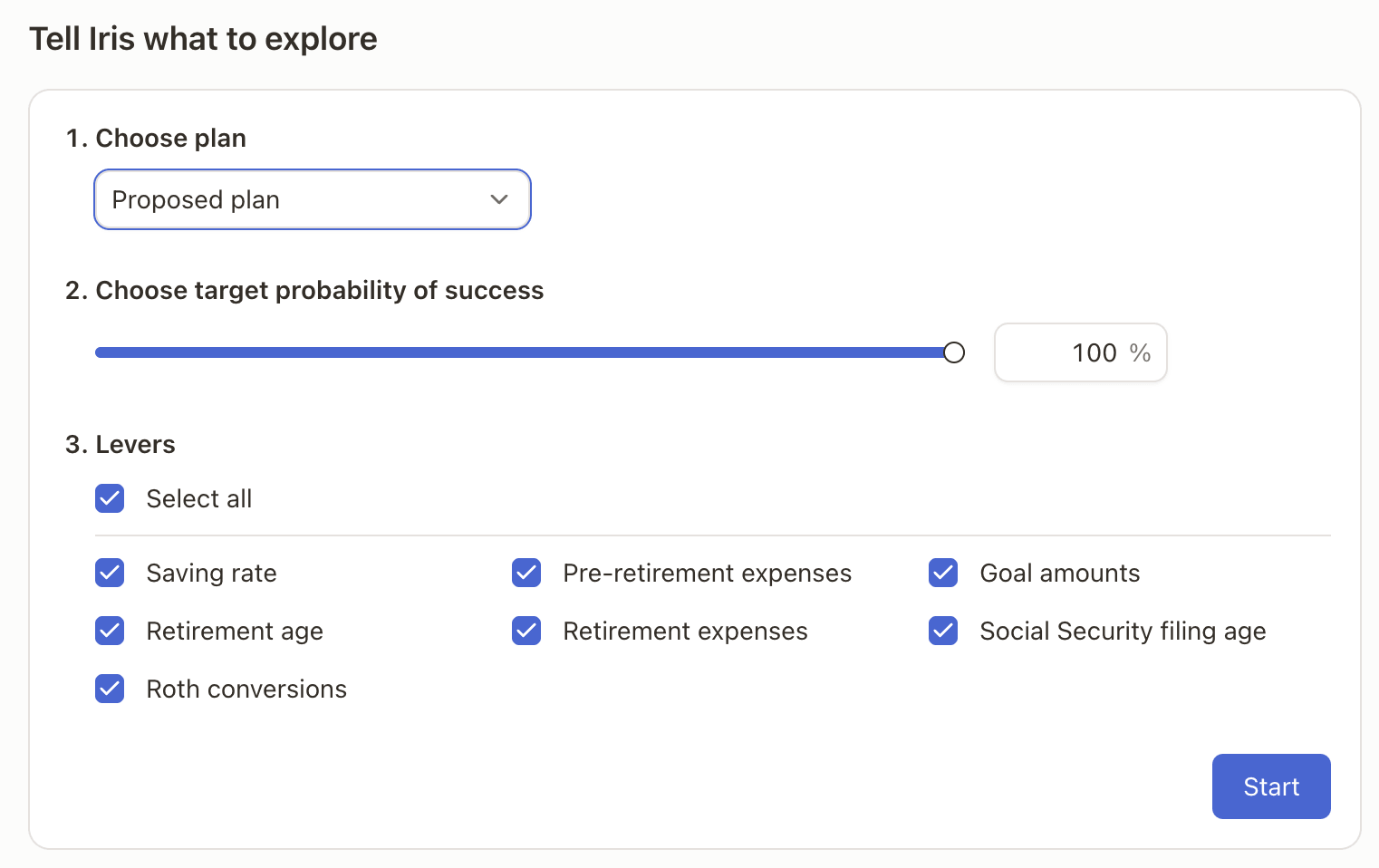
The Plan Builder will calculate a number of different scenarios behind the scenes to find the most optimal route to the selected probability of success. As such, results for this prompt can take a couple minutes to calculate.
As a tip, removing potential levers from the analysis will significantly increase the answer speed. Try removing levers you expect will have little to no impact to get your results quicker!
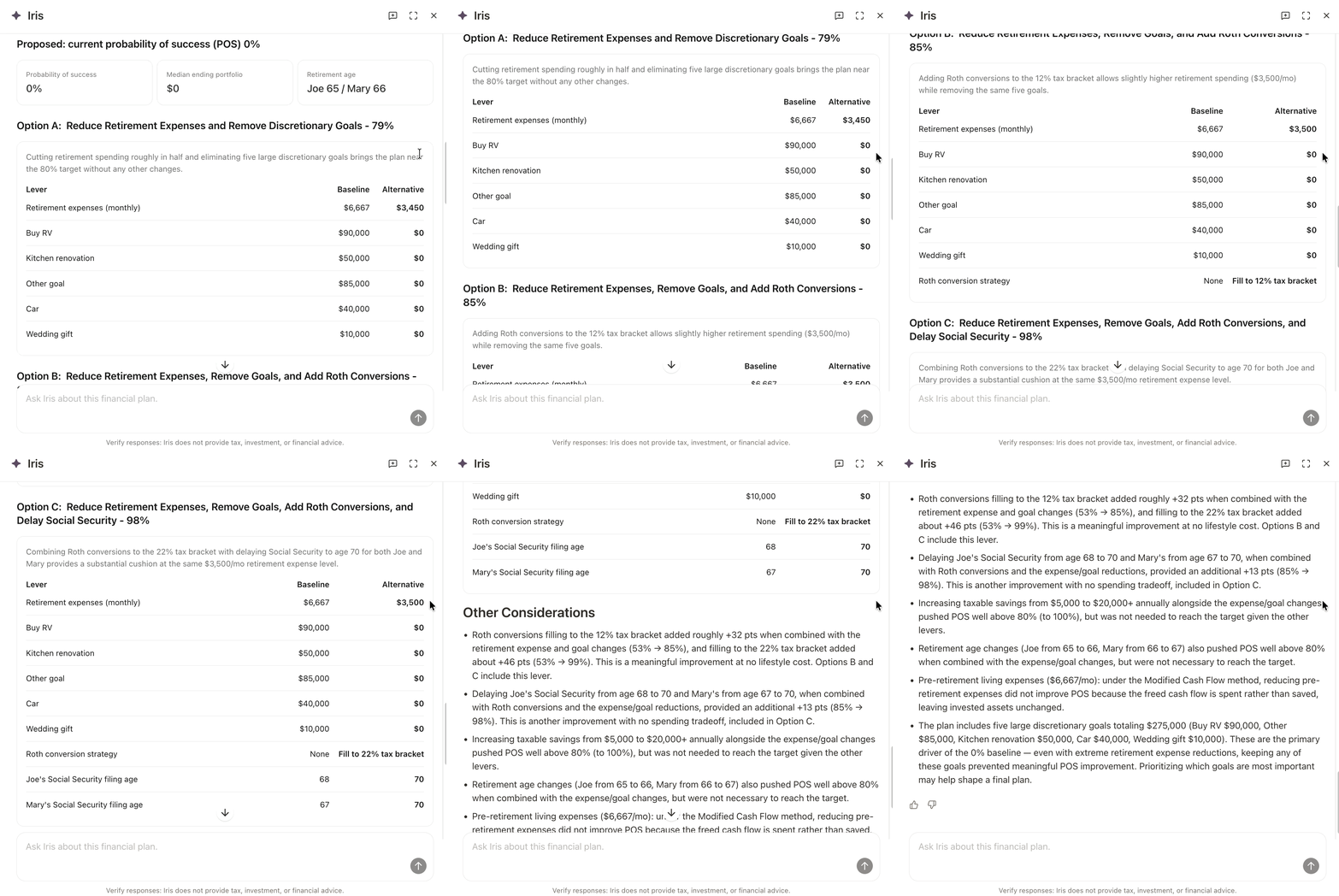
Once the analysis is complete, you will be provided with 3 main options to increase/decrease the plan probability of success. These typically contain 2 changes made to the plan that get the plan probability more in line with the requested probability.
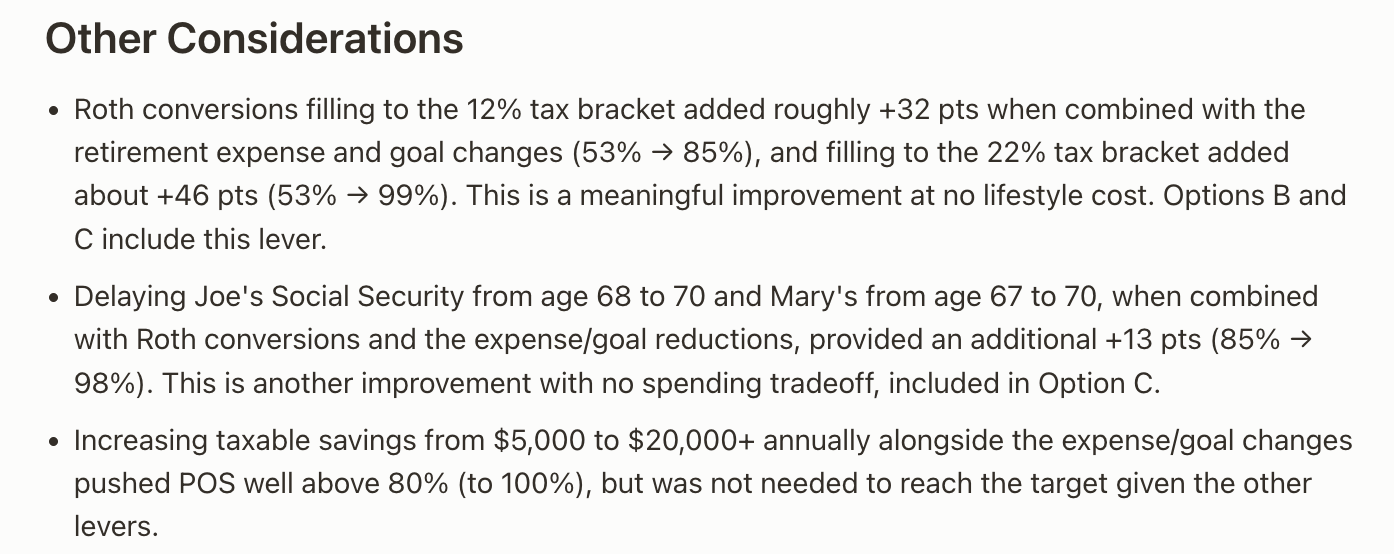
Other considerations will be listed at the bottom, but will generally have a lesser impact on the overall plan probability.
While Iris highlights 3 main options and some additional considerations, feel free to follow up with Iris and ask additional questions on the results!
Planning Opportunities
The planning opportunities tool will scan the financial plan and look for windows of opportunity for potential plan improvements.
Tax
Investments
Retirement
Insurance
Debt
Stock Plans
Business
Estate
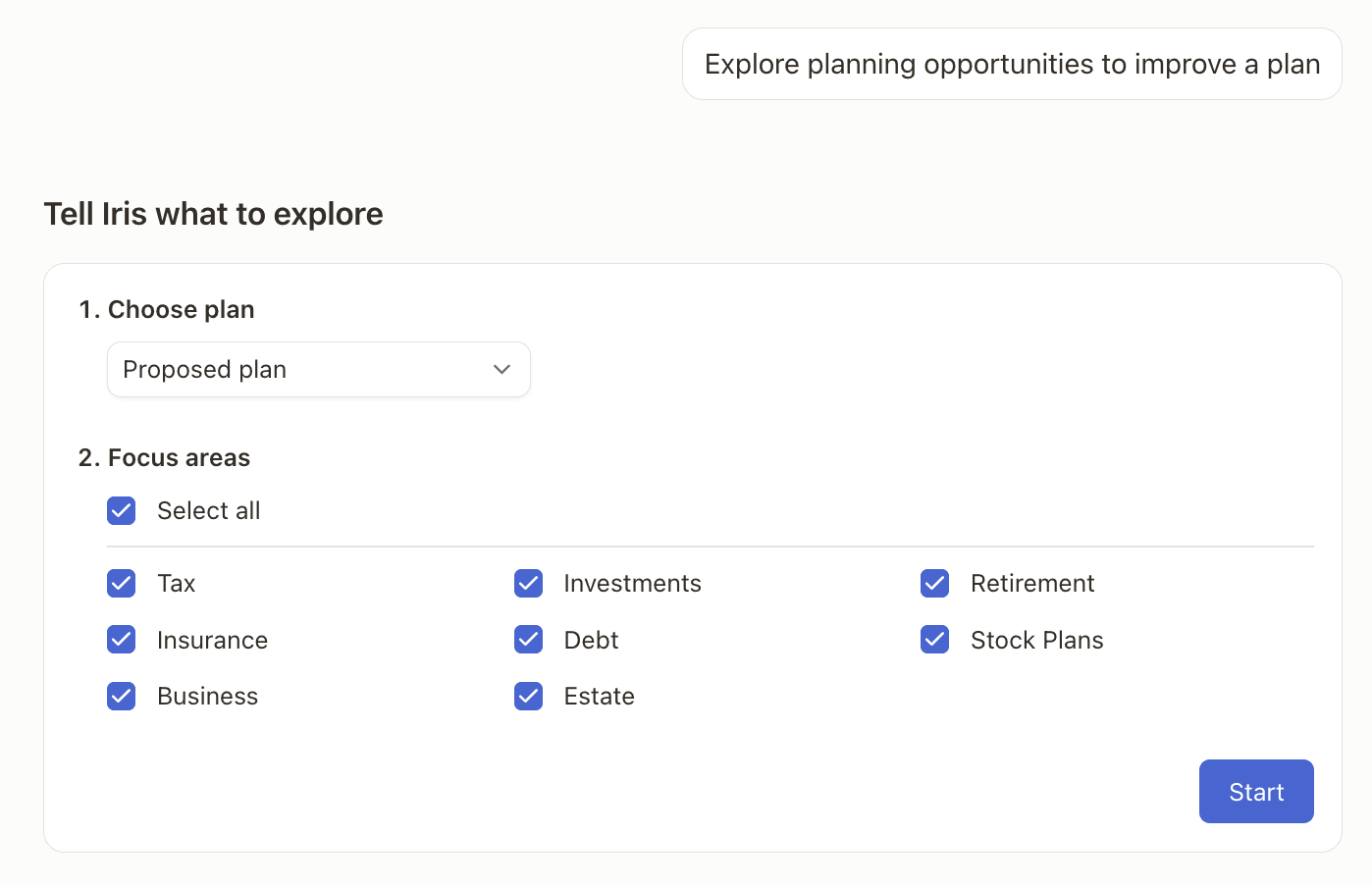
Once the analysis is complete, you will be presented with several ideas to improve the plan:
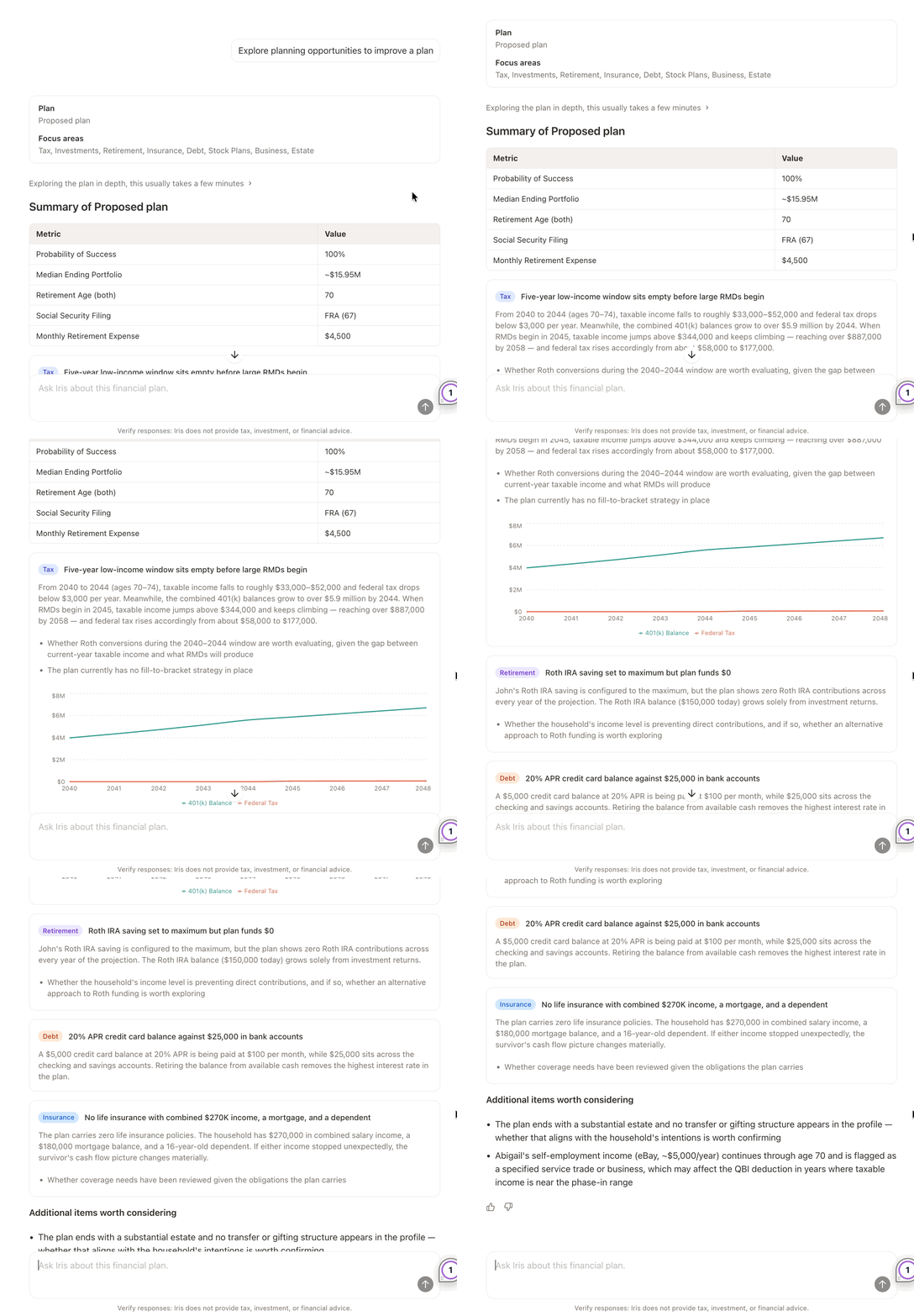
Other considerations will be listed at the bottom, but will generally have a lesser impact on the overall plan. While Iris highlights several main options and some additional considerations, feel free to follow up with Iris and ask additional questions about the results!
Chat
Use the built-in chat to ask Iris detailed questions about a client's plan, RightCapital functionality, or planning strategies. Get quick answers any time of the day, right when you need them:
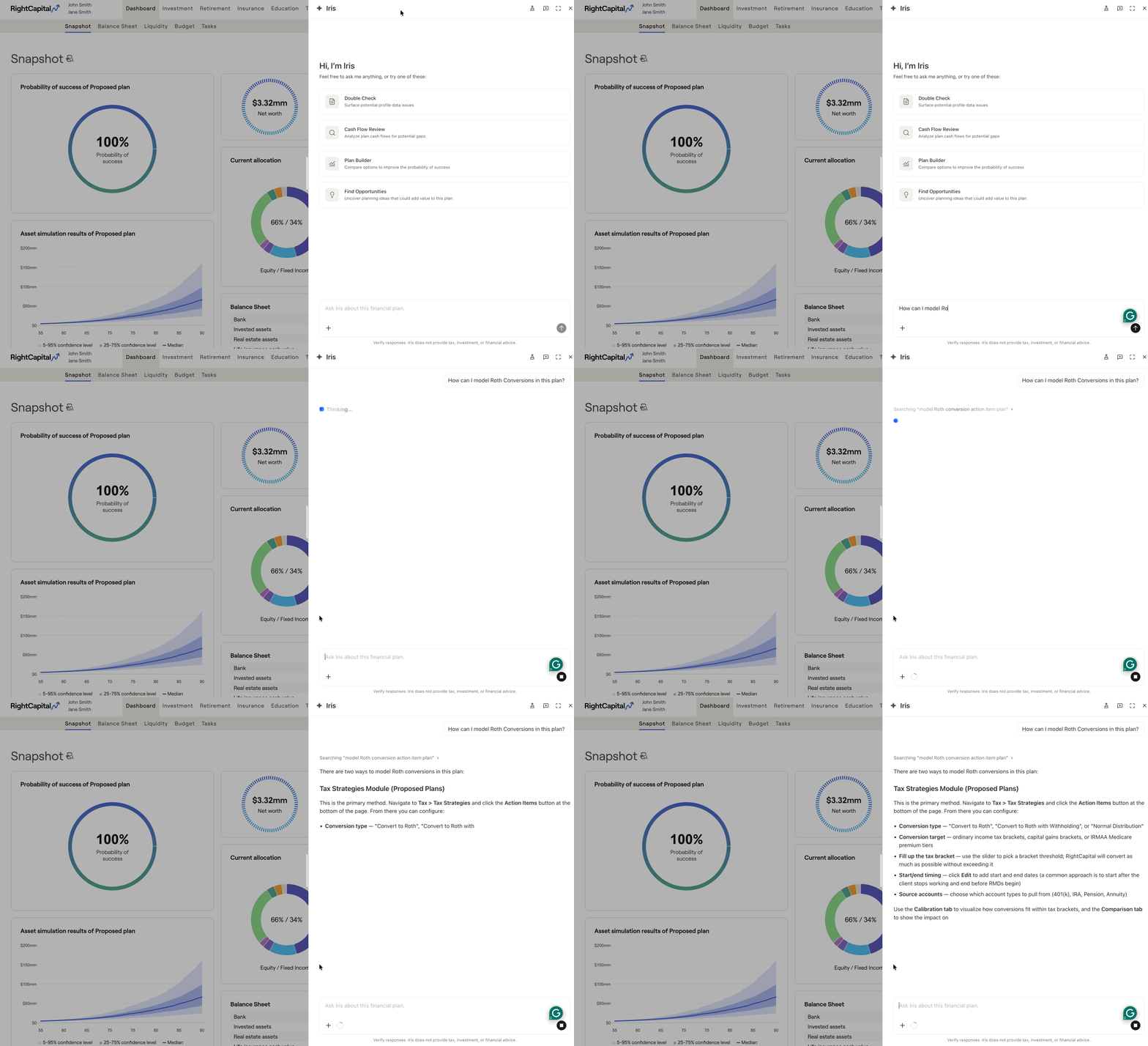
To ask Iris a question, you can use the chat box at the bottom of the screen. This will draw from the RightCapital Help Center and the financial plan to provide you the best possible answer to your question.
Iris can field a broad range of questions about the software, but will respond better to specific details. If you feel an answer does not sufficiently answer your question, providing more details will typically improve the answer's quality. The agent will also ask for clarifying details that can improve it's answer.
Chat History
Previous chats with Iris can be accessed by switching to fullscreen mode. To open Iris in fullscreen, select this icon in the top right of the window:

From here, you will be able to review/edit previous chats on the left hand side of the window. You can rename previous chats by selecting the three dot icon that appears when hovering over the chat title, and then selecting "rename". Alternatively, you can delete a previous chat by selecting "delete" in the same menu:
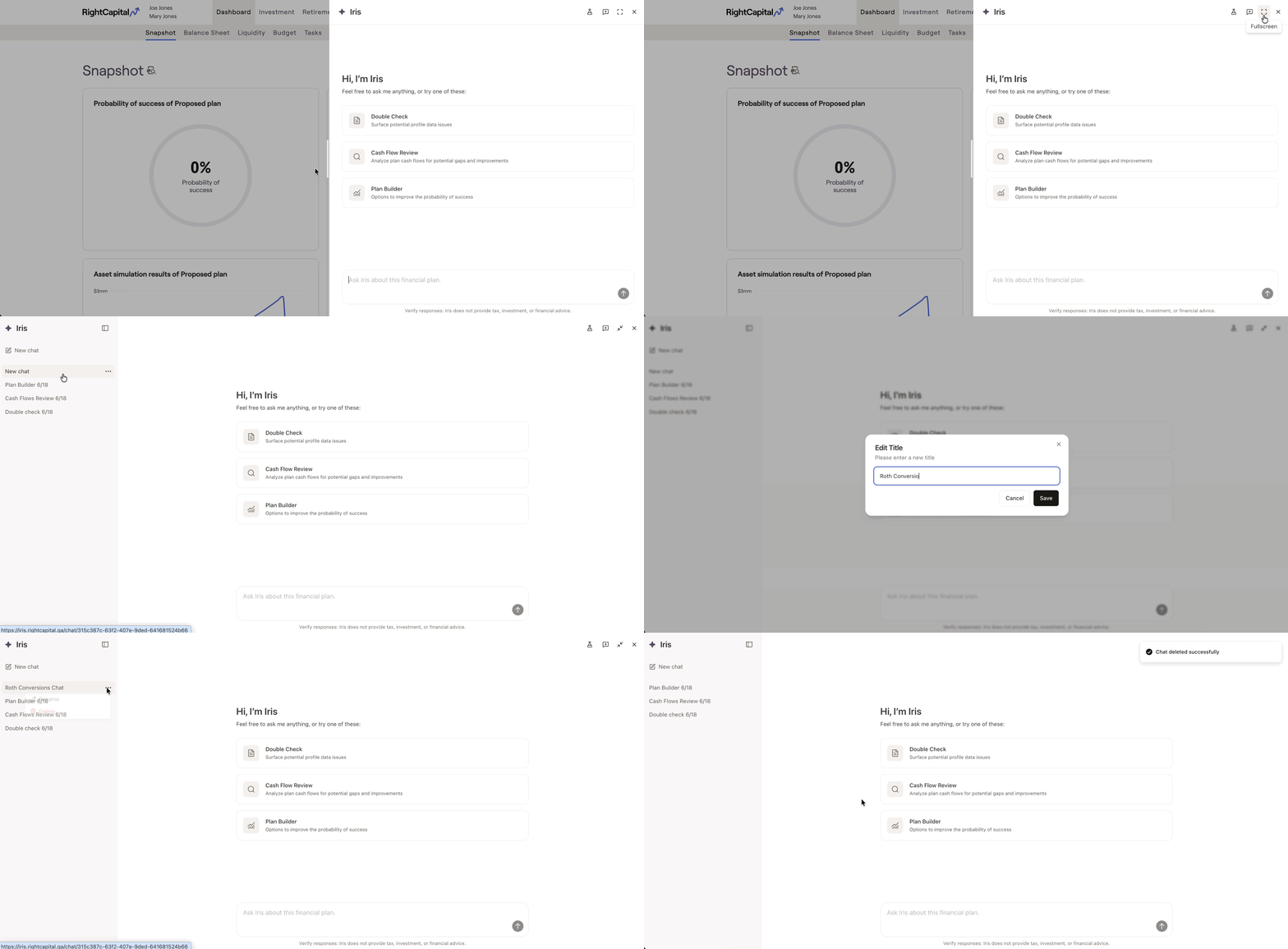
Chats will be saved per household. That way, you will not be overwhelmed by results from other plans when looking for a previous chat!
File Uploads
Iris can also analyze files to provide further assistance with the financial plan. Files can be uploaded in three different ways:

Drag a file into the Iris chat window from your computer.
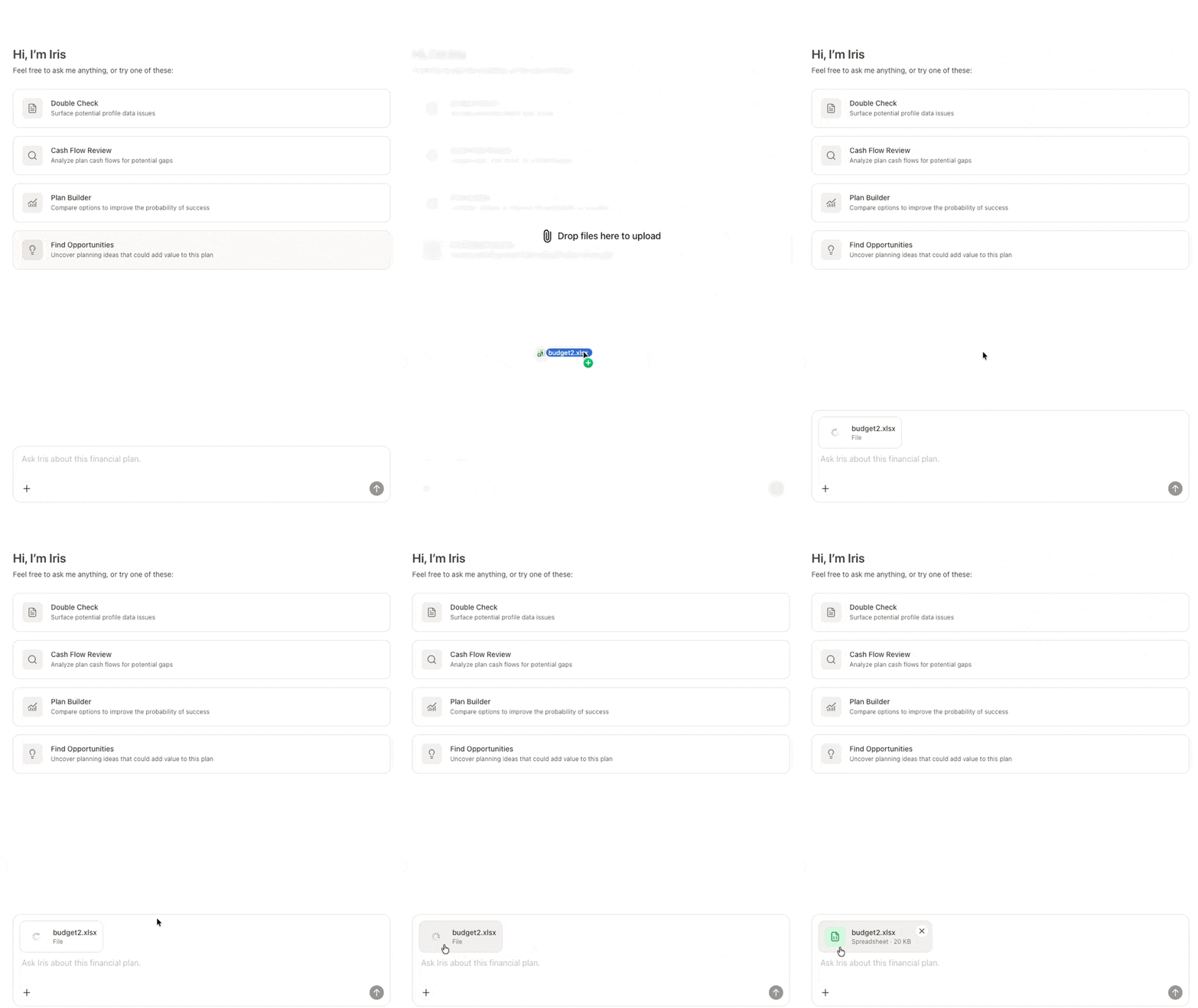
Paste a copied image from your clipboard into the Iris chat.

Ask Iris to retrieve a document that has already been uploaded to the vault.
Iris can handle up to 10 files at once and a total upload size of up to 20 MB. Only .pdf, .docx, .txt, .md, .xlsx, .csv, and common image formats are supported.
Iris can also access files in the Vault if requested, but cannot upload files to the Vault.


