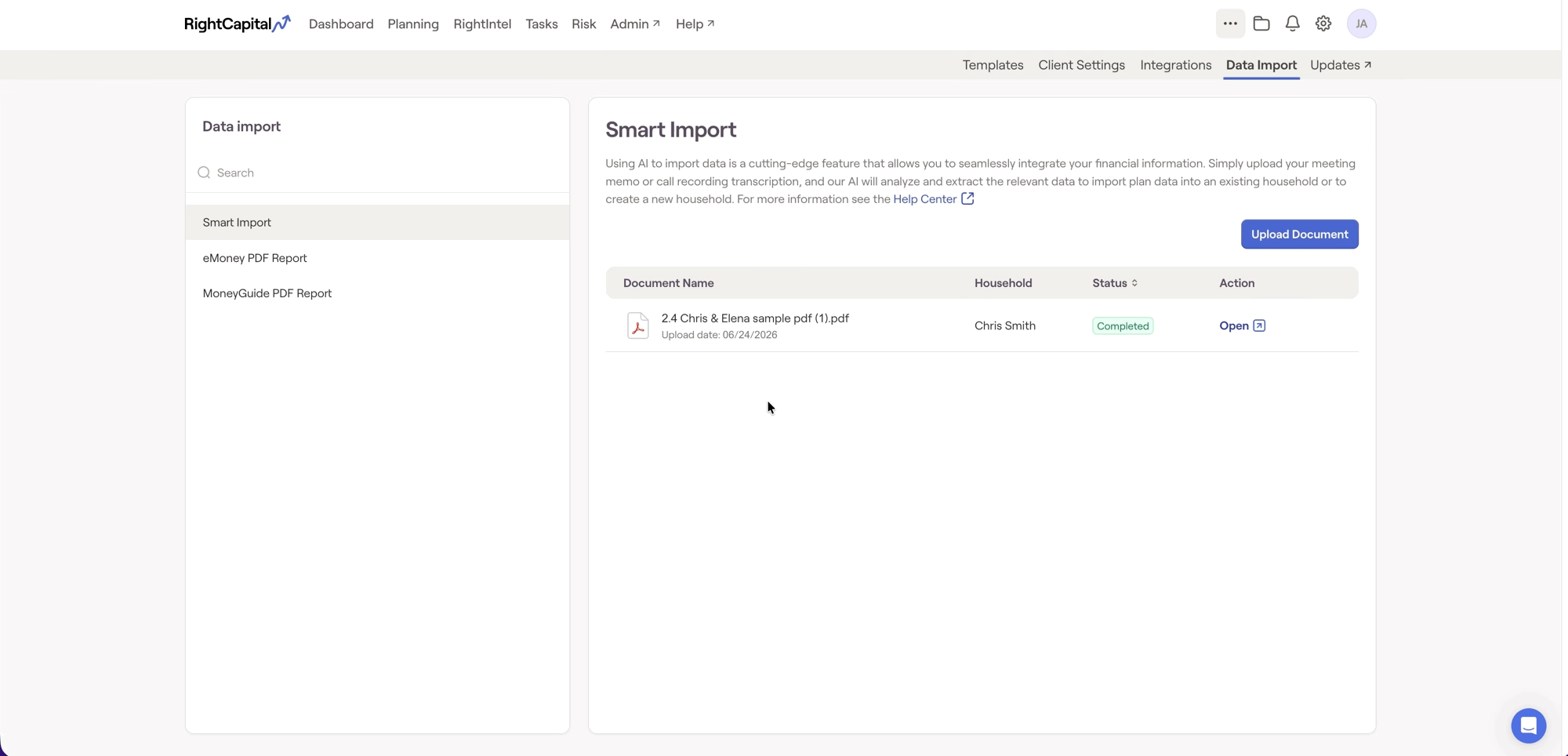
Expedite data entry and simplify planning with RightCapital's Smart Import feature. Smart Import allows you to upload documents such as client intake forms, meeting transcripts, plan summaries, and account statements, which are then scanned with the help of AI and imported into a new or existing plan automatically.
Getting Started
Uploading a Document
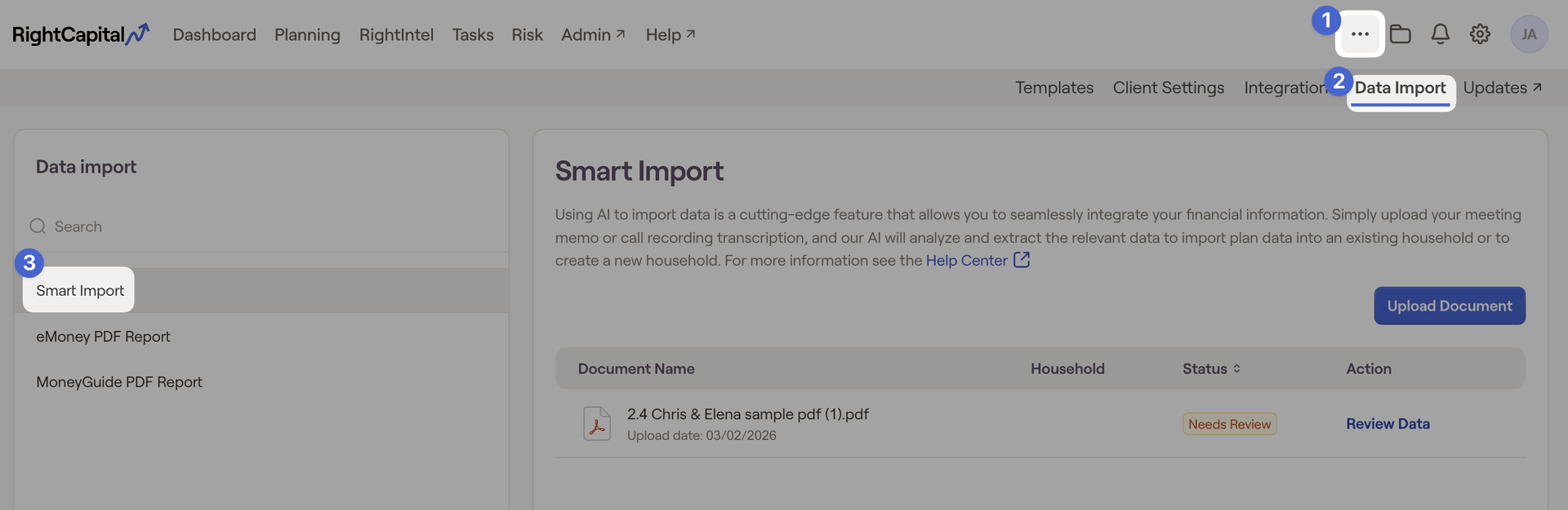
- New Household: Uploading to a new household will create a new plan. You will be asked to manually enter the clients before import.
- Existing Household: Uploading to an existing household will simply add the items to the plan. It will not overwrite any personal info or items already within the plan. (This excludes investment holdings, which will overwrite an existing account's holdings if selected)
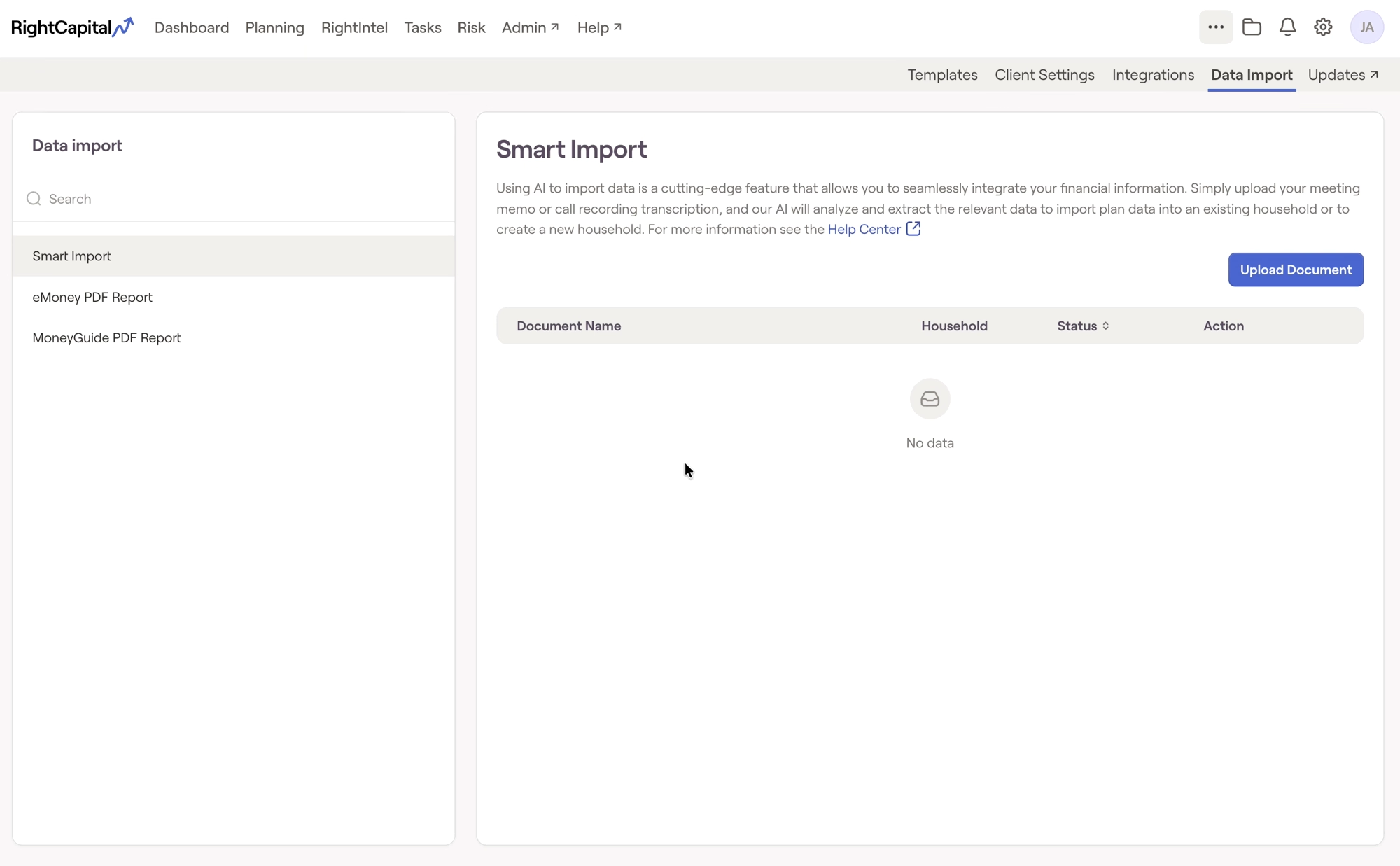
This will then initiate a scan of the file and begin parsing out plan details into the RightCapital plan format.
File Requirements
Before uploading, make sure your files meet the following requirements:
- Text or PDF only. Smart Import currently supports text and PDF files. Other file types are not accepted.
- Populated documents required. Files must contain relevant financial or planning data. Blank or unrelated documents will be unrecognized.
- One report per upload. Upload a single report at a time. If your report spans multiple pages, combine them into one file before uploading.
- Use high-quality files. For best results, upload a native digital file. If you're working from a scanned document, ensure it is clear and legible (300 DPI or higher recommended).
Supported Data
Smart Import can currently extract and import the following items from your uploaded documents:
Family
Income
Savings
Expenses
Goals
Net Worth: Bank, Loans, Investments, Properties, and Other Assets
Social Security Income
Stock Plans
Insurance
Business
Review Data
'Needs Review'
Once the upload is complete, the file will be labeled "Needs review". You can then review the data by clicking the "Review Data" option.
Select exactly which items should transfer to the full plan. Anything you would rather leave out can simply be left unchecked. Once you've made your selection, you can click "Import" in the bottom right corner of the screen. This will export the data into the new or existing household.
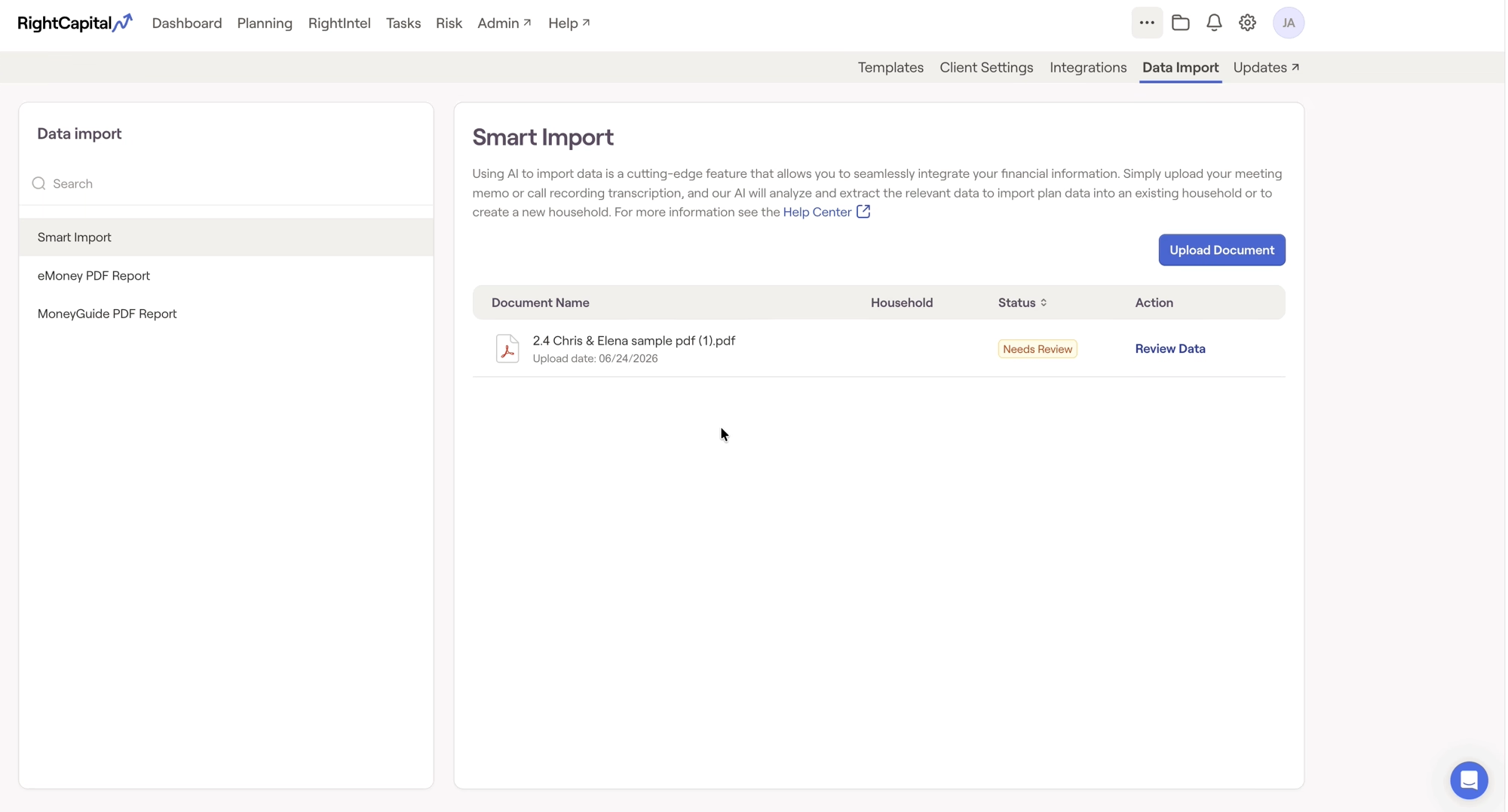
Launch Household