Overview
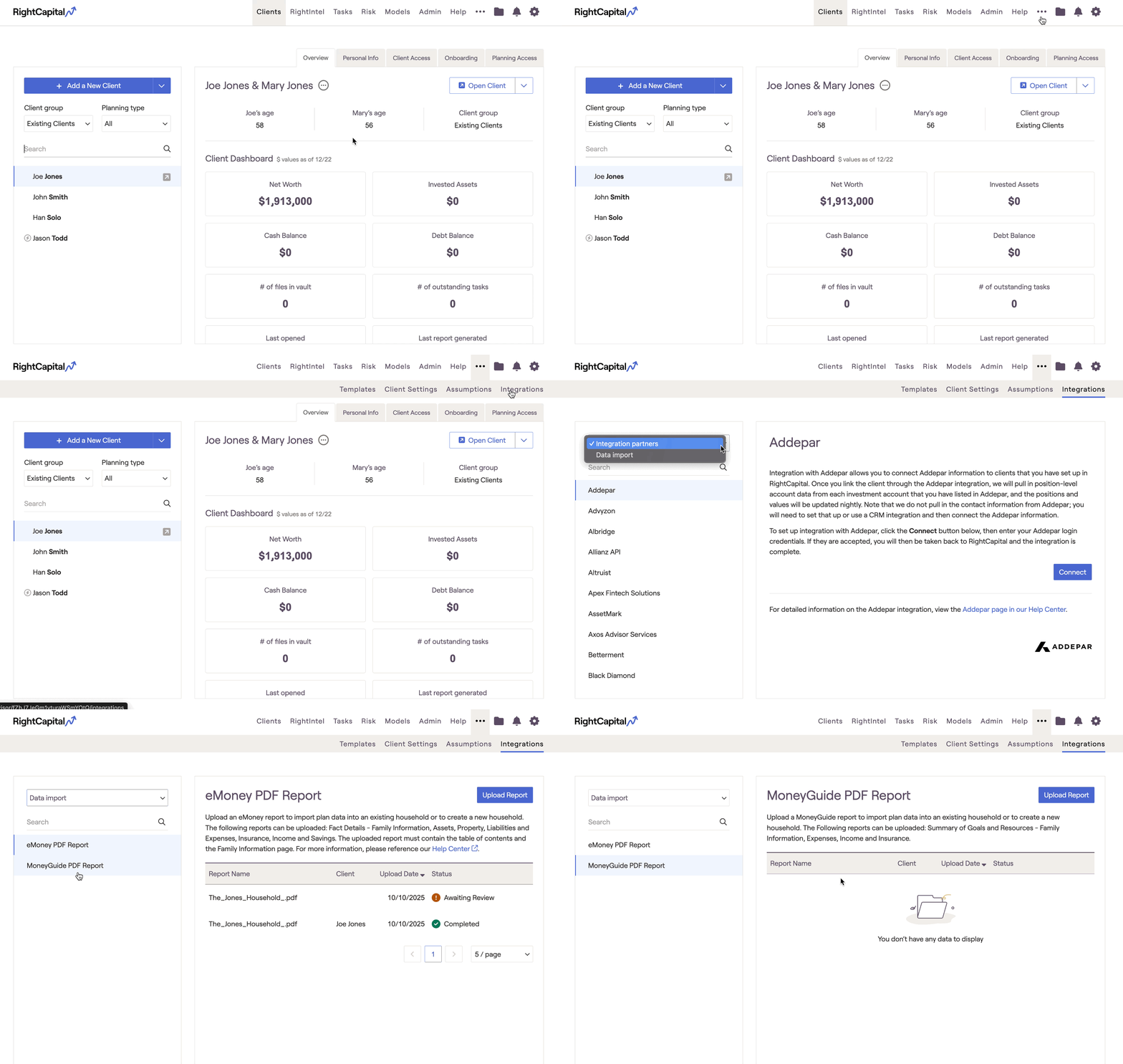
Getting Started
Uploading a Report
- New Household: Uploading to a new household will create a new plan.
- Existing Household: Uploading to an existing household will simply add the items to the plan. It will not overwrite any personal info or items already within the plan.
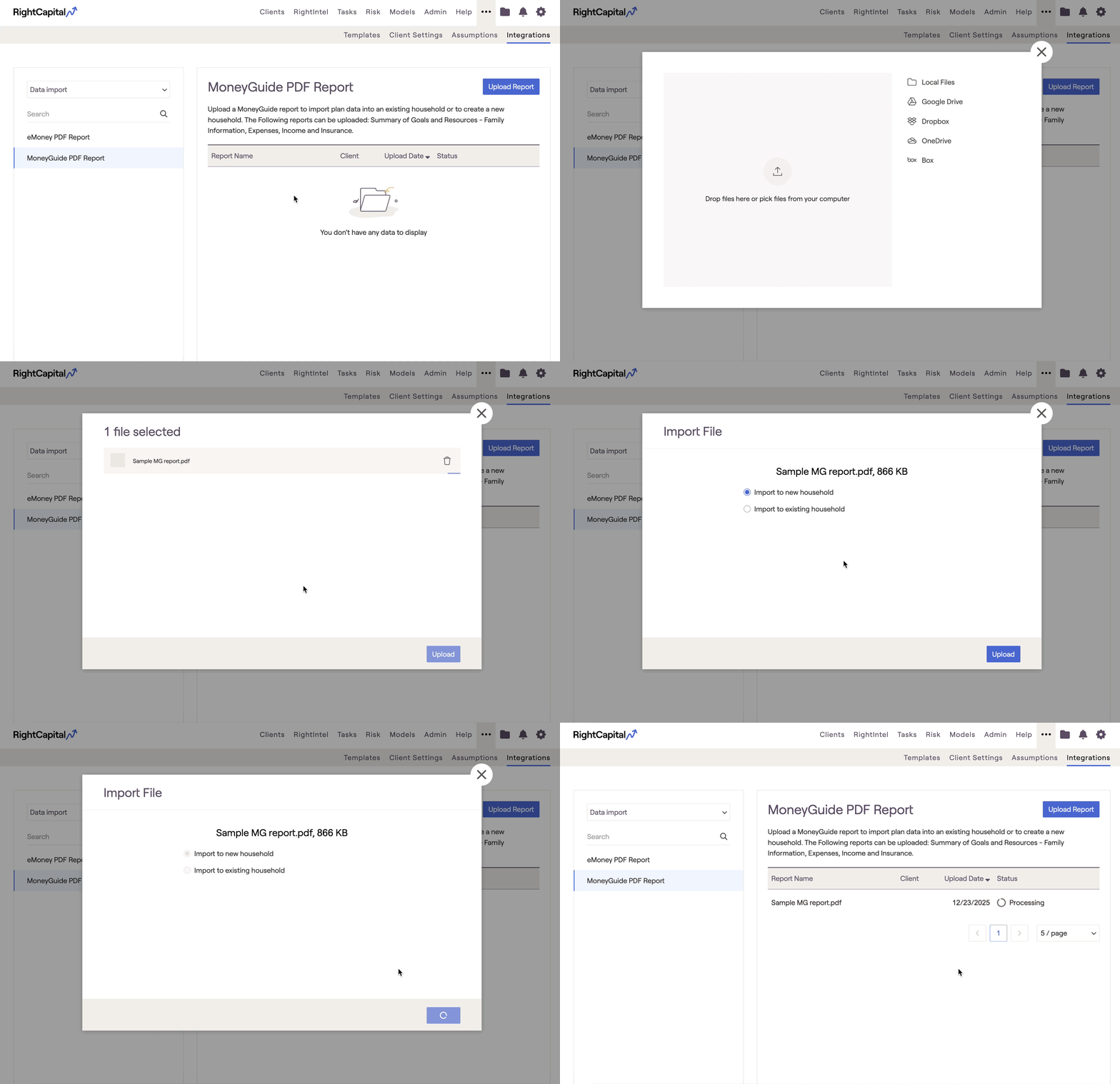
This will then initiate a scan of the file and begin parsing out plan details into the RightCapital plan format.
File Requirements
- Summary of Goals and Resources
- Personal Information
- Summary of Financial Goals and Resource Summary
Please be mindful of these additional requirements below when uploading reports:
- PDF Format Only. Other file types are not supported.
- Populated Reports Required. Only completed reports are accepted. Blank or unrelated files will be rejected.
- Only one report can be uploaded at a time. Please upload just one report at a time. If your report has multiple pages, make sure to combine them into a single PDF before uploading.
- Use High Quality Files. For best results, upload a digital PDF. If scanning, ensure the file is clear and legible (300 DPI or higher recommended).
Review Data
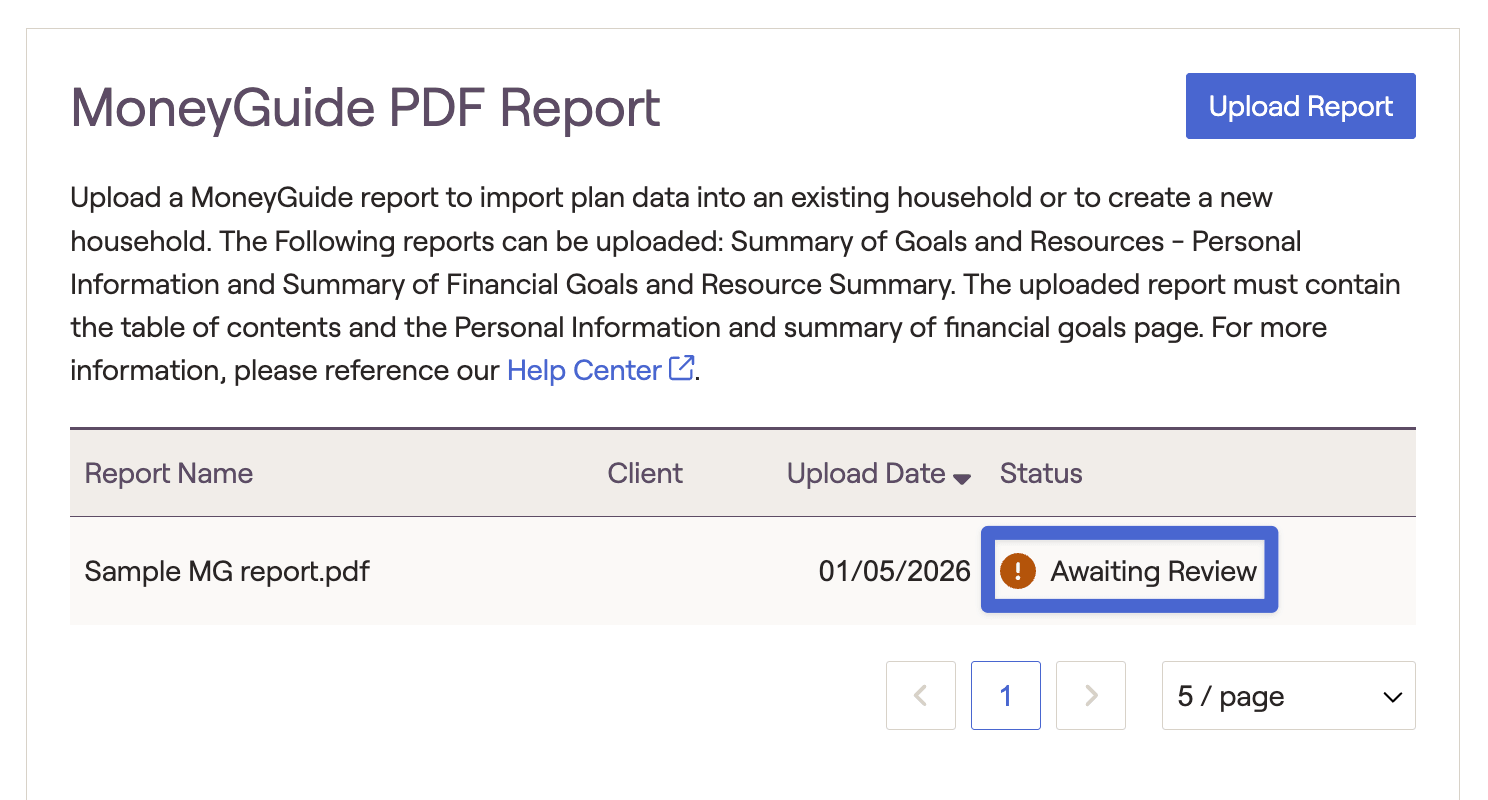
Once the upload is complete, you can review the data by clicking the "Awaiting Review" option.
Data Mapping
In the section that opens on the right-hand side, you will first need to confirm the data that is coming in from the MoneyGuide report. Certain items in MoneyGuide do not have a direct 1-to-1 option, or may be incorrectly categorized at first. On this page, you can confirm each item and ensure it is imported correctly:

'Awaiting Review'
In this next section, you can see how each card will appear in the plan based on the info collected:
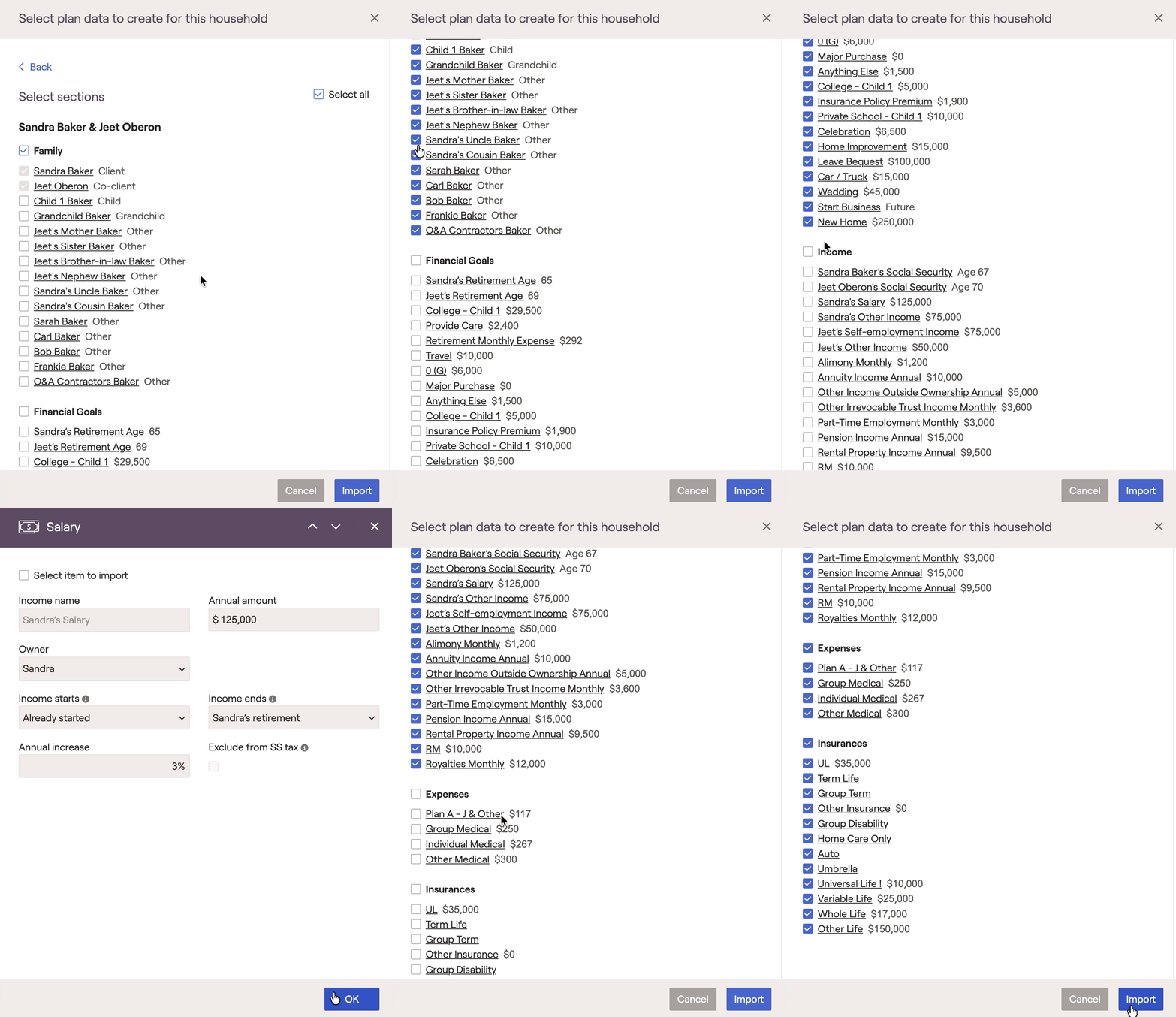
The data will be organized into the following categories:
Family
Financial Goals
Incomes
Expenses
Insurances
Launch Client Plan
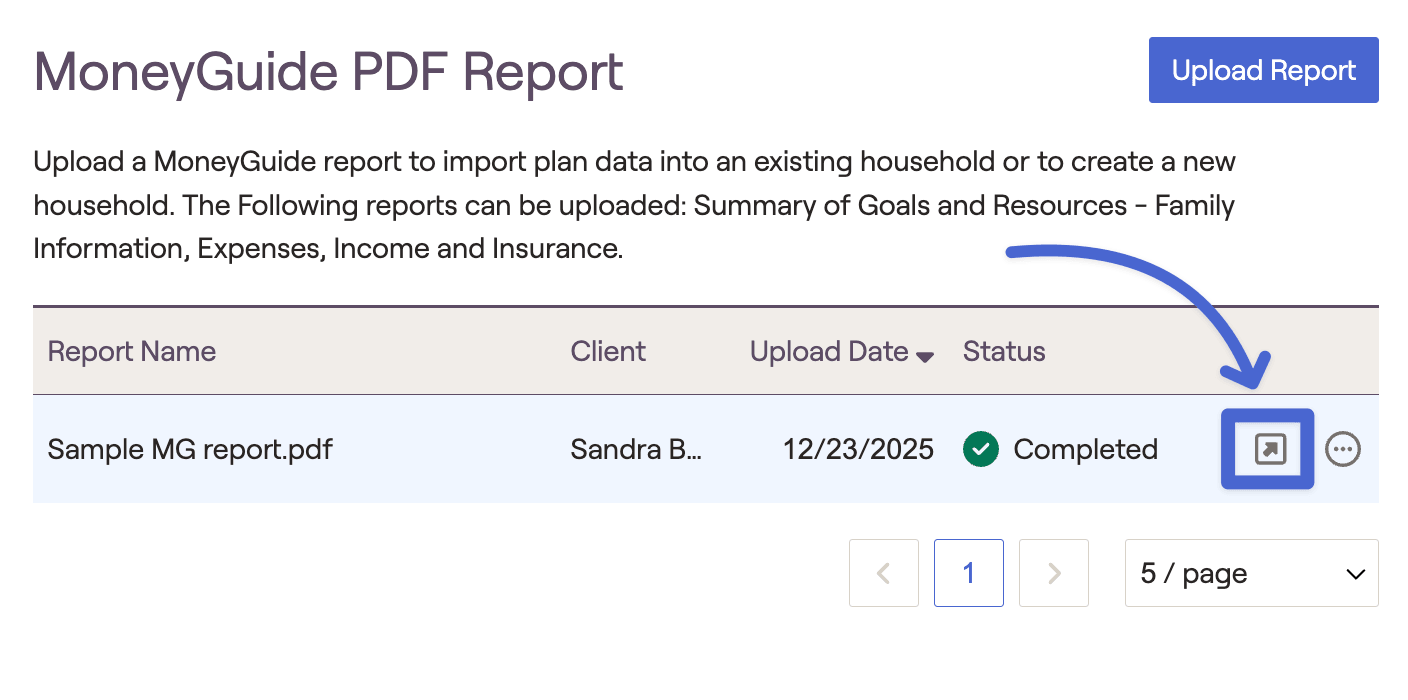
Once you've selected import, you can open the client plan and see the data that was transferred. You can also open the client plan from the data import screen by selecting this arrow option here: